
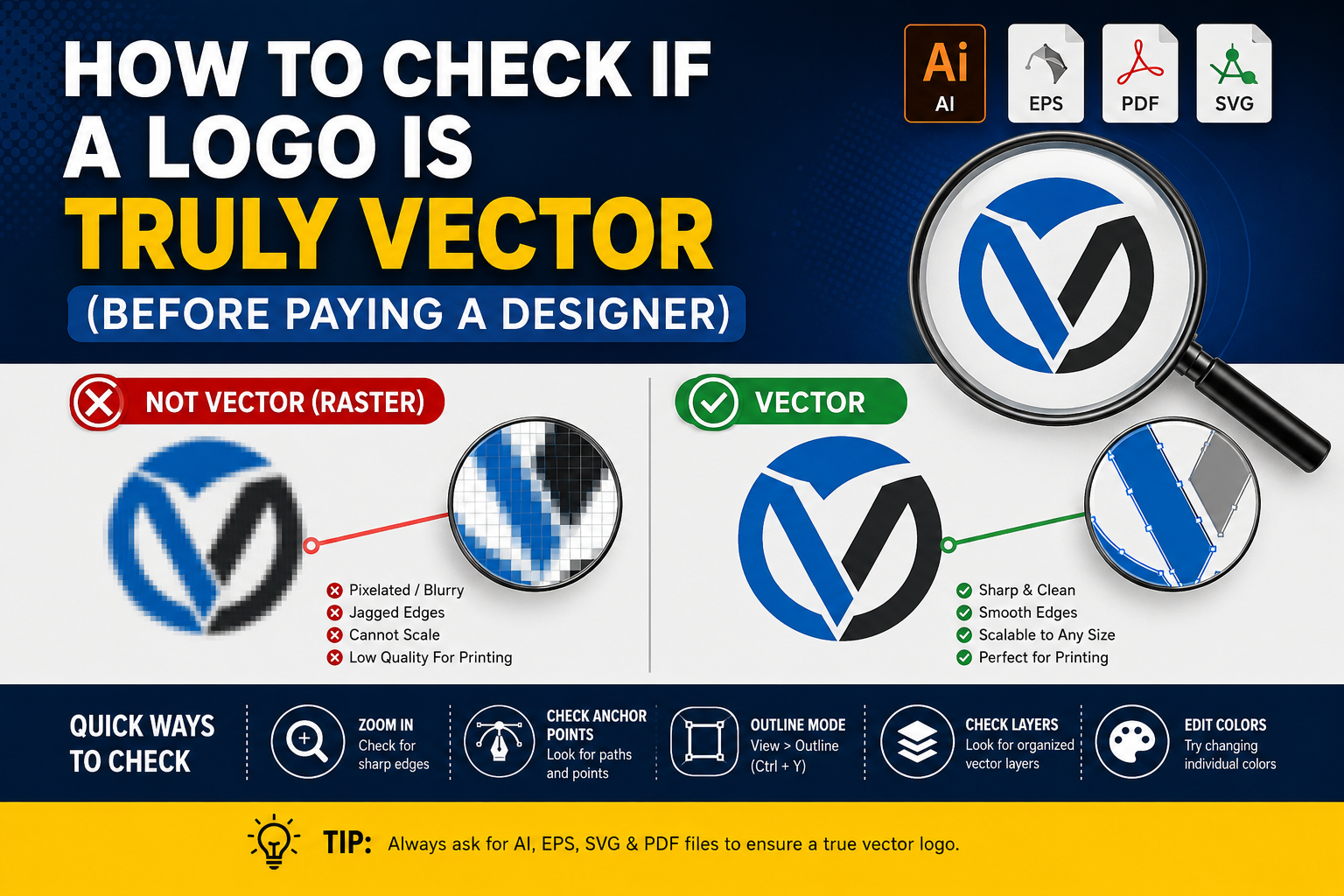
Many business owners, print shops, sign makers, apparel brands, and marketing agencies assume they already have a vector logo. Unfortunately, that assumption is often wrong.
How to check if a logo is truly vector is one of the most important questions business owners, print shops, apparel brands, and marketing agencies ask before investing in professional artwork. Many people assume they already have a vector logo, only to discover later that their file is actually a low-resolution raster image. This can lead to blurry prints, production delays, embroidery issues, and costly redesigns. In this guide, you’ll learn how to identify a true vector logo, verify AI, EPS, SVG, and PDF files, and ensure your artwork is ready for professional printing, branding, signage, and embroidery.
A designer may send a file named “logo.ai” or “logo.eps,” but the file itself may still contain nothing more than a low-resolution image placed inside a vector document. In other words, the file extension says “vector” but the artwork is still raster.
This mistake can lead to expensive problems.
You may discover the issue when:
- Printing large banners
- Producing embroidered apparel
- Creating vehicle wraps
- Manufacturing signage
- Ordering promotional products
- Preparing packaging artwork
At that point, your printer may reject the file, production may be delayed, and additional artwork costs may appear unexpectedly.
Knowing how to verify a vector logo before paying a designer can save both time and money.
In this guide, you’ll learn exactly how professionals identify true vector artwork and avoid fake vector files.
What Is a True Vector Logo?
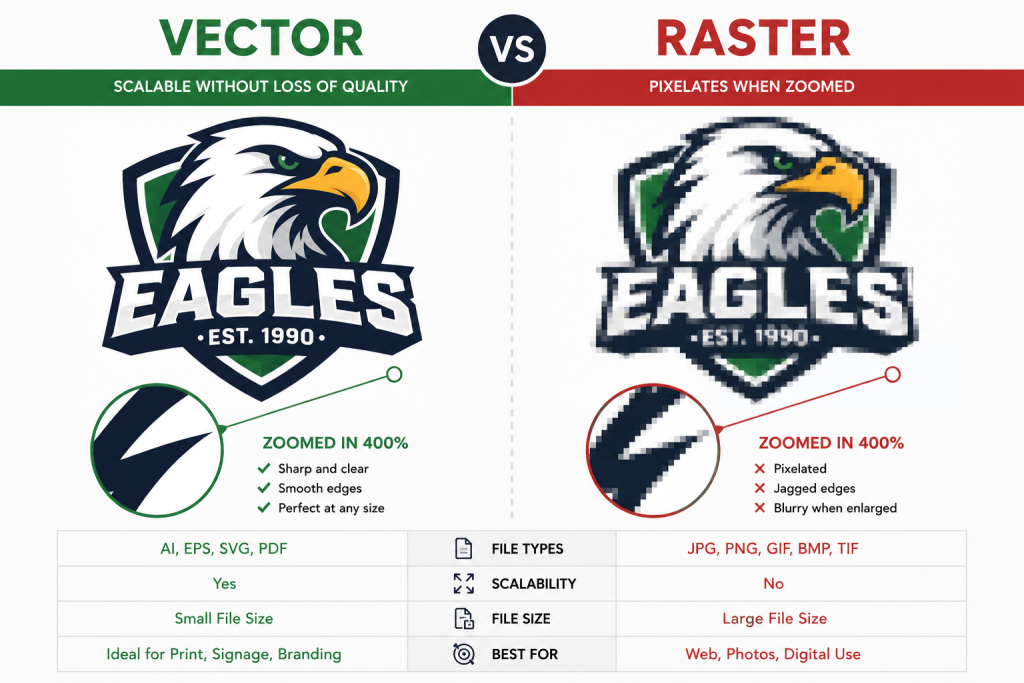
A vector logo is artwork built using mathematical paths rather than pixels.
Unlike JPG, PNG, GIF, or BMP files, vector graphics can be scaled infinitely without losing quality.
Common vector formats include:
- AI (Adobe Illustrator)
- EPS
- SVG
- PDF (when exported correctly)
A true vector logo remains perfectly sharp whether it is:
- 1 inch wide
- 10 feet wide
- Printed on a business card
- Applied to a billboard
This scalability is why professional printers, sign companies, embroidery digitizers, and branding agencies prefer vector artwork.
Why So Many People Think They Have a Vector Logo
One of the biggest misconceptions in graphic design is believing that a file extension automatically determines file quality.
For example:
- logo.ai
- logo.eps
- logo.pdf
These files can still contain raster images.
A designer can simply place a PNG or JPG inside Adobe Illustrator and save it as an AI file.
The file extension changes.
The artwork quality does not.
This is one of the most common problems encountered by print shops worldwide.
Method 1: Zoom In Extremely Close
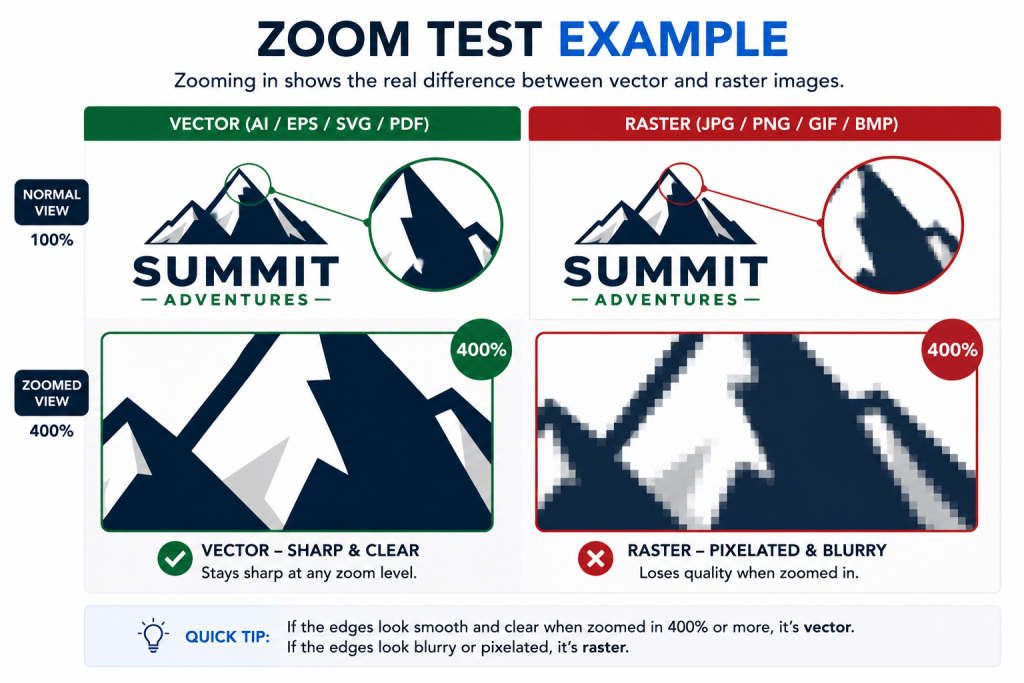
The fastest way to identify a vector logo is by zooming in.
Open the artwork and zoom in to:
- 800%
- 1600%
- 3200%
- 6400%
Then inspect edges carefully.
If the Logo Is Raster
You will see:
- Pixelated edges
- Blurry curves
- Jagged outlines
- Soft transitions
If the Logo Is Truly Vector
You will see:
- Perfectly smooth curves
- Sharp edges
- Clean corners
- No visible pixels
This simple test reveals most fake vector files within seconds.
Method 2: Check for Anchor Points
Professional vector artwork is built from anchor points and paths.
Open the file in Adobe Illustrator and use the Direct Selection Tool.
Click on the artwork.
True Vector Artwork
You should see:
- Anchor points
- Bézier handles
- Editable paths
- Individual shapes
Fake Vector Artwork
You will see:
- A single image box
- No anchor points
- No editable paths
- No shape structure
If no paths exist, the logo is not truly vector.
Method 3: Switch to Outline Mode
This is one of the best professional techniques.
View → Outline
or
Ctrl + Y
Outline mode removes fills and displays only vector paths.
What You Should See
A genuine vector logo reveals:
- Paths
- Curves
- Shapes
- Construction lines
Warning Sign
If your logo disappears completely or shows only a rectangular box, it is likely a raster image embedded inside the file.
This test instantly exposes fake vector files.
Method 4: Check File Size Versus Complexity
Many people assume larger files are better. That is not always true.
A simple logo created as a true vector may only be a few hundred kilobytes, while a low-quality raster image embedded in an AI file can be several megabytes.
Signs of a True Vector File
- Small to moderate file size
- Clean structure
- Editable elements
- No embedded pixel images
Signs of a Raster-Based File
- Very large file size
- Embedded image links
- Single image object
- Limited editability
File size alone is not proof, but it can provide useful clues.
| File Format | Vector or Raster | Best Use |
|---|---|---|
| AI | Vector | Professional Logo Design |
| EPS | Vector | Printing & Signage |
| SVG | Vector | Websites & Apps |
| Usually Vector | Printing & Sharing | |
| PNG | Raster | Web Graphics |
| JPG | Raster | Photos |
| GIF | Raster | Simple Web Images |
| BMP | Raster | Windows Graphics |
Method 5: Try Changing Colors
A true vector logo allows individual elements to be edited.
Open the file in Adobe Illustrator.
Select one shape.
Change its color.
If the Logo Is Truly Vector
You can:
- Edit individual objects
- Modify strokes
- Change fills
- Adjust shapes
If the Logo Is Raster
The entire image behaves as one object.
You cannot independently edit logo components.
This is another fast way to verify vector artwork.
Method 6: Look for Layer Structure
Professional vector files are usually organized.
Open the Layers Panel.
A genuine vector logo often contains:
- Separate text objects
- Separate icon elements
- Organized groups
- Editable paths
Poor-quality artwork often contains:
- One flattened image
- One raster layer
- No editable structure
Professional designers understand the importance of organized files because printers and future designers may need to modify the artwork later.
Method 7: Ask for Source Files
One of the easiest ways to verify vector artwork is to request original source files.
Professional designers should typically provide:
- AI
- EPS
- SVG
If a designer only provides:
- JPG
- PNG
- WebP
the logo may not exist in true vector format.
Always request editable source files when purchasing logo design services.
Method 8: Open the SVG File
SVG is one of the most reliable vector formats.
A genuine SVG file should:
- Scale infinitely
- Remain sharp at all zoom levels
- Contain editable vector paths
If an SVG becomes blurry when enlarged, something is wrong.
Many fake SVG files are simply raster images wrapped inside an SVG container.
Method 9: Perform the Billboard Test
Professional printers often use a simple concept known as the Billboard Test.
Ask yourself:
Can this logo be printed at 20 feet wide without losing quality?
True Vector Logo
- Infinite scalability
- Perfect sharpness
- No pixelation
Raster Logo
- Visible pixels
- Blurry edges
- Poor print quality
If the logo cannot survive extreme enlargement, it is not suitable for professional production.
Method 10: Ask Your Printer
Professional print shops examine artwork every day.
Most printers can identify file problems within minutes.
Ask them:
- Is this file vector?
- Is it print-ready?
- Can it be enlarged?
- Will it reproduce accurately?
Experienced printers often catch issues that business owners miss.
Common Signs That Your Logo Is NOT Truly Vector
Watch for these warning signs:
Red Flag #1: Only PNG Files Exist
If your logo exists only as a PNG file, it is almost certainly raster.
Red Flag #2: Blurry Edges
Zooming reveals pixels and soft edges.
Red Flag #3: No Editable Paths
Illustrator cannot reveal anchor points.
Red Flag #4: Designer Refuses Source Files
Professional designers normally provide source files unless agreed otherwise.
Red Flag #5: Auto-Traced Artwork
Auto-tracing often creates:
- Excess anchor points
- Rough curves
- Poor shape quality
The Difference Between Manual Vector Conversion and Auto Trace
Many low-cost services rely on automatic tracing software.
While auto trace may look acceptable at first glance, it often creates technical problems.
Auto Trace Problems
- Hundreds of unnecessary anchor points
- Uneven curves
- Broken corners
- Distorted typography
- Poor embroidery results
- Difficult editing
Manual Vector Conversion Benefits
- Clean anchor points
- Smooth curves
- Accurate geometry
- Better print quality
- Better scalability
- Easier future editing
Professional vector artists manually rebuild artwork instead of relying solely on automated tracing tools.
Why True Vector Files Matter
A genuine vector logo is essential for:
Business Cards
Small text remains sharp.
Large Banners
Graphics stay crisp at large sizes.
Vehicle Wraps
Clean reproduction across large surfaces.
Embroidery
Accurate digitizing process.
Signage
Professional appearance at any scale.
Packaging
Precise production results.
Without vector artwork, production quality suffers.
Professional Vector File Checklist
Before approving a logo project, make sure you receive:
✅ AI File
✅ EPS File
✅ SVG File
✅ Print-Ready PDF
✅ Transparent PNG
✅ Black Version
✅ White Version
✅ Full Color Version
✅ Editable Source Files
✅ Outlined Fonts
✅ CMYK Version
✅ RGB Version
This package ensures your logo is ready for virtually any future use.
Frequently Asked Questions
How can I tell if my logo is vector?
Zoom in significantly. If edges remain perfectly sharp and Illustrator displays editable anchor points, the logo is likely vector.
Is a PDF always a vector file?
No.
A PDF can contain either vector artwork or raster images. The file extension alone does not guarantee vector quality.
Is SVG better than PNG?
For scalability, yes.
SVG files can be enlarged infinitely without quality loss, while PNG files eventually become pixelated.
Can a JPG be converted into a vector?
Yes.
A professional designer can manually redraw the artwork and create true vector files such as AI, EPS, SVG, and PDF.
Why do printers request EPS or AI files?
Because these formats preserve vector paths and allow artwork to scale without losing quality.
Can I print a PNG logo?
Small prints may work.
However, large-format printing, signage, embroidery, and professional production typically require vector artwork.
Final Thoughts
Knowing how to check if a logo is truly vector can save significant time, money, and frustration.
Never assume a file is vector simply because it has an AI, EPS, SVG, or PDF extension. Always verify the artwork itself by checking anchor points, using Outline Mode, zooming in, and inspecting the file structure.
A genuine vector logo is an investment that supports every future branding need—from business cards and packaging to embroidery, signage, and large-format printing.
If your current logo exists only as a JPG, PNG, or low-resolution image, professional manual vector conversion can transform it into clean, scalable, production-ready artwork that performs flawlessly across all applications.
Not Sure If Your Logo Is Truly Vector?
Upload your logo and we’ll check it manually.
✅ Free File Review
✅ Fast Response
✅ AI, EPS, SVG & PDF Support
