
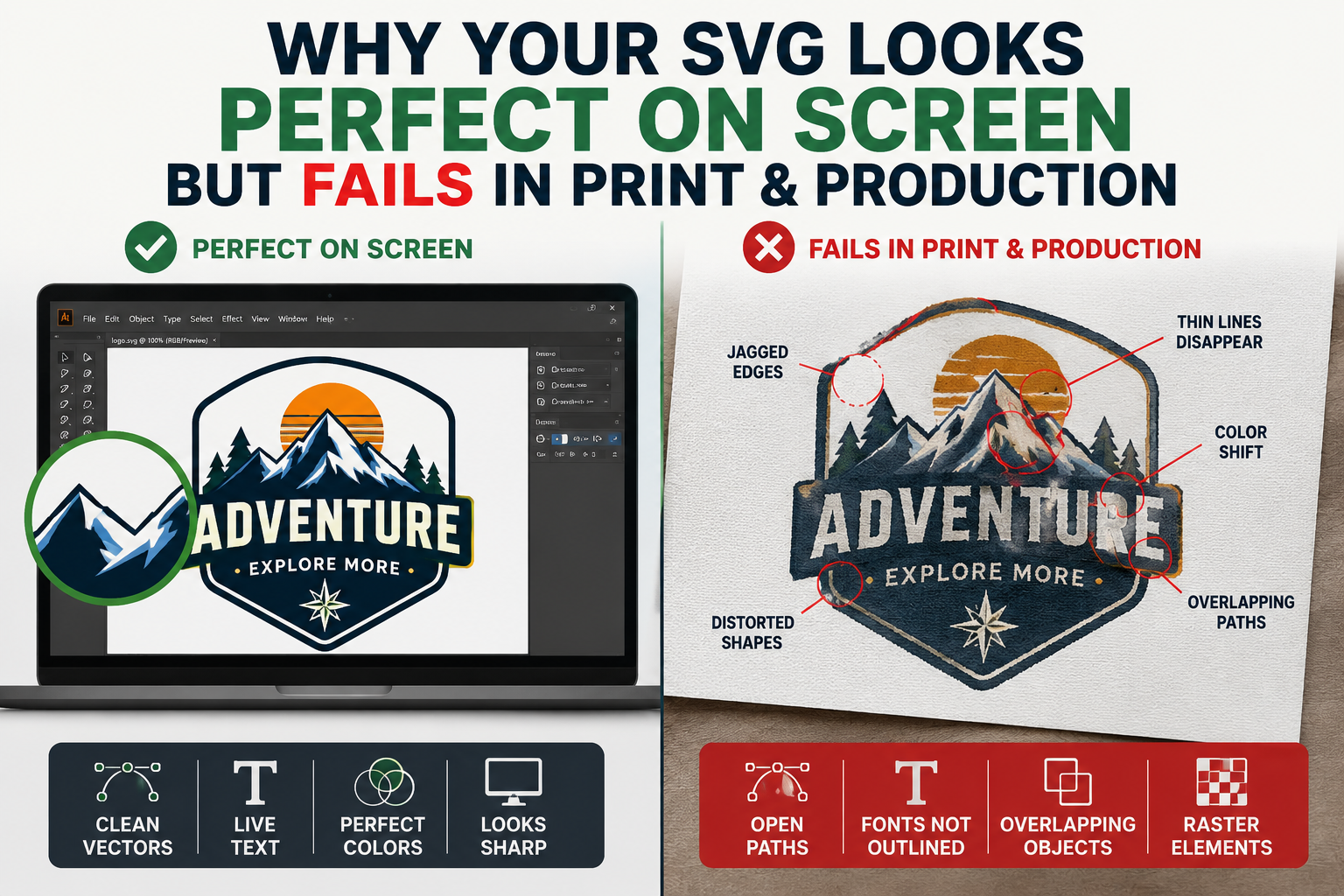
SVG fails in print production far more often than most designers expect — and the frustrating part is that the file can look completely fine on screen. Perfect colors. Clean edges. Sharp at every zoom level. You export it, send it to a print shop, vinyl cutter, or sign maker, and it comes back rejected. Or worse, it goes into production and the final result looks nothing like what you designed.
You export a logo. You send it to a developer. It breaks. Or worse: you send a print file and it comes back with incorrect colors, missing fonts, or rasterized elements. The issue usually isn’t the design itself. It’s the file format.
SVG is a brilliant format for the web. It is the right choice for website logos, icons, and digital graphics that need to be sharp on retina displays and lightweight in a browser. But SVG was built for screens, not for print workflows. The assumptions baked into SVG — RGB color, pixel-based dimensions, font rendering through browser engines — are fundamentally incompatible with what professional print and production environments require.
This guide covers every reason SVG fails in print and production, and exactly what to do about each one.
SVG on screen vs in production — what works and what fails
| Factor | On screen (SVG) | In production | SVG safe? |
|---|---|---|---|
| Color mode | RGB — looks vivid on any screen | Print requires CMYK — RGB converts unpredictably, colors shift on press | Fails |
| Fonts and text | Browser renders whatever font is installed on the viewer’s system | Missing fonts substitute silently — design changes without any warning | Fails |
| Dimensions | Pixel-based — looks correct at any screen size | Print needs mm or inches — pixel files have no defined physical size | Fails |
| Bleed and crop marks | Not needed on screen | SVG has no bleed support — print shop rejects the file or finished piece has white borders | Fails |
| ICC color profiles | Screen renders without needing a profile | SVG cannot embed ICC profiles — no color consistency guarantee across different presses | Fails |
| Path quality | Looks smooth at 100% zoom on screen | AI and auto-trace SVGs have hundreds of excess anchor points — jagged and rough at print scale | Risk |
| Application rendering | Browser renders SVG consistently | Different production apps render SVG differently — output may vary from what you see on screen | Risk |
| Web use | SVG is the ideal format — sharp, lightweight, and scalable on every screen | Perfect for websites, apps, email, and all digital use cases | Works |
| Laser engraving | SVG paths work natively in LightBurn and most laser engraving software | Works when paths are clean, text is outlined, and operation colors are correctly assigned | Works |
| Craft cutting | SVG is the native format for Cricut, Silhouette, and desktop cutters | Works well for desktop cutting machines when vector paths are properly structured | Works |
SVG Was Designed for Screens, Not Print
The most important thing to understand about SVG is what it was designed to do. SVG — Scalable Vector Graphics — is a W3C web standard. It was created to deliver resolution-independent graphics in web browsers. The entire format is built around the assumptions of screen rendering: RGB color space, pixel-based coordinates, font rendering through system typefaces, and visual output through a browser engine.
SVG for digital, PDF for print — this is the fundamental rule for vector format selection.
Professional print workflows operate on entirely different assumptions. Print uses CMYK color (not RGB). Print uses physical dimensions — millimeters or inches — not pixels. Print requires fonts to be embedded or outlined so they render consistently regardless of what typefaces are installed on the receiving system. Print requires bleed and crop marks. Print requires color profiles that match the specific press or printing process being used.
SVG lacks CMYK color support, bleed and crop marks, and embedded fonts — all critical for professional printing.
When an SVG file enters a professional print workflow, the prepress software has to bridge a gap between what SVG was designed for and what print requires. Sometimes it bridges that gap successfully. Often it does not — and the failure shows up as color shifts, missing elements, wrong dimensions, or rendering errors that were completely invisible on screen.
Problem 1: SVG Uses RGB — Print Requires CMYK
This is the single most common reason SVG fails in print production, and it is entirely invisible on screen.
RGB is an additive color model used for light-emitting screens. It creates colors by combining red, green, and blue light at varying intensities. The color gamut of RGB — the range of colors it can represent — is significantly wider than what ink on paper can reproduce.
CMYK is the subtractive color model used in commercial printing. Ink absorbs light rather than emitting it, and colors are created by layering cyan, magenta, yellow, and black ink on a white substrate. The CMYK gamut is smaller than RGB, and certain RGB colors — particularly vivid greens, bright blues, and saturated oranges — simply cannot be reproduced faithfully in CMYK.
SVG lacks CMYK color support — a critical requirement for professional printing. SVG color values default to RGB. When sent directly to a printer or converted to PDF for print, the conversion from RGB to CMYK is performed automatically by the software or by the print shop’s prepress system.
The automatic conversion is the problem. Different software converts RGB to CMYK differently, and none of them know what the original design intent was. A specific brand blue that looks perfect on screen may convert to a noticeably duller, slightly purple-tinged blue in CMYK. Your brand green may shift toward olive. Colors that look identical on screen may print noticeably differently.
The fix: Do not send SVG files to commercial print shops. Convert your artwork to EPS or PDF with proper CMYK color values before submitting. If your original SVG was designed for a brand with specific Pantone color requirements, the conversion needs to be done intentionally by someone who knows the target CMYK values — not automatically by software that guesses.
Problem 2: SVG Fonts Are Not Embedded — Text Breaks on Other Systems
Typography is one of the most reliable ways SVG fails in production. The problem is almost identical to the font issue that affects any vector file with live text, but it is particularly acute for SVG because of how the format handles fonts.
SVG can reference system fonts by name — it tells the browser or application to render text in “Helvetica” or “Montserrat” or any other font. On your computer, where those fonts are installed, the SVG renders perfectly. On a print shop’s prepress computer, or in a production application, where those fonts may not be installed, SVG either substitutes a default font or drops the text entirely.
Some of the most common SVG export problems include missing fonts, extra hidden shapes, and messy grouping.
The result is a design that looked perfect on your screen rendered with Arial substituted for your brand typeface, or with text missing entirely — and often the problem is not caught until after the job is in production.
The fix: Convert all text to outlines before saving or exporting the SVG. In Adobe Illustrator, select all text elements, then use Type → Create Outlines to convert every letter to a fixed vector shape. In Inkscape, use Path → Object to Path. Once text is outlined, it renders identically on any system regardless of what fonts are installed. This is not optional for any file going to professional production.
Problem 3: SVG Dimensions Are in Pixels — Print Needs Physical Units
Your print file might be 512px wide, not 210×297 mm (A4) or whatever you expect. Printers are picky and SVGs, PDFs or AI files can hide issues you don’t notice until the print machine fails.
SVG files define their dimensions in pixels by default. A logo SVG that is 500 pixels wide does not have a defined physical size. When a print shop opens that file, their software has to make an assumption about what physical size 500 pixels corresponds to — and that assumption may be very different from what you intended.
At 72 DPI, 500 pixels is about 17.6 cm. At 96 DPI — the standard screen resolution — 500 pixels is about 13.2 cm. At 300 DPI — a standard print resolution — 500 pixels is about 4.2 cm. The same file with no physical dimensions specified could be interpreted as anything from a postage stamp to a poster, depending on what the receiving system assumes.
The fix: Always specify physical dimensions in your SVG — set the width and height attributes using millimeters or inches, not pixels. In Illustrator, set up your document in the correct physical dimensions before creating your artwork. When exporting SVG for production, verify that the exported file contains physical unit dimensions, not pixel values.
Problem 4: SVG Does Not Support Bleed and Crop Marks
Professional print production requires bleed — artwork that extends beyond the final trim edge to prevent white borders appearing if the cut is slightly off-register. The industry standard bleed is 3mm (0.125 inches) beyond the trim edge on all sides.
SVG has no native concept of bleed or crop marks. The format defines a viewport — the visible area — but has no mechanism for specifying that artwork should extend beyond the final trim edge, or where the trim should occur.
SVG lacks bleed and crop marks — critical for professional printing.
When a print shop receives an SVG without bleed, they either reject it and ask for a corrected file, or they pad the artwork — which may introduce white borders or distort the design’s proportions.
The fix: Do not use SVG for print submissions. Export to PDF with bleed marks added, or use EPS with the artwork extended to the correct bleed dimensions. If you must work from an SVG source, open it in Illustrator, add the required bleed, and export as a print-ready PDF with crop marks.
Problem 5: AI-Generated and Auto-Traced SVGs Have Catastrophic Path Problems
I spent three hours last week cleaning up an SVG that an AI generated in four seconds. The logo looked fine at 100% zoom. The curves seemed smooth. The colors were right. But when I zoomed in to 300% — which any print shop will do — I found 847 anchor points on a shape that needed 124. The “circle” was actually a wobbly polygon with 47 vertices. And the text? The AI hadn’t created a text element at all. It had traced the letterforms as distorted paths, mangling every serif along the way.
This is one of the most significant hidden problems in 2026. AI logo generators, auto-trace tools, and low-quality vectorization services produce SVG files that look acceptable on screen but are structurally disastrous for production use.
Until AI models can see what they draw — until they understand that a circle has one center and one radius, not 47 vertices — designers who know how to use the pen tool aren’t going anywhere. The next time you open an AI-generated SVG and find 847 anchor points where 124 would do the job, you’ll know exactly why.
The specific problems that AI-generated and auto-traced SVGs typically contain:
Excessive anchor points. A professionally redrawn circle has four anchor points. An auto-traced or AI-generated circle may have 47 or more, creating a polygon that merely approximates a circle. This causes jagged edges at scale and makes the file unusable for precision production.
Fragmented paths. A single logical shape — like a line or polygon — is often broken into multiple separate path elements by AI vector generators. This fragmentation increases file size and makes editing tedious, as you must manipulate several pieces instead of one.
Mangled typography. AI tools typically trace letterforms as distorted paths rather than using proper font data or clean outlines. The results look roughly correct at normal viewing size and completely wrong under production scrutiny.
Embedded raster images. SVGs shouldn’t contain embedded raster images for cutting purposes. Open in Inkscape, look for image objects — they’ll appear pixelated when zoomed — and delete them. Keep only vector paths. Some AI tools produce SVGs that are effectively just raster images in a vector wrapper — they have the extension but none of the scalability.
The fix: Manually redrawn vector files from a professional vectorization service. A skilled vector artist rebuilds every shape using deliberate anchor point placement — a circle gets four points, a smooth curve gets two or three, and every path is structurally clean. The difference between a manually redrawn file and an AI-generated or auto-traced one is invisible on screen and completely obvious in production.
Problem 6: SVG Color Profiles Are Not Managed for Print
Beyond the RGB-vs-CMYK issue, SVG has no native support for ICC color profiles — the standardized color descriptions that ensure colors look consistent across different devices, inks, and printing processes.
Professional print workflows use ICC profiles to ensure that the color you see on your calibrated monitor is the color that comes off the press. PDF/X — the industry standard for print-ready PDFs — embeds the ICC profile directly in the file so every step of the production chain knows exactly what color space the artwork was designed in.
SVG files have no equivalent mechanism. A color defined as #2563EB in an SVG is just a hex value — there is no embedded profile telling the receiving system which RGB color space that value belongs to, or how it should be converted to the print process.
The fix: For any project with strict color accuracy requirements — brand collateral, packaging, anything where color consistency across materials matters — SVG is not the right delivery format. Use PDF/X with an embedded ICC profile, or EPS with Pantone spot color values specified.
Problem 7: SVG Rendering Differs Across Applications
SVG is rendered by the application that opens it, not embedded as a fixed image. Different applications render SVG differently — what looks perfect in Chrome may look slightly different in Safari, noticeably different in Adobe Illustrator, and very different in CorelDRAW or a specialized production application.
SVG vector objects are converted to PostScript/PDF objects on export to PDF — it is no longer in any way shape or form an SVG in the PDF. Even if the file appears properly and prints from most applications, rendering differences between applications are a documented source of production problems.
This rendering variability means that an SVG that looks correct in your browser — the environment SVG was designed for — may render differently in the production software your sign shop, printer, or embroidery service uses. Subtle rendering differences that are invisible at screen scale become visible at print scale.
The fix: For production submission, always convert to a format that embeds its own rendering instructions rather than relying on the receiving application’s interpretation. PDF and EPS both embed the visual information more completely than SVG, reducing rendering variability across different production environments.
Problem 8: SVG From Design Tools Has Hidden Structural Problems
When evaluating SVG export quality in 2026, some of the most common problems include missing fonts, extra hidden shapes, and messy grouping. These are not isolated problems. They are consistent issues tied to how many tools export SVG files. Most of these problems trace back to the nested group structure and incomplete path data that these exports produce.
SVG files exported from Canva, Figma, and many other popular design tools often contain structural problems that are invisible in normal use but cause failures in production environments:
Hidden shapes and layers. Many design tools export SVG with hidden elements — shapes, backgrounds, and construction elements that are invisible in the normal view but appear when the file is opened in production software.
Nested group complexity. Deeply nested groups and clipping masks that render correctly in a browser may not translate correctly to print prepress software, cutting machine controllers, or embroidery digitizing applications.
Excessive metadata and comments. Application-specific metadata and inline comments bloat SVG files and can cause parsing errors in some production applications.
Imprecise coordinates. AI-generated SVGs often have decimal precision bloat — coordinates specified to 5 or more decimal places where 2 would be sufficient. This bloats file size and can cause rendering artifacts in some production software.
The fix: If you need to submit an SVG for production, clean it up first. Open the file in Adobe Illustrator, resolve all layers and groups, remove hidden elements, outline all text, and re-export as a clean AI file before converting to your final production format.
When SVG Is the Right Format
SVG is an excellent format in the right context. The problems above arise specifically when SVG is used for purposes it was not designed for. SVG excels at:
Website logos and icons. SVG is the correct choice for any logo that needs to appear on a website or web application. It is lightweight, renders sharply on any screen density, and can be styled and animated with CSS.
Digital brand assets. For digital-only use — presentations, email templates, digital documents — SVG is a perfectly valid format.
Craft cutting machines. Cricut, Silhouette, and similar desktop cutting machines work natively with SVG and it is the preferred format for these applications.
Digital-to-production workflows where the shop specifically requests SVG. Some modern production workflows — particularly laser engraving shops using LightBurn — work well with SVG. When the shop requests SVG specifically, provide it.
The issue is not SVG itself. The issue is using SVG in contexts where PDF, EPS, or AI would be the correct format — and assuming that a file that looks good in a browser will automatically work everywhere else.
The Right Format for Every Production Context
Here is the practical guide to which format to use in each situation:
Commercial print (brochures, business cards, posters) — PDF/X with embedded ICC profile and CMYK colors. EPS with CMYK is an acceptable alternative.
Screen printing — EPS or AI with Pantone spot colors, flat fills, text outlined, colors separated by layer.
Embroidery — AI or EPS with flat Pantone fills, colors on separate layers, elements above minimum stitch size.
Vinyl cutting — AI or EPS with hairline cutting paths, flat fills, text outlined.
Large format / signage — AI or EPS with CMYK colors, artwork at actual production dimensions.
Laser engraving — SVG or DXF with color-coded operation layers (red for cut, blue for engrave), text outlined, paths closed.
Websites and digital use — SVG, always.
Sharing for approval or general use — Vector PDF.
Archive and future editing — AI (Adobe Illustrator native).
The smartest workflow: keep SVG as your editable master file for web use, export PDF/X when print requires it. Know your output before choosing your format.
When You Only Have an SVG and Need a Print-Ready File
The most common scenario this article addresses is a business that has an SVG logo — perhaps downloaded from a design tool, exported from Canva, or generated by an AI logo tool — and needs it to work for print, embroidery, screen printing, or another production application.
The SVG is the starting point, not the finished product. Getting from SVG to a genuinely production-ready file requires:
Converting the SVG to a proper CMYK vector file with clean paths, outlined text, proper color separation, and the correct format for the intended production application. This is not a simple export — it is a rebuild that requires understanding both the design and the production context.
This is exactly what Vector Refinery provides. A professional vector artist takes your SVG, PNG, JPG, or any other source file and manually redraws every element into a clean, production-ready vector file package — AI, EPS, SVG, and PDF — with proper color handling, outlined text, closed paths, and correct structure for your intended use case.
Every project is 100% manually redrawn. No auto-trace tools that produce the same bloated, production-failing paths that AI generators create. No structural problems that look fine on screen and fail in production. Clean, deliberate vector work that meets professional production standards.
Packages start at $25 for simple logos, $45 for standard business logos with the complete file package, and $85 for complex artwork with specific production optimization. A free assessment is available before any payment is required.
Get your logo print-ready in 24 hours
Upload your PNG, JPG, or screenshot. A free assessment with exact price and turnaround is included before you pay anything.
Frequently Asked Questions
Can I use an SVG file for commercial printing? Not directly. SVG lacks CMYK color support, bleed and crop mark capability, and embedded fonts — all required for professional print production. Convert to PDF/X with CMYK colors and an embedded ICC profile, or use EPS with CMYK values, before submitting to a commercial print shop.
Why does my SVG look different when opened in Illustrator vs. a browser? SVG rendering varies by application. Browsers implement the SVG specification optimized for screen display. Illustrator and other design applications render SVG through their own engines with different color interpretation, font handling, and path rendering. For consistent production results, use formats that embed rendering instructions — PDF or EPS — rather than relying on application-specific SVG interpretation.
Is SVG or PDF better for print? PDF is better for print. PDF supports CMYK, embedded fonts, ICC color profiles, bleed marks, and crop marks — all essential for professional print production. SVG supports none of these natively. Use SVG for web and digital; use PDF for print.
Why does my AI-generated SVG look fine but fail in production? AI-generated SVGs typically have excessive anchor points, fragmented paths, traced typography that breaks at scale, and sometimes embedded raster images. These problems are invisible at normal screen viewing sizes and obvious when the file is examined at production magnification or processed by production software. Professional manual redraw is the reliable fix.
What is wrong with SVG files exported from Canva? SVG exports from Canva commonly contain missing font data, extra hidden shapes, deeply nested groups, and messy path structure that causes problems in production environments. For professional production use, SVG files from Canva should be opened in Illustrator, cleaned up, and re-exported in the appropriate production format.
Can I convert my SVG to EPS or AI myself? If you have Adobe Illustrator, you can open an SVG, fix the structural issues, and export as EPS or AI. The quality of the result depends on the quality of the SVG and your skill level in resolving path and font issues. For professionally reliable results, a manual vectorization service produces consistently better outcomes than automated conversion.
Published by Vector Refinery — Professional Manual Logo Vectorization and Production File Preparation Service. Visit vectorrefinery.com to upload your file and get a free assessment today.
