
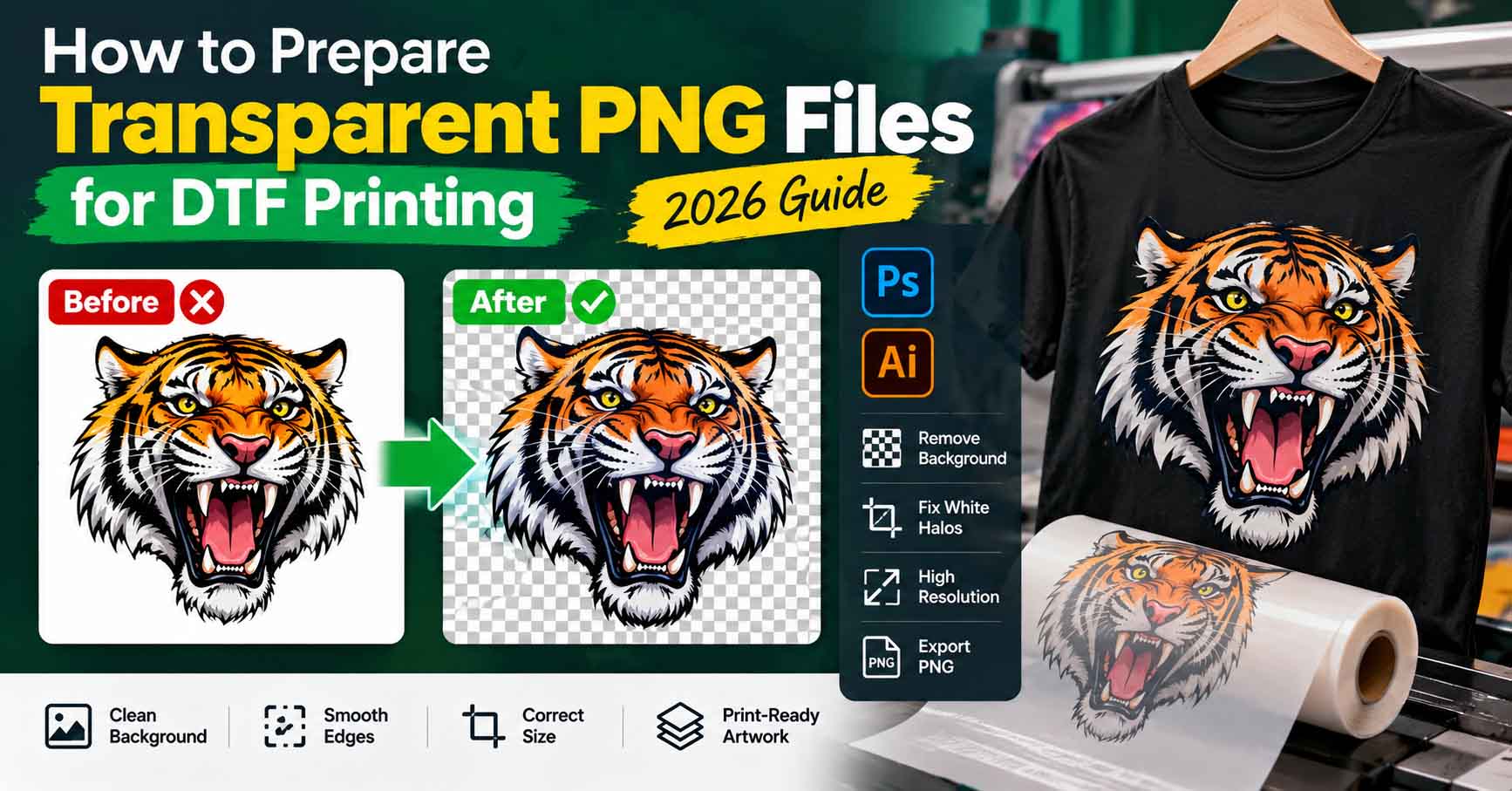
A design can look perfectly clean on your computer screen and still produce disappointing results when printed on a T-shirt. Sometimes a faint white box appears around the artwork. Other times, the edges look rough, small details disappear, or the print contains unwanted pixels that were almost impossible to notice in the original image.
These problems often begin with the artwork file, long before the printing process starts.
For businesses, clothing brands, print shops, and independent designers, preparing a transparent PNG for DTF printing is an important part of achieving clean, professional results. A properly prepared PNG helps the printing software distinguish between the artwork that should receive ink and the areas that should remain transparent.
However, simply saving an image as a PNG does not guarantee that it is ready for production.
In this guide, we’ll look at how PNG transparency works, how to remove backgrounds without damaging artwork, what causes white outlines, and how to export files that are easier for DTF printers to process.
Why Transparent PNG Files Matter for DTF Printing
Direct-to-Film (DTF) printing involves printing a design onto a special transfer film, applying adhesive powder, curing it, and transferring the artwork onto fabric using heat and pressure.
Unlike traditional printing methods that place artwork directly onto a garment, DTF uses a transfer process. The digital artwork determines where the printer deposits color and, depending on the RIP software settings, white ink.
A transparent background for DTF printing allows the software to distinguish the design from the empty areas around it. For example, if you’re printing a red logo onto a black T-shirt, the background surrounding the logo should generally remain transparent rather than being filled with white pixels.
If the background hasn’t been removed correctly, those unwanted pixels may become part of the printed transfer.
This is particularly noticeable on dark garments, where light-colored halos, unwanted rectangles, and rough edges can stand out against the fabric.
It’s worth remembering that transparency does not automatically mean that every semi-transparent pixel will print exactly as it appears on screen. Different RIP applications handle alpha channels and white ink generation differently, so production testing remains important.
Get your logo print-ready in 24 hours
Upload your PNG, JPG, or screenshot. A free assessment with exact price and turnaround is included before you pay anything.
Understanding True Transparency vs. a White Background
One of the most common mistakes in DTF PNG file preparation is confusing a white background with a transparent background.
An image with a white background may appear clean when viewed on a white webpage or document. However, those white pixels are still part of the image.
True transparency is different. Transparent areas contain alpha information that tells compatible software which pixels are fully visible, partially visible, or invisible.
In Adobe Photoshop, transparency is commonly represented by a gray-and-white checkerboard pattern. This pattern is part of the editing interface, not part of the actual image.
A reliable way to inspect transparency is to place a temporary dark-colored layer behind the artwork. If a white rectangle appears around the design, the background is probably still present.
You should also inspect the artwork against a bright color, such as magenta or green. This can reveal faint gray pixels and edge contamination that might be difficult to see against black or white.
For a more detailed explanation of how image transparency works, Adobe provides documentation on layer opacity and blending in Photoshop.
How to Remove a Background in Photoshop Without Damaging the Artwork
Removing a background is often the first step when preparing a transparent PNG for DTF printing, but the method you choose matters.
Photoshop’s automatic Remove Background feature can be useful for simple artwork with strong contrast between the subject and its background. For more complicated logos, especially those with narrow lettering or intricate edges, automatic selection may leave unwanted pixels or remove parts of the design.
Start by opening the original image in Photoshop and duplicating the artwork layer. Keeping an untouched copy gives you a reference if any important details are lost during editing.
Next, use Select Subject, Remove Background, or another appropriate selection method to isolate the artwork. Instead of immediately deleting the surrounding pixels, consider using a layer mask. A mask allows you to refine the edge without permanently destroying the original image data.
Zoom in and examine the areas around text, curves, corners, and small decorative elements. These are the places where background removal tools frequently struggle.
For hard-edged logos, you may need to refine the mask manually with a brush or create a more accurate selection using the Pen Tool.
After removing the background, place the artwork over contrasting temporary backgrounds and inspect it again. The goal is not simply to make the background disappear. It’s to preserve the intended design while removing everything that should not print.
Adobe’s official layer masking guide explains how masks can be used for non-destructive editing.
How to Fix White Halos Around Transparent PNG Artwork
A white halo is a thin, unwanted outline that appears around printed artwork. It may be barely visible on a computer screen but become obvious after the design is transferred onto dark fabric.
One possible cause is background contamination. When artwork is extracted from a white background, the edge pixels may retain traces of white or light gray. These pixels can create a pale fringe around the design.
Another possible cause is the way semi-transparent pixels interact with the RIP software’s white underbase settings. If the underbase extends beyond the intended color boundary, a light outline may appear even when the PNG itself looks clean.
To identify the problem, open the artwork in Photoshop and place it against a dark background. Zoom in around the edges and look for pale pixels, inconsistent transparency, or unwanted remnants from the original background.
If the halo is part of the PNG, refine the layer mask or clean the affected pixels. Photoshop’s Select and Mask workspace can help with edge refinement, although settings should be adjusted carefully to avoid removing legitimate design details.
If the PNG looks clean but the printed transfer still has a white outline, inspect the RIP software’s white underbase generation, choke settings, and printer registration. Not every halo is caused by the artwork itself.
For logos with solid colors and defined shapes, rebuilding the artwork as clean vector paths can sometimes provide a more reliable starting point than repeatedly editing a damaged raster image.
Why Semi-Transparent Pixels Can Cause DTF Printing Problems
Not all transparent pixels are completely invisible. A PNG can contain partially transparent pixels around curves, text, shadows, and anti-aliased edges.
These pixels help artwork look smooth on a digital screen. However, their behavior in DTF production depends on how the printing software interprets alpha transparency and generates white ink.
For example, a soft shadow might contain hundreds of pixels with different opacity levels. Some RIP workflows reproduce these transitions effectively, while others may produce unwanted dots, weak edges, or inconsistent underbase coverage.
This doesn’t mean semi-transparent artwork is always unsuitable for DTF printing. Photographic designs, gradients, and soft effects can work well with properly configured equipment and suitable artwork.
The important distinction is whether the transparency is intentional.
A soft shadow that belongs to the design should be preserved and tested. A faint outline left behind by poor background removal should be corrected.
For simple logos, lettering, and flat-color graphics, cleaner and more controlled edges generally make production preparation easier.
| Feature | Transparent PNG | Vector File (AI, SVG, EPS) |
|---|---|---|
| File Type | Raster image | Scalable vector artwork |
| Transparency | Supports alpha transparency | Supports transparent backgrounds |
| Print Resolution | Requires sufficient pixels at final print size | Can be exported at different resolutions |
| Best For | Photos, detailed illustrations and finished artwork | Logos, text, icons and flat-color graphics |
| Editing | Pixel-based editing | Individual shapes and paths can be edited |
| DTF Compatibility | Widely supported by DTF RIP workflows | May require export or conversion for RIP software |
| Scalability | Limited by original pixel dimensions | Scales without losing geometric sharpness |
Choosing the Right PNG Resolution for DTF Printing
Resolution is another important part of preparing a print-ready PNG for DTF printing.
A file may have a transparent background and still be unsuitable for the intended print size because it doesn’t contain enough pixels.
For detailed artwork, 300 pixels per inch (PPI) at the final physical print size is a commonly used preparation target. However, the printer’s actual requirements may vary depending on the artwork, equipment, and production workflow.
Suppose you’re preparing a design that will print 12 inches wide and 14 inches tall.
Example: 12 × 14-inch DTF print at 300 PPI
3,600
Width in pixels
4,200
Height in pixels
12 × 300 = 3,600 px and 14 × 300 = 4,200 px.
Changing the resolution metadata from 72 PPI to 300 PPI does not automatically create new image detail. The actual pixel dimensions must support the required print size.
If your original logo is only 500 pixels wide, enlarging it to 3,600 pixels may make the file bigger without making the lettering or edges genuinely sharper.
This is where manual vector reconstruction can help. A clean vector master can be exported to the exact pixel dimensions needed for the garment without relying on low-quality image enlargement.
If you’re working with an old or blurry company logo, Vector Refinery’s professional logo vectorization service can help create scalable source artwork before the final PNG is exported.
Should You Use RGB or CMYK for DTF PNG Files?
Many DTF workflows accept RGB PNG files, with the RIP software handling color conversion according to the printer’s ink configuration and color profile.
This makes RGB a practical choice for many transparent PNG exports, but it should not be treated as a universal requirement.
Some print providers specify particular RGB profiles, while others use customized workflows and may request different formats or color preparation methods.
Before exporting, ask your print provider which color space and profile they recommend.
Avoid repeatedly converting an image between RGB and CMYK without a clear production reason. Unnecessary conversions can change the appearance of saturated colors and reduce consistency.
For accurate color reproduction, the printer’s ICC profile, RIP settings, ink, transfer film, and garment material all matter.
A PNG that looks vibrant on a backlit monitor may not reproduce identically on fabric, even when the file is technically prepared correctly.
Get your logo print-ready in 24 hours
Upload your PNG, JPG, or screenshot. A free assessment with exact price and turnaround is included before you pay anything.
How to Export a Transparent PNG from Adobe Illustrator
Adobe Illustrator is especially useful when the original artwork is already vector-based.
Because vector artwork is built from paths rather than a fixed grid of pixels, you can export it at the dimensions needed for a particular DTF job while maintaining clean geometric boundaries.
Start by checking that the artwork is correctly positioned and sized. Remove any background rectangle that is not intended to appear in the print.
Then select File → Export → Export As, choose PNG, and enable Use Artboards if you want the exported dimensions to follow the artboard.
In the PNG export options, choose the appropriate resolution and select a transparent background.
For artwork requiring 300 PPI, use the High (300 ppi) setting, provided it produces the correct final pixel dimensions.
After exporting, open the PNG in Photoshop or another image editor that supports alpha transparency.
Check the dimensions, inspect the edges, and confirm that the background is genuinely transparent.
Adobe’s Illustrator artwork export documentation provides additional information about supported export workflows.
One detail worth remembering is that Illustrator’s artboard dimensions and export resolution work together. Always check the resulting PNG’s actual pixel dimensions rather than relying on the resolution setting alone.
How to Check a Transparent PNG Before Sending It to a DTF Printer
Before submitting artwork for production, it’s worth spending a few minutes inspecting the final exported file.
Open the actual PNG that you intend to send, not just the original Photoshop or Illustrator document.
First, confirm that the image has the correct physical proportions and enough pixels for the requested print size. Next, check the transparency against both light and dark backgrounds.
Look closely at the edges of letters, logos, and illustrations. There should be no unwanted white rectangle, background remnants, random pixels, or accidental shadows.
Pay particular attention to small text and thin details. Even when a PNG has sufficient resolution, tiny design elements may not reproduce reliably because of the physical limits of the transfer process.
It’s also important to check whether white elements in the design are intentional. White lettering on a transparent background is legitimate artwork and should not be accidentally removed during cleanup.
Finally, ask the printer to confirm whether the file meets their specific RIP and production requirements.
For important orders, a small test transfer is a sensible way to confirm edge quality, color appearance, and detail reproduction before printing a larger batch.
Transparent PNG vs. Vector Files: Which Is Better for DTF Printing?
A common misconception is that every DTF design must be converted into vector artwork.
In reality, a properly prepared transparent PNG can be entirely suitable for many DTF printing workflows.
Photographs, detailed illustrations, and artwork with complex shading are often best preserved as raster images at an appropriate resolution.
Vector files are particularly useful for logos, typography, icons, and flat-color artwork that may need to be resized or edited repeatedly.
A vector master allows designers to adjust individual shapes, correct spacing, modify colors, and export new PNG files without degrading the original geometry.
This is especially valuable for clothing brands that use the same logo across different print sizes and garment styles.
If your artwork is already clean, transparent, and sufficiently detailed, you may not need vector conversion at all.
However, if the source contains blurry text, jagged edges, distorted shapes, or poor-quality tracing, a professional vector redraw may be the most reliable long-term solution.
You can learn more about this process in Vector Refinery’s professional logo vectorization process guide.
Common Mistakes to Avoid When Preparing DTF PNG Artwork
One of the easiest mistakes is exporting a PNG with an opaque background and assuming that the file extension guarantees transparency.
Another is enlarging a small image and believing that changing its PPI setting has restored the missing details.
Over-aggressive background removal can also cause problems. It may eliminate thin strokes, damage letterforms, or create unnatural edges that become more noticeable after printing.
Excessive edge feathering is another issue. Softening every edge might make a design appear smoother on screen, but it can introduce unnecessary semi-transparent pixels around artwork that was intended to have sharp boundaries.
Finally, avoid assuming that every printing problem originates in the PNG. White ink settings, RIP configuration, film, powder application, curing, and heat pressing can also affect the finished transfer.
Good artwork preparation reduces preventable problems, but it cannot replace proper printer setup and production testing.
When Professional PNG Cleanup or Vector Reconstruction Makes Sense
Sometimes a transparent PNG only needs minor adjustments. A few stray pixels can be removed, an edge mask can be refined, or the artwork can be exported at the correct size.
Other files require more extensive work.
For example, a clothing brand may only have a small screenshot of its logo. The text may be blurred, the original font may be unavailable, and the edges may contain compression artifacts.
Removing the background won’t restore the original lettering or geometry.
In cases like this, manually recreating the logo in Adobe Illustrator can provide a clean, editable master file that supports future production.
At Vector Refinery, we specialize in manually rebuilding low-resolution logos and artwork into clean vector files. Rather than relying on automatic tracing, we focus on accurate shapes, controlled Bézier curves, and artwork that can be exported for different production requirements.
The final vector master can then be used to generate transparent PNG files at the sizes requested by your DTF printer.
If your existing artwork is causing production problems, you can send your logo or image for a free assessment.
Frequently Asked Questions
Does a PNG need a transparent background for DTF printing?
For most designs where only the artwork should transfer, a transparent background is preferred. However, if a solid background is intentionally part of the design, it may be printed. Always confirm the intended result with your print provider.
Is 300 PPI necessary for DTF printing?
300 PPI at final print size is a common recommendation for detailed raster artwork, but requirements vary. Some artwork may print acceptably at lower resolutions, depending on the printer, design, and viewing distance.
Why does my transparent PNG print with a white outline?
Possible causes include leftover white pixels, semi-transparent edge contamination, white underbase settings, or print registration issues. Inspect the PNG first, then review the RIP and printer settings if the artwork is clean.
Can I use a transparent PNG instead of an SVG for DTF printing?
Yes. Many DTF workflows use transparent PNG files successfully. SVG or other vector formats are useful when artwork needs editing or resizing, but they are not universally required for printing.
Why does my PNG look blurry after printing?
The source image may have insufficient pixel dimensions, or it may have been enlarged beyond its useful resolution. Print settings and transfer conditions can also influence the final appearance.
Should I remove all semi-transparent pixels before printing?
No. Some semi-transparent pixels are intentional and necessary for gradients, shadows, or smooth transitions. Remove unwanted edge contamination, but preserve design effects that your printer’s workflow can reproduce correctly.
Can a low-resolution PNG logo be made print-ready?
Often, yes. Simple improvements may be possible through cleanup, but severely blurred or pixelated logos may benefit from manual vector reconstruction before exporting a new high-resolution PNG.
Final Thoughts
Preparing a transparent PNG for DTF printing involves more than removing the background and clicking Export.
The most reliable results come from checking the artwork’s true transparency, cleaning unwanted edge pixels, using suitable image dimensions, and understanding how the printing software handles alpha channels and white ink.
A clean PNG can work extremely well for DTF production. The key is making sure the file contains the right artwork, at the right size, without accidental details that could affect the transfer.
And when the original logo is too blurry or damaged to prepare properly, creating a clean vector master can save time on future print jobs.
Need a clean, print-ready version of your logo? Visit Vector Refinery to request a professional artwork assessment.
