
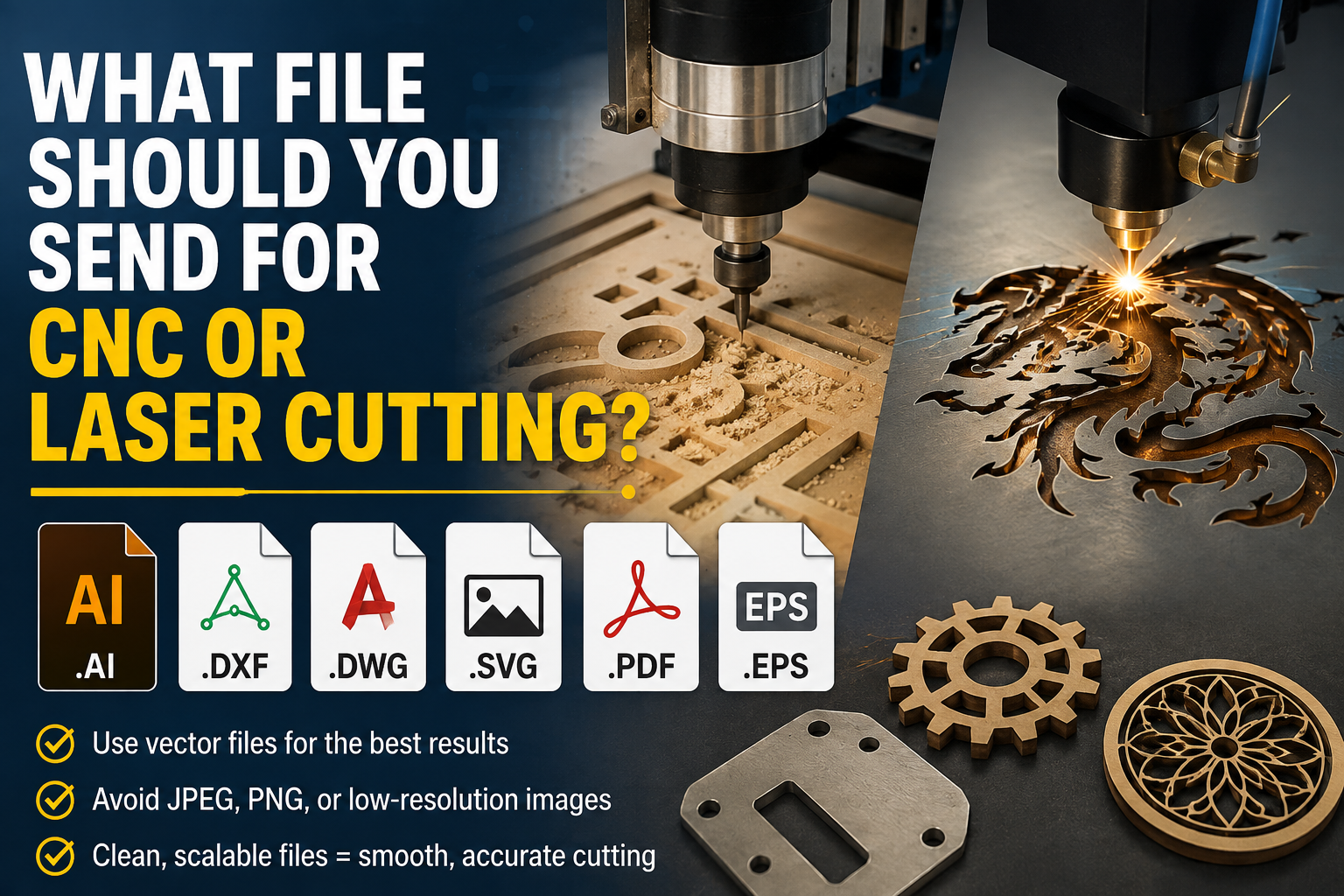
The file for CNC laser cutting is not the same as the file for printing — and sending the wrong format wastes material, delays orders, and causes cuts that look nothing like your design. The file you send for CNC or laser cutting determines whether your order cuts cleanly, gets rejected outright, or produces results that look nothing like your design. Unlike printing — where a PDF usually works — CNC routers, laser cutters, plasma cutters, and engraving machines read files in a fundamentally different way. They do not render an image. They follow movement instructions.
Laser cutting and CNC machines require vector files — typically DXF or SVG — with all paths closed, no overlapping shapes, correct units (usually millimeters), and no fills, gradients, or effects. The machine follows vector paths as cutting instructions, so open paths, duplicate lines, and incorrect scale waste material and produce bad cuts.
This guide covers the exact file formats that work for CNC and laser cutting, what each one is used for, the technical requirements that matter in production, and how to get a logo or artwork file ready for cutting when all you have is a PNG or JPG.
Why Cutting Machines Read Files Differently from Printers
Understanding why file requirements for CNC and laser cutting are so specific starts with understanding what these machines are actually doing.
A printer renders a complete image — it interprets the artwork and deposits ink or toner across the entire surface. It reads colors, fills, gradients, and complex visual information. The output is a visual reproduction of the artwork.
A laser cutter or CNC router follows paths like a set of movement instructions. Each path tells the machine where to move the cutting head, laser beam, or router bit. The machine does not see a logo — it sees a sequence of movements: go here, cut along this line, move there, cut along that curve. This is why production-ready vector files for cutting have completely different requirements than vector files for printing. A beautiful vector logo designed for screen printing can be completely unusable for cutting without significant preparation.
A DXF — Drawing Exchange Format — stores clean 2D vector geometry: lines, arcs, circles, and curves. A laser cutter or CNC router can follow the paths in that file to cut or engrave with accuracy. That geometry-first, rendering-last approach is precisely what cutting machines need.
The File Formats That Work for CNC and Laser Cutting
DXF — The Industrial Standard
DXF is the industry standard for CNC and laser cutting. It is a vector format that natively supports the types of geometry used in precision fabrication: lines, arcs, circles, splines, and polylines. DXF was developed by Autodesk — the makers of AutoCAD — specifically so that CAD drawings could be shared between different design programs.
DXF is a 2D vector file format that describes a drawing as vector geometry rather than pixels, and organizes shapes on layers. Because it captures precise geometry, a DXF is exactly what a cutting machine needs: it can follow the paths to cut or engrave with accuracy. That is why DXF became the standard exchange format for CAD, CNC, and laser software.
DXF shows up everywhere precision 2D geometry needs to drive a machine: laser cutting and engraving, CNC routing and plasma cutting, waterjet cutting, and any other application where toolpath generation is driven by vector geometry.
For industrial equipment — fiber lasers, CO2 industrial systems, plasma cutters, CNC routers, and machines controlled by software like LightBurn, EZCAD, RDWorks, Fusion 360, Mach3, or SheetCam — DXF is the expected format.
DXF version compatibility: DXF files come in multiple versions — R12, R14, 2000, 2004, 2007, and more recent. If your machine software struggles with a DXF, try saving it as the R12 or R14 version. These older formats are universally supported and strip out features that confuse simpler parsers. For maximum compatibility, use DXF 2000 or 2004 format.
Best for: Industrial laser cutters, CNC routers, plasma cutters, waterjet machines, LightBurn, EZCAD, Fusion 360, SheetCam, Mach3, and any software built around CAD/CAM workflows.
SVG — The Modern Cutting Standard
SVG — Scalable Vector Graphics — is the web’s vector format, but it is also the dominant format for desktop and hobbyist laser machines. Machines like Glowforge, xTool, Aeon Mira, Atomstack, K40 with LaserGRBL, Cricut, Silhouette, and any machine with a browser-based dashboard typically use SVG as their primary input format.
SVG files describe paths, shapes, fills, strokes, and document dimensions. SVG geometry is scalable and handles curves and complex shapes well. It is common output from Inkscape, Adobe Illustrator, and newer CAD tools. The ecosystem of tools that create and edit SVGs is enormous.
SVG handles color-coded workflows naturally. If you use different colors to represent different operations — a common workflow in laser cutting — each path in an SVG can have its own stroke and fill color. This makes operation assignment straightforward in most laser software.
The main watch-out with SVG: files sometimes embed rasterized images within a vector container. Always verify that your cut paths are actual vector paths, not images placed inside an SVG wrapper. Also check unit settings — SVG dimensions can default to pixels, which may not reflect your intended physical dimensions accurately.
Best for: Glowforge, xTool Creative Space, Inkscape, Cricut Design Space, Silhouette Studio, K40 with LaserGRBL, Atomstack, and any machine with a web-based or graphics-oriented dashboard.
AI — Adobe Illustrator Native
Native AI files work for laser cutting when you are using a recent version of Adobe Illustrator and the cutting shop also has Illustrator. The main advantage is full editability — layers, colors, and all design elements are preserved.
For laser cutting specifically, AI files are generally not needed unless you have Illustrator and need to edit before exporting to DXF or SVG. Make sure cut paths are on their own clearly labeled layer, and that any stroke widths are set to hairline (0.001pt or similar) to indicate cut lines versus decorative elements.
Best for: Editing before export to DXF or SVG. Not a primary submission format for most cutting services.
Vector PDF
A vector PDF exported directly from Illustrator, Inkscape, or a CAD package works well for many laser cutting services. PDF is the most universally accessible vector format — it can be opened by nearly everyone without specialized software, and most modern cutting software can import vector PDFs and extract the path data.
The critical caveat: the PDF must contain true vector paths, not embedded raster images. A PDF generated from a JPG or PNG is still raster data inside a PDF wrapper — it has the extension but none of the cutting-ready properties. Always generate PDFs from vector source files.
Best for: Services that specifically accept PDF, general-purpose submission when the shop confirms PDF acceptance.
EPS
EPS is an older vector format that still works and is accepted by many laser cutting services. It is less common in cutting workflows than DXF and SVG but remains a valid option when the service accepts it.
Best for: Legacy workflows, services that specifically request EPS.
DXF vs SVG — Choosing the Right One
The DXF versus SVG question comes up in every laser cutting and CNC forum. The actual answer depends on your machine and software, not on the format itself.
For CNC routing, plasma cutting, and industrial laser systems: DXF is almost always the right choice. Most CNC CAM programs are built around CAD-style 2D geometry. The CAM toolpath generation expects DXF conventions. When dimensions must be exact and downstream software needs to know that a line is exactly 127.5mm, DXF carries that precision reliably. CAD/CAM workflows trust DXF more.
For desktop laser engravers and design-oriented cutting machines: SVG is often the better choice. Glowforge, xTool, and similar machines use web-based dashboards where SVG is the native format. The design tool ecosystem — Inkscape, Illustrator, Canva — outputs SVG natively. Color-coded operation workflows are naturally handled in SVG.
The practical rule: use DXF when your CAD/CAM software expects CAD geometry, your workflow uses millimeters or inches explicitly, or your CNC plasma or router software handles DXF cleanly. Use SVG when your laser or design software has stronger SVG support and preserves the document scale correctly.
When in doubt, provide both — most services can work with either, and having both eliminates compatibility questions.
Technical Requirements That Actually Matter
Format is only the starting point. A file in the correct format can still fail completely if the internal construction does not meet the technical requirements of cutting production.
All Paths Must Be Closed
This is the single most critical technical requirement for cutting files. A closed path is a shape where the start and end points connect perfectly, forming a complete loop. An open path — where the start and end points do not connect — causes the machine to cut along the path and then stop, leaving an incomplete cut.
If your file has open paths, the laser cutter may cut most of a shape and leave a section uncut, the CNC router may produce an incomplete profile, or the software may flag the file with an error before cutting begins.
Every shape in a cutting file must be verified as a properly closed path before submission. In Illustrator, use Object → Path → Join to close open paths. In Inkscape, use the Path menu’s union or join functions. Verify closure by temporarily filling all paths with a flat color — properly closed paths fill cleanly; open paths show obvious gaps.
No Overlapping or Duplicate Paths
Overlapping paths cause the machine to make multiple passes over the same line. For laser cutting, double-cut lines burn deeper than intended, can melt or char materials unnecessarily, and produce rough edges. For CNC routing, duplicate toolpaths waste time and can affect dimensional accuracy.
Remove all overlapping paths and duplicate lines before submission. Use the Outline view in Illustrator or Inkscape to inspect for paths stacked on top of each other, and delete or merge them.
Correct Units and Scale at 1:1
Submit artwork at the actual intended cutting dimensions. Laser cutting and CNC software reads the dimensions in the file and uses them to drive the machine. If the file is at the wrong scale, the cut is at the wrong scale.
Use millimeters as the unit of measurement — this is the standard in professional laser cutting and CNC workflows. Set the document to 1:1 scale and verify that the dimensions in the file match the intended physical dimensions of the finished piece.
A practical tip: include a reference square — typically 50mm x 50mm — in the file, either on a separate layer that will not be cut or as a note in your submission. When the shop opens the file, they can verify the reference square is the correct size and confirm the scale is correct before cutting.
No Fills, Gradients, or Visual Effects
Cutting machines follow paths. They do not render fills, gradients, transparency effects, shadows, or any visual styling. All of these need to be removed before submission.
Cut paths should have no fill — only a stroke set to hairline (0.001pt). Any visual effects or non-path elements left in the file either cause errors in the cutting software or are ignored, but they add confusion and may cause the machine operator to question whether the file is correctly prepared.
Color-Coded Operation Layers
Most laser cutting software uses path color to determine which operation to apply to each element. The standard convention in many workflows is: red for cutting, blue for engraving at low power, black for raster engraving. However, this is not universal — different machines and different shops may use different color conventions.
Before submitting any file, confirm the color convention with the specific cutting service. If you are submitting to a shop for the first time, ask what colors they use for cut versus engrave operations. Setting up the file with the wrong colors causes the machine to apply the wrong operation to each element — cutting where it should engrave and vice versa.
No Text as Live Type
Any text in a cutting file must be converted to paths before submission. Live text requires the font to be installed on the machine’s software to render correctly. If the font is not available, the software either substitutes a different typeface or throws an error.
Converting text to outlines (Illustrator: Type → Create Outlines; Inkscape: Path → Object to Path) turns every character into a fixed vector shape that renders identically on any system without font dependencies.
Delete Construction Geometry and Metadata
Before exporting, delete all construction lines, dimensions, annotation markers, reference marks (other than any deliberate scale reference square), and any other elements that should not be cut. These elements confuse machine operators and may cause unintended cuts if left in the file.
Also delete any hidden layers that contain elements not intended for production. What is visible in the design view may not be all that is present in the file — check all layers before export.
Machine-Specific Format Preferences
Different machines and software ecosystems have strong format preferences that can save significant back-and-forth if you know them upfront.
LightBurn — one of the most widely used laser cutting software platforms — accepts DXF, SVG, AI, PDF, and several other formats. DXF and SVG both work well. LightBurn users often prefer SVG because it preserves color-coded operation assignments naturally.
Glowforge uses a browser-based dashboard and works primarily with SVG. DXF is not natively supported in the Glowforge dashboard, though SVG converted from DXF works.
xTool Creative Space similarly favors SVG. xTool’s desktop software supports both SVG and DXF.
Fusion 360 and professional CAM software almost universally prefer DXF for 2D cutting operations. SVG can be imported but DXF is the expected format for toolpath generation.
Industrial fiber lasers and CO2 production systems running EZCAD, RDWorks, or similar industrial control software typically use DXF as the primary format.
Plasma cutters and waterjet machines almost always use DXF as their primary input format through CAM software like SheetCam, Mach3, or Hypertherm software.
What to Do When You Only Have a PNG or JPG
The most common starting point for CNC or laser cutting orders is a logo or artwork that only exists as a PNG or JPG. The cutting shop is asking for a DXF or SVG. There is no vector source file.
A PNG or JPG has no path data — it is a grid of pixels. A cutting machine cannot follow pixels. The file needs to be converted to a genuine vector format with clean, closed paths before it can be used for cutting production.
The solution is professional manual vectorization. A skilled vector artist takes the PNG or JPG as reference and manually redraws every element using vector path tools — clean, closed Bézier paths with no pixel approximation. The result is a proper vector file that meets every technical requirement for CNC and laser cutting production.
This is different from auto-trace. Auto-trace tools generate path data by following pixel edges, producing files with thousands of unnecessary anchor points, open paths, and structural problems that cause the same production failures as the original raster file. A professionally manually redrawn file has clean, minimal anchor points, properly closed paths, and the correct structure for cutting production.
Vector Refinery provides professional manual vectorization specifically for production use. The Standard package delivers AI, EPS, SVG, and PDF files. For CNC and laser cutting applications, the team can also export DXF directly and structure the file with the correct layers and color coding for your intended machine workflow — just mention CNC or laser cutting as your intended use when placing your order.
Packages start at $25 for simple logos and $45 for standard business logos with the complete file package. A free assessment is available before any payment is required.
Get your logo print-ready in 24 hours
Upload your PNG, JPG, or screenshot. A free assessment with exact price and turnaround is included before you pay anything.
Quick Reference: Which File for Which Machine
Here is the practical decision guide for the most common cutting machine types:
Industrial fiber laser (metal): DXF — LightBurn, EZCAD, or machine-specific control software.
CO2 laser cutter (wood, acrylic, leather): DXF for LightBurn, RDWorks, EZCAD; SVG for Glowforge, xTool Creative Space, Inkscape-based workflows.
Desktop diode laser (Atomstack, K40, Sculpfun): SVG for LaserGRBL, LightBurn; DXF also works in LightBurn.
CNC router: DXF — Fusion 360, SheetCam, Mach3, Vectric software.
Plasma cutter: DXF — SheetCam, Mach3, Hypertherm.
Waterjet cutter: DXF — most waterjet CAM software is built around CAD-style geometry.
Cricut or Silhouette: SVG — both machines use SVG as their primary format through Cricut Design Space and Silhouette Studio.
Vinyl cutter (professional): AI or EPS with hairline cutting paths; SVG also works in many modern vinyl cutting applications.
When submitting to a professional cutting service for the first time, always ask which format they prefer and what color coding they use for cut versus engrave operations. This one question eliminates most file rejection issues before they happen.
Getting the right file for CNC laser cutting prepared before submitting saves material, prevents rejections, and ensures the finished result matches your design exactly.
Frequently Asked Questions
What is a DXF file and why do CNC machines prefer it? DXF — Drawing Exchange Format — is a 2D vector file format developed by Autodesk for sharing CAD drawings between different programs. It stores designs as lines, arcs, circles, and curves — the exact geometry a cutting machine needs. CNC CAM software is built around DXF conventions, so toolpath generation from DXF files is reliable and accurate. Most industrial CNC and laser systems list DXF as their primary or preferred input format.
Can I use a PNG or JPG for laser cutting? Not for vector cutting, where the laser follows path outlines. PNG and JPG files contain no path data — only pixel grids. The cutting machine has nothing to follow. For raster engraving — where the laser burns a shaded image into the surface dot by dot — a high-resolution PNG at 300 DPI or higher can work, but the result looks different from clean vector line engraving. For logo and artwork cutting, a genuine vector file is always required.
What is the difference between DXF and SVG for cutting? Both are vector formats that store path geometry, but they were built for different ecosystems. DXF was created for CAD and manufacturing — it is the standard for CNC routers, plasma cutters, and industrial laser systems. SVG was created for the web — it is the standard for desktop laser machines with browser-based dashboards (Glowforge, xTool), craft cutters (Cricut, Silhouette), and graphics-oriented software. Use DXF for industrial CAD/CAM workflows and SVG for design-oriented cutting machines.
Why do my cuts come out at the wrong size? Scale mismatch is one of the most common problems in cutting file submissions. It typically happens because SVG dimensions default to pixels, which the cutting software interprets at a different physical size than intended, or because the file was not submitted at 1:1 scale. Always set your document to the intended physical dimensions in millimeters, verify the scale before exporting, and consider including a reference square of a known size in the file for the shop to verify before cutting.
What does “closed paths” mean and why does it matter? A closed path is a vector shape where the start and end points connect perfectly. An open path has a gap between start and end. For cutting machines, a closed path produces a complete cut — the machine cuts all the way around the shape and the piece falls out or separates cleanly. An open path produces an incomplete cut — the machine cuts partway around the shape and stops, leaving material connected where it should be free.
Can Vector Refinery produce DXF files for CNC cutting? Yes. When you specify CNC or laser cutting as your intended use when placing an order, the team delivers the file in DXF format alongside the standard AI, EPS, SVG, and PDF package. The file is structured with closed paths, correct dimensions, no overlapping lines, and hairline cutting strokes — ready for submission to any cutting service.
Published by Vector Refinery — Professional Manual Logo Vectorization and CNC/Laser Cutting File Preparation Service. Visit vectorrefinery.com to upload your file and get a free assessment today.
