
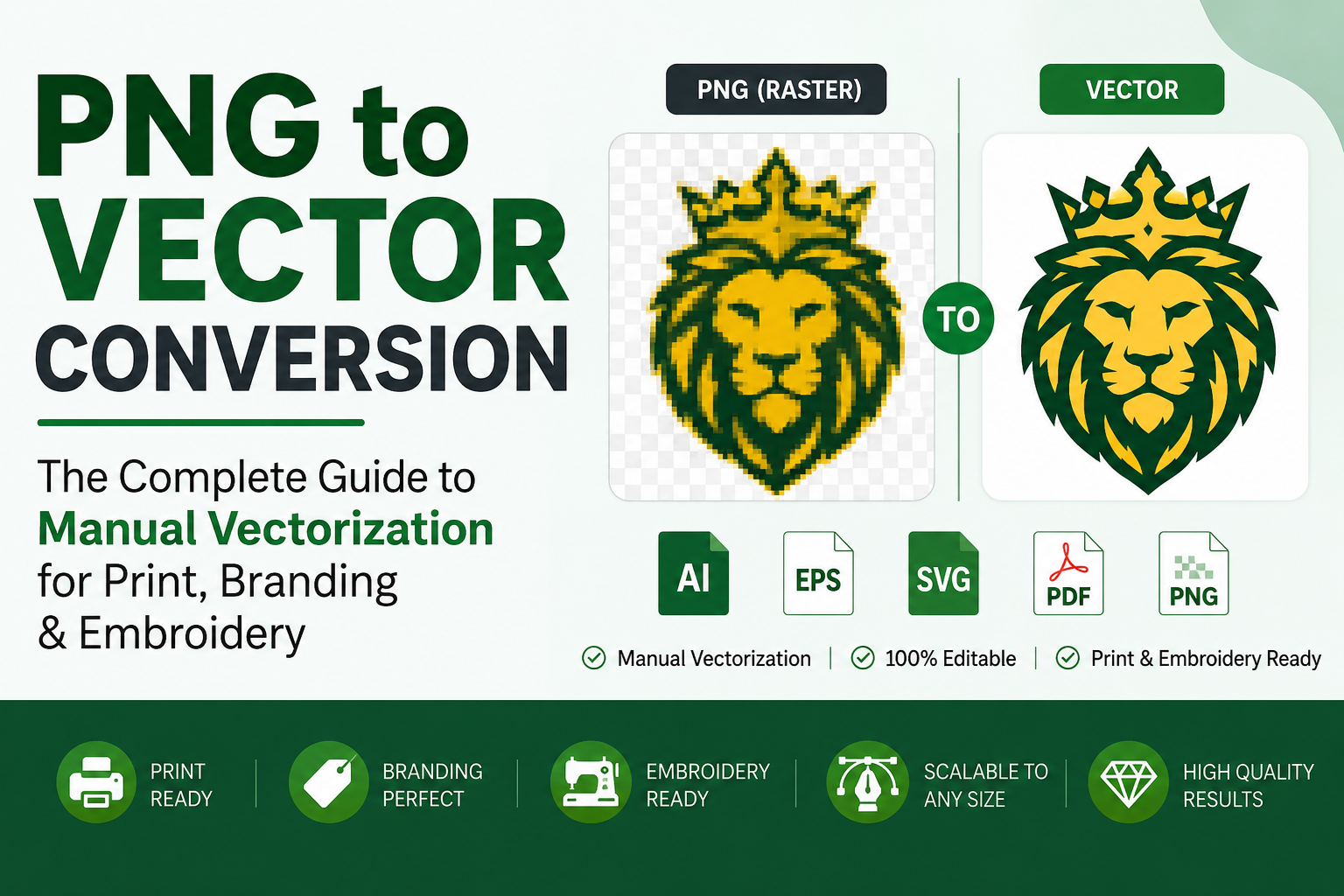
PNG to vector conversion is the fix for one of the most common production problems in design — you have a logo saved as a PNG or JPG, and a print shop, embroidery digitizer, or sign maker is asking for a vector file. why manual redraw beats auto-trace every time it matters, what it costs, which file format to ask for, and how the process actually works.
Vector format guide — which file for what job
| Format | Best for | Notes |
|---|---|---|
| SVG | Websites, apps, digital use | Small file size, renders natively in browsers, retina-sharp on any screen |
| AI | Ongoing editing, design agencies | Native editable format — requires Adobe Illustrator to open |
| EPS | Print shops, sign makers, embroidery | Universal print industry standard, opens in nearly any design program |
| Sharing, approvals, general archiving | Universally viewable, can embed full vector data for later editing | |
| DXF | Laser cutting, CNC, engraving | Path-only format used by cutting and engraving machines |
| PNG | Quick digital use, transparent background | Raster — not scalable, but a useful companion file to your vector set |
Auto-trace vs manual redraw — quality comparison
| Factor | Auto-trace | Manual redraw |
|---|---|---|
| Anchor points | Thousands of unnecessary nodes per shape | Minimum points needed — clean and efficient |
| Curved edges | Dozens of tiny segments approximating curves | True Bézier curves — smooth at any size or scale |
| Text and typography | Letters traced as shapes — strokes merge, serifs blob | Rebuilt as proper vector letterforms, crisp at any size |
| Color separation | Anti-aliasing creates hundreds of micro-color regions | Clean flat color regions, each properly separated on its own layer |
| Print shop accepted | ✗ Often rejected | ✓ Accepted everywhere |
| Embroidery ready | ✗ Produces messy stitch output | ✓ Clean, accurate digitizing reference |
| Best for | Simple black and white silhouettes only | All logos, color artwork, text, and illustrations |
PNG to vector conversion by use case
| Use case | What you need | File format |
|---|---|---|
| Print shop / offset printing | Clean flat colors, CMYK color mode, all text outlined | EPS / PDF |
| Large format / signage | Infinitely scalable vector, absolutely no pixel data | EPS / AI |
| Embroidery digitizing | Separated color layers, clean paths for stitch mapping | EPS / AI |
| Website / web app | Lightweight, retina-sharp, CSS-controllable format | SVG |
| Laser cutting / engraving | Path-only outlines, no fills required | DXF / AI |
| Full branding package | Complete file set — all formats, all color modes, all sizes | AI + EPS + SVG + PDF |
| AI-generated logo cleanup | Manual redraw to fix anti-aliasing, color bleed, and text irregularities | Full set |
| Social media / email signature | Transparent background, fixed size is fine for this use | PNG |
What Is PNG to Vector Conversion?
A PNG is a raster image — a fixed grid of pixels. Zoom in far enough and you’ll see the individual squares that make it up. A vector file, by contrast, is built from mathematical paths: lines, curves, and shapes defined by coordinates rather than pixels. That’s why a vector logo can be printed on a business card or blown up to cover the side of a truck without ever looking blurry or jagged.
Converting PNG to vector means recreating your image using those paths instead of pixels. Done properly, the result is a file — usually SVG, AI, EPS, or PDF — that scales to any size, separates cleanly into individual colors for printing, and can be edited element by element in design software.
Manual Vectorization vs. Auto-Trace: Why It Matters
Every design program has some version of an automatic tracing tool — Adobe Illustrator’s Image Trace, or one of the many free online “vectorizers.” They’re fast, and for a very simple black-and-white icon they can even work fine. But for anything with real detail — a logo with gradients, fine text, or soft edges — auto-trace tends to fall apart in ways that aren’t obvious until you try to actually use the file.
Here’s what typically goes wrong:
- Anchor point overload. Auto-trace software doesn’t understand what a shape is “supposed” to look like — it just measures pixel boundaries. A logo that a human would recreate with 40 clean anchor points can come back from auto-trace with 4,000, most of them redundant. Print shops and embroiderers routinely reject files like this.
- Jagged curves. What looks like a smooth curve on screen at 100% zoom often turns out to be dozens of tiny straight segments once you scale it up — because that’s literally how the software approximated the curve from pixels.
- Broken or mangled text. Auto-trace treats letters as shapes, not letters. Thin strokes get bridged together, counters (the enclosed space inside an “o” or “e”) get filled in, and serifs turn into blobs.
- Color banding. Anti-aliasing — the soft blending Photoshop and AI image generators use to smooth edges — gets interpreted as dozens of separate micro-colors instead of one clean color. The result is often called “the topographic map effect,” and it’s a dead giveaway that a file was auto-traced rather than hand-built.
A manual redraw solves all of this because a person is making judgment calls the software can’t: this edge should be one smooth curve, this letterform should match the original font’s structure, this gradient should simplify to two flat colors for screen printing. It takes longer, but it’s the difference between a file that looks fine in a preview and a file that actually works in production.
When is auto-trace okay? Genuinely simple, high-contrast shapes — a solid silhouette, a basic geometric icon — can survive auto-trace reasonably well. If your image has color, fine detail, or text, manual redraw is worth the extra cost.
How Professional Vectorization Actually Works
- Image review. The source file gets checked for resolution and clarity. A blurry or low-res source can still be vectorized — a skilled artist interprets what the shape should be rather than tracing artifacts — but it helps to flag anything ambiguous upfront (a torn logo, an illegible tagline) before work starts.
- Manual redraw. Using the pen tool in Illustrator (or equivalent), every shape is rebuilt point by point. Curves are shaped deliberately rather than approximated. Text is recreated as proper vector letterforms, not traced as a shape.
- Color separation. Each color gets its own layer, matched to the original (or adjusted on request) — essential for screen printing and embroidery digitizing, where every color is a separate step.
- Proof and revisions. You should see a preview before final delivery, with the chance to request changes.
- Final delivery. A properly finished job includes multiple formats — typically SVG, AI, EPS, and PDF, plus a transparent PNG for quick digital use.
What Does Vectorization Cost?
Pricing depends almost entirely on complexity, not the format you need. As a rough guide:
- Simple logos (basic shapes, one or two colors, minimal text): budget end of the range
- Standard logos (multiple colors, some detail, clean typography): mid-range
- Complex artwork (illustrations, gradients, fine detail, many colors): higher end, and may take longer to turn around
Most straightforward jobs are completed within 24–48 hours; complex artwork or rush requests take longer or cost more. If a quote seems suspiciously cheap for a detailed logo, ask directly whether the delivery is hand-traced or auto-traced — that one question tells you a lot.
Which Vector Format Do You Actually Need?
This trips people up constantly, because different industries ask for different formats without explaining why.
| Format | Best for | Notes |
|---|---|---|
| SVG | Websites, apps, digital use | Small file size, renders natively in browsers, widely supported |
| AI (Adobe Illustrator) | Ongoing editing, design agencies | Native editable format, requires Illustrator to open |
| EPS | Print shops, older software, sign makers | Universal print-industry standard, opens in nearly any design program |
| Sharing with non-designers, general archiving | Universally viewable, can embed vector data for later editing | |
| DXF | Laser cutting, CNC, engraving | Path-only format used by cutting/engraving machines |
If you’re not sure what you need, ask whoever is requesting the file (“send me a vector”) what they’ll be doing with it — printing, cutting, embroidering, or just displaying online. That answer determines the format. When in doubt, get all of them; a competent vectorization service should deliver the full set by default.
Vectorization for Print, Embroidery & Branding
Print shops and sign makers need vector files because printing presses and vinyl cutters work in flat color separations, not pixel grids. A raster file sent to a printer either gets rejected outright or reproduced poorly — soft edges, muddy color transitions, visible pixelation at large sizes.
Embroidery is a special case: a vector file isn’t directly stitchable, but it’s the required starting point for a digitizer to build a stitch file (DST, PES, etc.). Clean vector paths with clearly separated colors make the digitizing process faster and the final stitched result more accurate — messy auto-traced paths translate into messy, over-dense stitching.
Branding and business use — business cards, letterhead, packaging, social media, merchandise — all benefit from having one master vector file that can be resized and recolored without quality loss, instead of juggling multiple raster exports for each use case.
AI-Generated Logos Need Vectorization Too
Logos made in ChatGPT, Midjourney, DALL-E, or similar tools come out as raster PNGs — and they carry their own vectorization challenges. AI image generators blend colors with heavy anti-aliasing, which auto-trace tools interpret as hundreds of unnecessary micro-shapes. AI-generated text is often subtly irregular in a way that looks fine at a glance but falls apart when traced automatically — broken strokes, inconsistent letter spacing. A manual redraw fixes both problems: colors get flattened to clean separations, and text gets rebuilt as proper vector type rather than traced pixel noise.
How to Tell If a File Is Really Vector
Before paying for or accepting a “vector” file, do a quick check:
- Open it and zoom in to 800–1000%. If edges stay crisp, it’s vector. If they blur or pixelate, it’s a raster image (possibly just embedded inside a vector file container, which is a common shortcut some services use to fake it).
- Try selecting a shape with the direct selection tool in a vector editor. Real vector paths show anchor points you can move; an embedded raster image won’t.
- Check the file size relative to complexity. A genuinely vectorized simple logo is typically a small file; a suspiciously large “vector” file may just be a bitmap wrapped in an EPS or PDF container.
Frequently Asked Questions
Can I vectorize a screenshot?
Yes — a screenshot is just a lower-quality raster source. It’s harder to work from than a clean original, but a manual redraw interprets the intended shapes rather than tracing screenshot artifacts, so the result can still be clean.
Do you need my original logo files, or is a JPG enough?
A JPG or PNG is enough to start. It helps to mention if you know the exact brand colors (hex codes) or font names, since that speeds up matching the redraw to your original branding.
How long does vectorization take?
Simple logos: often within a day. Complex or multi-element artwork: two to three days is common. Rush turnaround is usually available for an added fee.
What if I only need it for my website — do I still need vector?
For web use alone, SVG is genuinely useful (crisp on any screen, tiny file size) but not always mandatory if your PNG is already high resolution. Vector becomes non-negotiable the moment print, cutting, or embroidery enters the picture.
Why Choose Vector Refinery?
The Bottom Line
If your logo or artwork only exists as a JPG or PNG, and you need it for anything beyond casual on-screen display, vectorization is worth doing — and doing manually rather than trusting an auto-trace tool to get it right. A clean, hand-built vector file is a one-time investment that removes the problem permanently: no more re-explaining to a print shop why the file “isn’t really vector,” no more rejected embroidery orders, no more blurry logos on a banner.
Published by Vector Refinery — Professional Manual Logo Vectorization and File Conversion Service. Visit vectorrefinery.com for fast, reliable vectorization support for designer and agency client work.
