
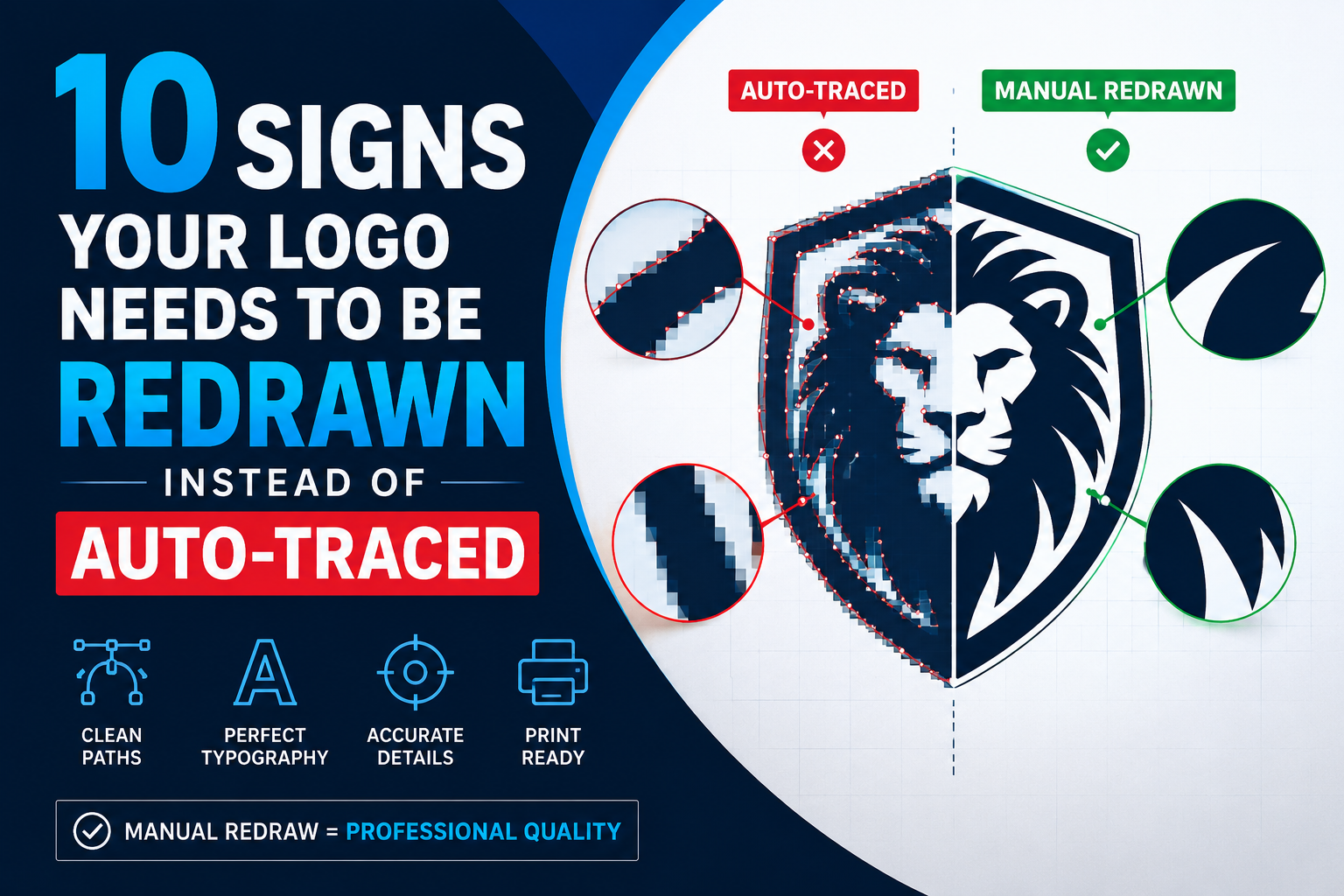
Auto-trace is everywhere. Adobe Illustrator has it built in. There are free online tools that do it in seconds. Plenty of cheap vectorization services use it and call the result “professional.” It is fast, it is easy, and it looks convincing enough on screen that most people cannot immediately tell the difference.
Knowing whether your logo needs manual redraw not auto-trace is the difference between a file that works in production and one that fails.
But here is the truth: auto-trace is a shortcut that fails in production. And if your logo file was auto-traced rather than manually redrawn, you are likely sitting on a file that will cause real problems the moment it goes to a print shop, an embroidery machine, or a sign maker.
The question is — how do you know which one you have?
Here are 10 clear signs that your logo file was auto-traced rather than professionally redrawn, and why each one means you need a proper manual redraw before putting that file to serious use.
Not sure which plan fits? Get a free assessment before you pay.
Sign 1: Your File Has Thousands of Anchor Points
Open your logo in Adobe Illustrator or Affinity Designer. Click on any shape and look at the anchor points — those small squares that appear along the path outline.
A manually redrawn logo uses the minimum number of anchor points needed to accurately describe each shape. A simple curve might have just two or three anchor points. A circle might have four. Clean, intentional, efficient.
An auto-traced logo is the opposite. The auto-trace algorithm generates anchor points by following the pixel edges of the original image — and pixels have a lot of edges. A simple curve in an auto-traced file might have thirty, fifty, or even hundreds of anchor points where a manual redraw would use three.
This matters because excessive anchor points create subtle distortions in curves, massively increase file size, cause slow rendering in professional design software, and create structural problems when the file is used in production. Screen printers, sign makers, and embroidery software all struggle with bloated, anchor-heavy files.
If you click on a shape in your logo and see a cloud of tiny squares, your file was auto-traced.
Sign 2: Curved Edges Look Slightly Jagged When Zoomed In
This is one of the most visible signs of auto-trace quality and one of the easiest to check.
Open your logo file and zoom in to 400–600% on any curved element — the outside of a circular badge, the arc of a letter, the smooth edge of an icon shape. In a professionally manually redrawn file, that curve should be mathematically perfect. Smooth, continuous, no bumps or flat spots.
In an auto-traced file, curves are reconstructed by connecting anchor points that were generated by following pixel edges. Pixels are square. Curves made of squares are not actually smooth — they are approximations of smooth. At normal viewing size this is not obvious, but zoomed in you will see subtle stepping, slight flatness at the tops of curves, or tiny jagged irregularities along what should be a clean arc.
These imperfections may be invisible on screen at normal size, but they become very visible when the logo is printed large, laser-cut, engraved, or embroidered. The print shop or sign maker sees them even when you do not.
Sign 3: Straight Lines Are Not Actually Straight
Similar to the curve problem, auto-trace struggles with straight lines. A truly straight line in a vector file is defined by exactly two anchor points — a start and an end. That is all it takes.
Auto-trace generates straight lines by following the pixel edges of the original raster image. Unless that image was perfectly clean and perfectly horizontal or vertical, the resulting path will not be truly straight. It will have multiple unnecessary anchor points along its length, and the line itself may have very subtle waves or micro-offsets that are invisible at normal viewing size but cause problems at scale or under close inspection.
Check your logo by clicking on what should be a straight edge and looking at the path. If it has more than two anchor points, or if the line visibly wavers when you zoom in, it was auto-traced.
Sign 4: Colors Are Not Properly Separated
A professionally redrawn logo has clean, distinct color regions. Each color exists as its own clearly defined shape with hard edges — like pieces of a puzzle that fit together perfectly. This is called proper color separation and it is essential for most professional production applications.
Auto-trace handles color differently. Rather than rebuilding color regions as clean separate shapes, auto-trace generates paths based on where the original image pixels changed color. The result is color regions with soft transitions, overlapping shapes, color fringing along edges, and a general messiness that is not visible on screen but creates serious problems in production.
Screen printing cannot work with colors that are not cleanly separated — each color needs its own film positive with hard edges. Spot color printing requires each Pantone color to be a distinct, closed shape. Embroidery software needs clean color boundaries to assign stitch directions.
If you open your logo file and the colors look messy, overlap in strange ways, or do not have clean sharp boundaries between them, the file was auto-traced and needs to be properly redrawn.
Sign 5: Your Print Shop or Embroidery Service Rejected the File
This is the most straightforward sign of all. Professional print shops, embroidery digitizers, and sign makers deal with vector files every day. They can tell immediately whether a file is properly constructed or auto-traced, and many will reject auto-traced files outright rather than waste time trying to work with them.
Common rejection messages include:
- “Your file has too many anchor points”
- “The paths are not clean enough for production”
- “We need a properly separated vector file”
- “Your EPS file is not suitable for screen printing”
- “The embroidery software cannot process this file”
If you have received any of these responses — or something similar — after submitting what you thought was a vector file, the file was almost certainly auto-traced rather than manually redrawn. The fix is a proper manual redraw.
Sign 6: The File Size Is Unexpectedly Large
Vector files are supposed to be small. Because they store mathematical descriptions of shapes rather than pixel data, a well-constructed vector logo should be a very compact file — often under 1MB, sometimes much smaller.
Auto-traced files are the opposite. Because they generate hundreds or thousands of anchor points to describe shapes that a manual redraw would handle with a handful of points, auto-traced vector files can be surprisingly large — sometimes larger than the original raster image.
If your AI or EPS logo file is several megabytes in size and contains what looks like a relatively simple logo, it is almost certainly auto-traced. File size alone is not definitive proof, but a bloated vector file is a reliable warning sign that the construction is inefficient and likely problematic.
Sign 7: Text in the Logo Is Outlined with Rough Paths
Typography is one of the areas where the difference between auto-trace and manual redraw is most stark.
In a professionally redrawn logo, text is either properly set using the actual font with clean letterforms, or it is carefully converted to outlines that accurately represent the original letter shapes. Either way, the result is crisp, smooth typography with clean curves and proper proportions.
Auto-trace handles text by following the pixel edges of the letterforms in the original image — and pixel edges of text are notoriously jagged, especially at small sizes. The resulting outlined paths have bumpy curves, irregular stroke widths, and subtle distortions that betray the auto-trace origin.
Zoom into any text element in your logo file at 400%. The edges of the letterforms should be perfectly smooth. If they look slightly rough, wavy, or irregular — particularly on curved letters like C, O, S, and G — the file was auto-traced.
Sign 8: The Logo Falls Apart When Scaled Up Significantly
Proper vector files scale infinitely with zero quality loss. That is the entire point of the format. Whether you are printing at one inch or one hundred feet, a clean vector file produces the same sharp result.
Auto-traced files scale without pixelating — they are still technically vector after all — but the underlying construction problems become more visible at large sizes. The slightly jagged curves, the rough text paths, the messy color boundaries — all of these imperfections are harder to see at small sizes and much more obvious when the logo is scaled up to banner or signage dimensions.
If your logo looks fine on a business card but starts to look rough, slightly off, or noticeably imperfect when printed at large sizes, the construction quality is the issue. A properly manually redrawn file will look just as sharp at 10 feet as it does at 1 inch.
Sign 9: The File Opens with Warnings or Behaves Strangely in Design Software
When you open a professionally constructed vector logo in Adobe Illustrator or another professional design application, it should open cleanly with no warnings. All elements should be organized sensibly, colors should be properly defined, and the file should behave exactly as expected when you interact with it.
Auto-traced files often cause problems when opened in professional software. Common issues include:
- Warning messages about complex paths or excessive anchor points
- Unexpectedly slow rendering or screen refresh
- Colors displaying incorrectly or appearing as RGB when they should be CMYK
- Paths that cannot be easily selected or edited
- Strange grouping of elements that makes the file difficult to work with
- Missing or corrupted font data if text was not properly converted
Any of these behaviors when opening or working with your logo file is a sign that the underlying construction is problematic — almost always the result of auto-trace rather than manual redraw.
Sign 10: A Designer or Print Professional Told You So
Sometimes the clearest sign is the most direct one. If a professional designer, a print shop, a sign maker, an embroidery digitizer, or any other production professional has looked at your file and told you it needs to be redrawn — believe them.
Production professionals see thousands of files. They know the difference between a properly constructed vector file and an auto-traced one. When they tell you the file is not suitable for production or needs to be rebuilt, they are not trying to upsell you on unnecessary work. They are telling you the truth about a real problem that will affect the quality of your finished product.
The good news is that this problem has a straightforward solution. A professional manual redraw takes the same source material — your existing logo file, a screenshot, a PNG, a JPG — and rebuilds it from scratch with clean paths, proper color separation, and professional file structure. The result is a file that passes every production test and performs correctly in every application.
Why Auto-Trace Exists and Why It Is Tempting
It is worth being fair about auto-trace. The technology exists for a reason. For certain use cases — very simple, high-contrast black-and-white artwork with clean edges and no fine detail — auto-trace can produce a usable result quickly and cheaply. A simple silhouette, a basic icon, a single-color shape with clean edges: these are cases where auto-trace might be acceptable.
The problem is that auto-trace is often applied to artwork where it is not appropriate — complex logos, multi-color designs, typography, detailed illustrations — and the results are presented as professional vectorization when they are not. Cheap online services and inexperienced freelancers use auto-trace for everything because it is fast and requires no skill, then deliver the output as if it were equivalent to manual work.
For anything you are going to use for serious professional purposes — print production, embroidery, signage, brand identity — manual redraw is not optional. It is the only approach that produces results that actually work.
What Professional Manual Redraw Looks Like
When a skilled vector artist manually redraws a logo, here is what they actually do — and why it produces a fundamentally different result from auto-trace.
Every shape is drawn from scratch using Bézier path tools. The artist draws each curve and line deliberately, placing anchor points with intention — only where they are actually needed to define the shape accurately. A circle gets four anchor points. A smooth curve gets two or three. A complex custom shape gets exactly as many as are required to reproduce it accurately, and no more.
Colors are rebuilt as clean, separate, properly defined regions. Each color is its own closed shape with hard edges. Where shapes meet, they align precisely with no gaps or overlaps. CMYK or Pantone values are assigned properly for print use.
Typography is set using the actual font or carefully hand-redrawn as clean outlines that accurately represent the letterforms. The result is crisp, production-quality text at any size.
The finished file is organized logically, labeled clearly, and tested to confirm it opens and behaves correctly in professional design software. It is then exported in every required format — AI, EPS, SVG, PDF, and transparent PNG — ready for any production application.
This is precisely what Vector Refinery delivers for every project. No auto-trace. No shortcuts. No structural problems. Just clean, professional vector files that work correctly every time.
The Cost of Getting It Right Now vs. Later
If your logo has been auto-traced and you are using it for production work, the cost of the problems it creates is almost always higher than the cost of fixing it properly upfront.
A rejected embroidery file means another setup fee and a delay. A blurry large-format print means reprinting costs. A print shop spending time cleaning up your file will bill you for it. A brand rollout that gets delayed because the files are not usable costs real time and money.
A professional manual redraw at Vector Refinery starts at just $25 for simple logos and $45 for standard business logos. That is a fraction of the cost of a single production error — and it gives you a file you can use confidently for every production application, now and in the future.
Get Your Logo Professionally Redrawn by Vector Refinery
If any of the ten signs above sound familiar, your logo file needs a professional manual redraw — not a quick auto-trace patch. Vector Refinery specializes in exactly this: taking auto-traced, low-quality, or raster logo files and rebuilding them from scratch into genuinely production-ready vector artwork.
Every project is 100% manually redrawn by a skilled vector artist. No auto-trace. No automated tools. No compromises.
Packages start at $25, with delivery within 24 hours. Upload your logo file and get a free assessment before you pay — you will know exactly what the redraw involves and what it will cost before any work begins.
Frequently Asked Questions
How do I check if my vector file was auto-traced? Open the file in Adobe Illustrator, click on a shape, and count the anchor points. Clean manual redraw uses minimal points — just enough to define the shape accurately. Auto-trace generates excessive anchor points, often hundreds per shape. Zooming in to 400% on curved edges is also revealing: manual redraw curves are perfectly smooth, auto-trace curves show subtle jagging.
Can an auto-traced file be fixed without a full redraw? In some cases, heavily auto-traced files can be partially cleaned up by reducing anchor points and smoothing paths manually. However, this is often as time-consuming as a full redraw, and the structural problems with color separation and path construction usually require rebuilding from scratch anyway. A full manual redraw is the reliable solution.
My logo file is an EPS — does that mean it is properly vectorized? Not necessarily. EPS is a vector file format, but an auto-traced file saved as EPS is still an auto-traced file. The format does not determine the quality of the construction. The only way to know if an EPS file is properly constructed is to open it in professional design software and inspect the paths.
Will a manually redrawn file look identical to my original logo? Yes, in all the ways that matter. The visual appearance of the logo will be faithfully reproduced. The difference is entirely in the file structure — clean paths instead of messy auto-trace paths, proper color separation, efficient anchor point usage. The logo looks the same; the file performs correctly where an auto-traced file would fail.
How much does professional manual redraw cost compared to auto-trace? Auto-trace is free or very cheap. Professional manual redraw at Vector Refinery starts at $25. The price difference is real but small compared to the cost of production failures caused by poor-quality auto-traced files.
What if I am not sure whether my file was auto-traced or manually redrawn? Upload it to Vector Refinery for a free assessment. The team will inspect the file, tell you exactly what you have, and let you know whether a redraw is needed — before any payment is required.
Published by Vector Refinery — Professional Manual Logo Redraw and Vector Conversion Service. Visit vectorrefinery.com to upload your file and get a free assessment today.
