
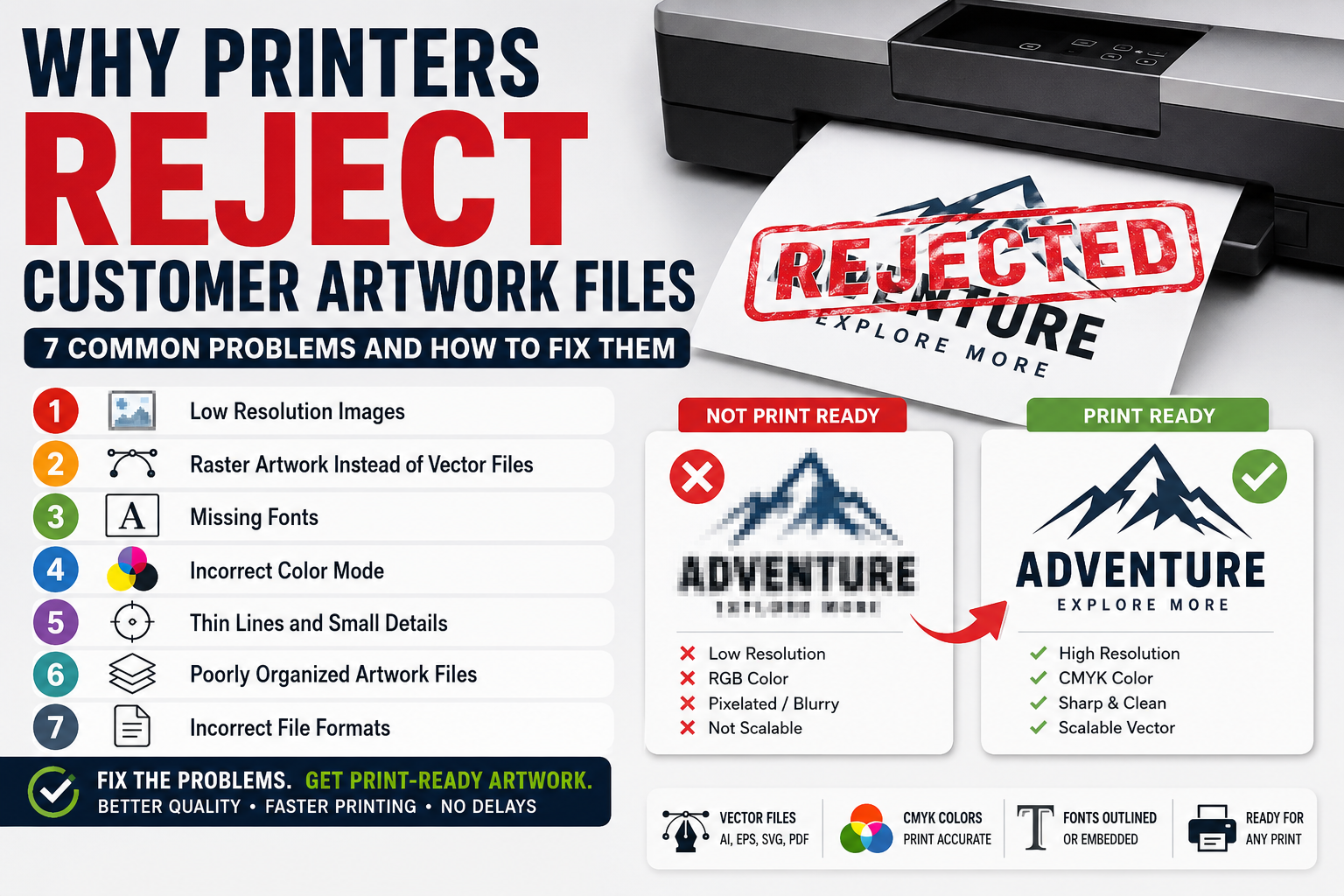
Why Printers Reject Customer Artwork Files is a common question among business owners, designers, and print shops. Many artwork files look perfect on screen but fail during production because of low resolution, incorrect file formats, missing fonts, or other technical issues. In this guide, you’ll learn the 7 most common reasons printers reject artwork files and how to create professional print-ready artwork.
Have you ever sent a logo, design, or artwork file to a printer only to hear that it cannot be used for production?
This happens every day. Business owners, marketing teams, apparel brands, sign shops, and print companies frequently receive artwork that looks acceptable on a screen but fails when prepared for professional printing.
A design that appears sharp on a website or social media post may become blurry, pixelated, distorted, or unusable when enlarged for banners, signs, packaging, embroidery, or promotional products.
The good news is that most artwork problems can be fixed before production begins.
In this guide, we’ll explain the most common reasons printers reject customer artwork files and show you exactly how to avoid these issues.
Why Print-Ready Artwork Matters
Professional printing equipment is designed to reproduce artwork with maximum precision.
When artwork files are poorly prepared, printers may experience:
- Blurry logos
- Pixelated graphics
- Incorrect colors
- Missing fonts
- Broken file links
- Production delays
- Additional artwork charges
Having print-ready artwork helps ensure:
✅ Sharp printing
✅ Accurate colors
✅ Faster turnaround times
✅ Lower production costs
✅ Better final results
Problem #1: Low Resolution Images
The most common reason printers reject artwork is low-resolution graphics.
Many customers submit:
- Screenshots
- Website images
- Social media graphics
- Small JPG logos
- Compressed PNG files
These files may look acceptable on a phone screen but become blurry when enlarged.
Example
A logo downloaded from Facebook might only be 500 pixels wide.
When enlarged for:
- Store signs
- Vehicle wraps
- Trade show displays
- Uniforms
the image becomes pixelated.
Solution
If you want to learn more about scalable vector graphics, the official W3C SVG Specification provides detailed information about SVG files and vector graphics standards.
Use vector artwork whenever possible.
Vector files include:
- AI
- EPS
- SVG
- PDF (Vector)
Vector graphics can be scaled to any size without losing quality.
Problem #2: Raster Artwork Instead of Vector Files
Professional vector artwork is commonly created using industry-standard software such as Adobe Illustrator, which allows logos and graphics to be scaled without losing quality.
Many printers require vector files for production.
Customers often submit:
- JPG
- PNG
- GIF
- WebP
These are raster formats.
Raster graphics are built from pixels.
Vector graphics are built from mathematical paths.
Printers prefer vectors because they remain sharp at any size.
Common Uses for Vector Artwork
- Logo printing
- Screen printing
- Embroidery preparation
- Signage
- Packaging
- Promotional products
Solution
Convert logos and graphics into professional vector artwork before printing.
Problem #3: Missing Fonts
Fonts are one of the most overlooked printing issues.
A customer sends:
- AI file
- PDF file
- EPS file
But forgets to include the fonts used in the design.
When the printer opens the file, the font may be missing.
The software automatically replaces it with another font.
This can completely change the appearance of the artwork.
Solution
Before sending files:
- Convert text to outlines
- Embed fonts when possible
- Supply font files if requested
Outlining fonts eliminates font substitution issues.
Problem #4: Incorrect Color Mode
Many designs are created in RGB.
RGB is intended for:
- Websites
- Mobile devices
- Social media
Printing typically uses CMYK.
RGB colors can appear brighter on screens than in print.
When converted incorrectly:
- Colors shift
- Branding becomes inconsistent
- Printed materials look different
Solution
Prepare artwork in CMYK for commercial printing.
Always ask your printer:
- What color profile they require
- Whether spot colors are needed
- If Pantone colors should be used
Problem #5: Thin Lines and Small Details
Tiny details often disappear during printing.
This is especially common in:
- Embroidery
- Screen printing
- Promotional products
- Engraving
Common issues include:
- Hairline strokes
- Tiny icons
- Small lettering
- Complex illustrations
Solution
Simplify artwork where necessary.
Professional designers often create:
- Standard version
- Simplified version
- Embroidery version
This ensures production quality across different applications.
Problem #6: Poorly Organized Artwork Files
Printers frequently receive files containing:
- Hidden layers
- Unused elements
- Duplicate objects
- Clipping masks
- Locked artwork
This slows production and increases the risk of mistakes.
Solution
Organize files properly:
- Name layers clearly
- Remove unused elements
- Expand appearances
- Clean vector paths
- Save production-ready versions
Clean artwork reduces processing time and production errors.
Problem #7: Incorrect File Formats
Not every file format is suitable for professional printing.
Many customers submit:
- Screenshots
- PowerPoint files
- Word documents
- Low-quality PDFs
These formats may not contain usable artwork.
Recommended File Formats
- AI
- EPS
- SVG
- Vector PDF
Additional Formats
- PNG (transparent)
- JPG (high resolution)
Vector files should always be included whenever possible.
Signs Your Artwork Is Not Print Ready
Look for these warning signs:
- Blurry edges
- Jagged lines
- Pixelation
- Missing fonts
- RGB colors
- Tiny details
- Unorganized layers
- Low-quality PDF exports
If you notice any of these issues, your printer may reject the file.
How Professional Vector Artwork Solves Printing Problems
Professional vector artwork provides:
Unlimited Scalability
Print at any size without quality loss.
Clean Paths
Better cutting, engraving, and printing.
Accurate Reproduction
Consistent results across all products.
Faster Production
Printers spend less time fixing files.
Lower Costs
Reduces artwork correction fees.
Industries That Require Print-Ready Artwork
Many industries rely on production-ready files:
Apparel Brands
For screen printing and embroidery.
Sign Companies
For banners, vehicle wraps, and storefront signage.
Marketing Agencies
For promotional materials and advertising.
Manufacturers
For packaging and product labeling.
Sports Teams
For uniforms and merchandise.
Corporate Businesses
For branded materials and promotional products.
Print-Ready Artwork Checklist
Before sending artwork to a printer, make sure you have:
✅ Vector logo file
✅ AI file
✅ EPS file
✅ SVG file
✅ Vector PDF
✅ CMYK colors
✅ Fonts outlined
✅ Clean vector paths
✅ Transparent PNG
✅ Simplified version if needed
✅ Correct dimensions
✅ High-resolution exports
Why Businesses Should Invest in Professional Artwork Preparation
Many printing problems occur because businesses rely on low-quality files found online.
Professional artwork preparation ensures:
- Better brand consistency
- Higher print quality
- Faster production
- Fewer revisions
- Improved customer experience
A properly prepared vector file can be used for years across hundreds of marketing materials.
Frequently Asked Questions (FAQ)
Why do printers reject artwork files?
Printers reject files due to low resolution, missing fonts, incorrect color modes, poor file organization, or unsupported formats.
What is a print-ready file?
A print-ready file is prepared according to professional printing requirements and typically includes vector artwork, CMYK colors, outlined fonts, and proper dimensions.
Which file format is best for printing logos?
AI, EPS, SVG, and vector PDF are generally the best formats for professional logo printing.
Can a PNG logo be printed?
Yes, but quality depends on resolution. For large-format printing, a vector version is recommended.
Why is my logo blurry when printed?
Your logo is likely a low-resolution raster image that becomes pixelated when enlarged.
What is the difference between raster and vector artwork?
Raster graphics use pixels, while vector graphics use scalable mathematical paths that remain sharp at any size.
Do printers prefer AI or EPS files?
Most professional printers accept both AI and EPS files, although requirements vary.
Can I convert a JPG logo into a vector?
Yes. A professional vector conversion service can manually recreate the logo as clean, scalable artwork.
Why are my printed colors different from my screen?
Screens use RGB colors, while printers use CMYK. Color shifts can occur during conversion.
How do I know if my artwork is print ready?
Check file format, resolution, color mode, font outlines, dimensions, and vector quality before submission.
What software is commonly used to create vector artwork?
Most professional vector artwork is created using Adobe Illustrator because it provides precise vector editing tools suitable for printing, embroidery, signage, and branding projects.
Conclusion
Artwork rejection is usually preventable.
Most printing problems come from low-resolution images, missing fonts, incorrect color settings, and poor file preparation.
By using professional vector artwork and following print-ready guidelines, you can avoid delays, reduce production costs, and ensure high-quality printing results.
Whether you’re printing business cards, banners, apparel, packaging, or promotional products, investing in properly prepared artwork is one of the smartest decisions you can make for your brand.
