
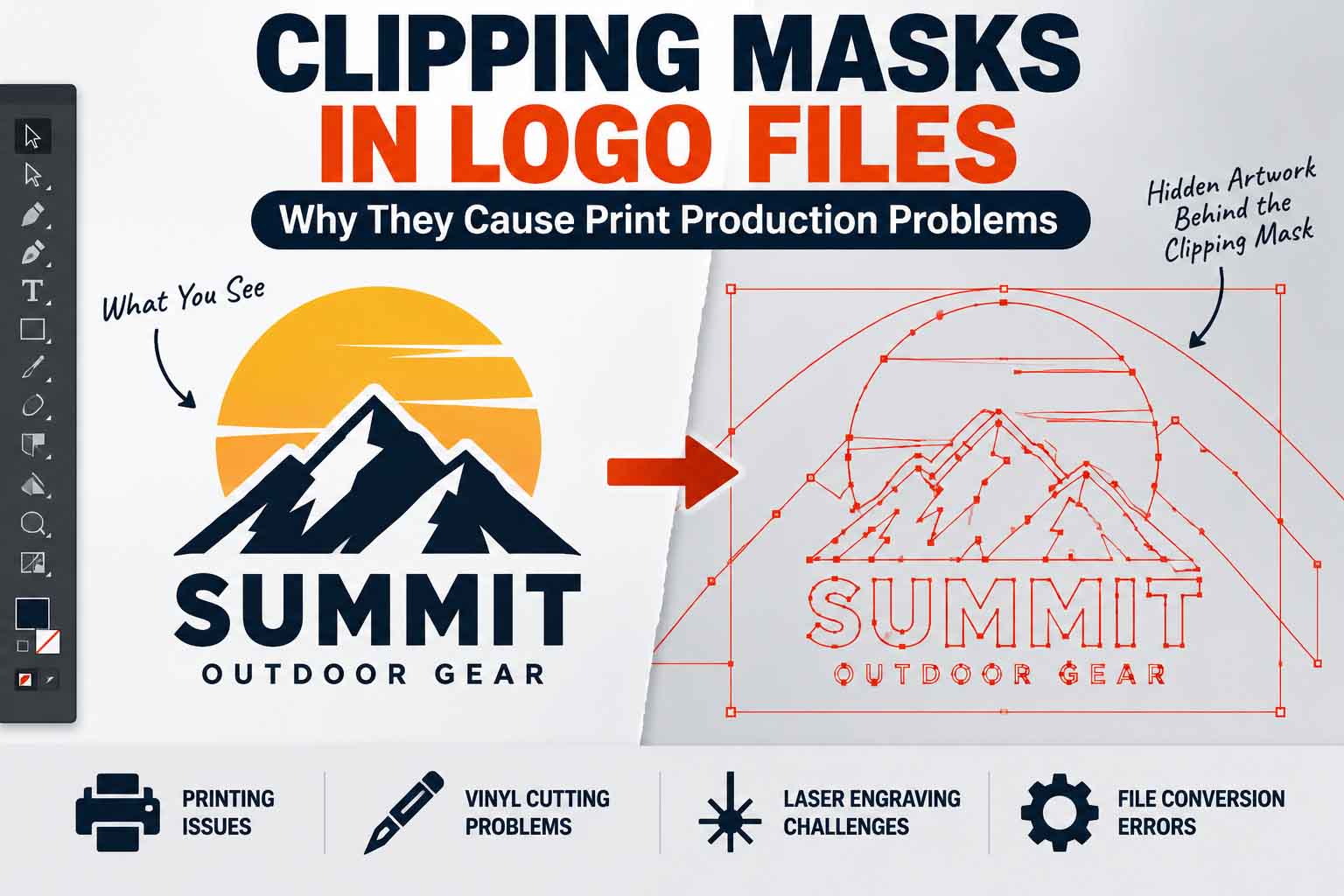
Clipping masks in logo files can look perfectly normal on screen but create unexpected problems during print production. Hidden objects, oversized images, unnecessary paths, and masked artwork may remain inside the file even when they are not visible. When that logo is sent for screen printing, vinyl cutting, embroidery, laser engraving, or large-format production, those hidden elements can cause incorrect output, file errors, or extra cleanup work.
One issue I often see when checking logo files is unnecessary clipping masks. Clipping masks are useful while designing in Adobe Illustrator, but complicated or poorly prepared clipping masks in logo files can leave hidden artwork, oversized objects, and unnecessary paths inside what appears to be a simple design.
This does not mean clipping masks are always bad. They are a normal Illustrator feature. The problem starts when a final logo file contains masking structures that are no longer needed and make the artwork harder to edit, convert, or prepare for print production.
What Is a Clipping Mask in a Logo File?
A clipping mask does not actually delete the artwork outside the visible area. It simply hides part of it. That is useful while designing, but it can become a problem when a logo needs to be converted into clean production artwork. The hidden shapes may still exist inside the file and can appear when the artwork is expanded, separated, imported into another program, or prepared for cutting.
A clipping mask controls which part of an object is visible without necessarily deleting the artwork outside that area.
Imagine placing a large pattern behind a circle. A clipping mask can make only the part inside the circle visible. On screen, you see a clean circular graphic. Inside the file, however, the larger pattern may still be there.
Adobe explains that artwork outside a clipping path is hidden rather than deleted. This is one reason it is important to inspect the actual structure of a logo rather than judging the file only by what is visible on the artboard.
For a technical explanation, see Adobe’s official guide to clipping masks in Illustrator.
Why Clipping Masks Can Cause Problems in Print Production
A normal customer may never notice a clipping mask. A production designer probably will.
Logo files often move through several applications before the final product is made. An Illustrator file might be exported to PDF or EPS, opened by another designer, imported into production software, and then processed by a printer, cutter, or other machine.
Simple artwork usually makes this process easier to manage.
A file with unnecessary clipping masks, nested groups, transparency, hidden objects, and overlapping paths can be harder to troubleshoot if something goes wrong. This is especially important when preparing a production-ready vector logo that will be shared with different vendors.
The same principle applies to file formats. A file being technically “vector” does not automatically mean it is properly prepared for every production process. I explain this further in SVG Fails in Print Production — Why It Happens and How to Fix It.
Hidden Artwork Is One of the Biggest Problems
This is something I regularly check when cleaning logo artwork.
A logo may look like it contains only a handful of simple shapes. But when you switch to Outline View in Illustrator, you may find large objects extending outside the visible design.
Those objects were not visible because the clipping mask was hiding them.
Sometimes this does not affect output at all. But if the hidden objects serve no purpose, keeping them can make the logo file unnecessarily complicated.
It can also confuse the next person who needs to edit the logo.
This is particularly common with converted artwork, downloaded templates, AI-generated graphics, and files that have been edited by several people over time.
If you are not sure whether your artwork is actually constructed from proper vector paths, read How to Check If a Logo Is Truly Vector Before Paying a Designer.
What Can Happen in Different Production Workflows?
The actual risk depends on how the logo will be used.
| Production Method | What Can Go Wrong | Better File Preparation |
|---|---|---|
| Commercial printing | Complex artwork may behave differently after conversion | Check the final PDF/EPS before production |
| Vinyl cutting | Hidden or overlapping paths can complicate cutting | Keep only necessary cut geometry |
| Laser cutting | Extra paths may create unwanted operations | Remove unnecessary and duplicate paths |
| CNC work | Complicated geometry can slow file preparation | Use simple, intentional paths |
| Logo editing | Nested masks make objects harder to select | Keep layers and paths organized |
| File conversion | Appearance or structure can change | Inspect every exported production file |
The goal is not to remove every clipping mask automatically. The goal is to make the final logo file as clean and predictable as the production method requires.
Clipping Masks Can Be a Bigger Issue for Vinyl Cutting
Vinyl cutting is different from ordinary printing because the machine follows paths.
If a logo contains unnecessary hidden shapes, duplicate paths, overlapping objects, or complicated clipping groups, the artwork may require cleanup before it can be used efficiently for cutting.
A design may look like one simple shape on screen while containing much more geometry underneath.
For vinyl production, I prefer artwork where the intended cutting geometry is immediately clear when the file is opened.
If you are preparing artwork specifically for decals or signage, see my Vector File for Vinyl Cutting, Decals and Signage Guide.
Laser Cutting and CNC Files Need Clean Geometry Too
The same idea applies to laser cutting, engraving, and CNC work.
These production methods often depend on clearly defined paths. Unnecessary clipping masks, duplicate objects, open paths, or overlapping geometry can make a simple logo harder to prepare for the machine.
This is why I do not assume that one logo file is automatically suitable for every application.
A master logo may be perfect for normal printing and digital use, while a simplified production version may work better for vinyl cutting, engraving, embroidery, or CNC work.
How to Check Clipping Masks in Adobe Illustrator
One of the easiest ways to inspect a logo is to switch to Outline View in Adobe Illustrator.
Go to:
View → Outline
You can also use Ctrl + Y on Windows or Command + Y on Mac.
Outline View removes the distraction of colors and effects and lets you see the underlying paths.
This is where hidden problems become much easier to spot. You may find oversized objects behind clipping masks, duplicate paths, stray anchor points, unnecessary groups, or even raster images placed inside what was supposed to be a vector logo.
The Layers panel is also useful. Open the groups and look at how the artwork is actually organized rather than simply looking at the finished design.
Too Many Anchor Points Can Be Another Warning Sign
Clipping masks are not the only thing I check.
A poorly converted logo can also contain hundreds or thousands of unnecessary anchor points. The logo may still look acceptable at normal size, but editing curves or preparing the artwork for another production method becomes much more difficult.
Clean vector artwork normally uses deliberate paths and sensible anchor-point placement rather than automatically generated geometry.
I cover this problem separately in Vector Logo Too Many Anchor Points? Why It Matters for Printing.
Should Every Clipping Mask Be Removed?
No.
A clipping mask is not automatically a file error.
There are many situations where a clipping mask is useful, editable, and completely appropriate. If it works correctly and serves a real purpose, there may be no reason to remove it.
The question I ask is much simpler:
Does this clipping mask actually need to be here?
If the answer is yes, I keep it.
If it is only hiding unnecessary artwork and the same result can be created with cleaner vector paths, I usually prefer the cleaner construction for a production-ready logo.
That distinction is important. Professional vector cleanup is not about applying the same command to every file. It is about understanding what the artwork needs to do.
Don’t Just Expand or Flatten Everything
Another common mistake is trying to fix the file by expanding or flattening everything.
That can sometimes make the artwork even more complicated.
A simple object can turn into many smaller shapes. Smooth curves may gain unnecessary anchor points. Overlapping objects may remain, and future editing can become harder.
This is why I prefer manual inspection before changing the structure of a logo.
If the clipping mask is unnecessary, I remove or rebuild the affected area carefully. If it is useful, I leave it intact.
The finished file should be clean because it was prepared properly—not simply because an automated command was applied to it.
What Should a Production-Ready Logo File Look Like?
A good production-ready vector logo should be easy for another designer or production vendor to understand.
When I open a finished logo file, I want to see intentional vector paths, organized groups, correct colors, clean curves, and no unexplained objects sitting outside the visible artwork.
The file should also be appropriate for its final use.
For example, artwork prepared for commercial printing may require different color settings from artwork prepared for vinyl cutting. An embroidery version may need small details simplified. A laser-cut version may need clean closed paths without visual effects.
That is why professional vector logo cleanup is about more than converting a JPG or PNG into an AI, EPS, SVG, or PDF file. The underlying construction matters too.
Get your logo print-ready in 24 hours
Upload your PNG, JPG, or screenshot. A free assessment with exact price and turnaround is included before you pay anything.
A Quick Check Before Sending Your Logo to Production
Before sending a logo to a printer or production company, open the actual vector file and inspect it.
Check whether the visible shapes are intentional. Look for clipping masks, hidden objects, duplicate paths, excessive anchor points, unnecessary raster images, and overlapping geometry.
Then export the production file and open that exported version again.
Do not assume that because the Illustrator master looks correct, every exported format will automatically behave the same way.
A few minutes of checking can prevent a much more frustrating production problem later.
Final Thoughts
Clipping masks in logo files are not something to fear. They are simply something worth understanding.
When they are used properly, clipping masks can be useful and completely harmless. When they are left behind unnecessarily, especially alongside hidden artwork and complicated vector structures, they can make print production and future editing more difficult than they need to be.
For me, the goal of logo cleanup is not to make the file technically impressive. It is to make it practical.
A good logo file should open cleanly, be easy to understand, scale without quality loss, and move from designer to printer or production vendor without unnecessary surprises.
That is what a properly prepared logo file for print production should do.
Frequently Asked Questions
Are clipping masks bad for logo files?
No. Clipping masks are a normal part of vector design. The problem is usually unnecessary or overly complicated clipping masks that leave hidden artwork inside a final logo file.
Can clipping masks cause printing problems?
They can contribute to problems in some production workflows, particularly when the artwork also contains transparency, nested masks, effects, hidden objects, or complicated paths. A simple, properly prepared clipping mask may print perfectly.
Should I remove clipping masks before printing?
Not automatically. First determine whether the clipping mask is necessary. If it is serving a useful purpose and the production workflow handles it correctly, it can remain. If it is only hiding unnecessary artwork, cleaning the file may make more sense.
How do I find clipping masks in Illustrator?
Use the Layers panel to inspect clipping groups and switch to View → Outline to see the underlying vector paths. This makes hidden or oversized artwork much easier to identify.
Why can clipping masks be a problem for vinyl cutting?
Vinyl cutters rely on vector paths. A visually simple logo can contain hidden or overlapping geometry inside clipping groups, so the file should be inspected and cleaned specifically for cutting.
Can I just expand the artwork to remove clipping mask problems?
Not always. Expanding artwork can create additional shapes and anchor points. The resulting vector paths should still be checked and cleaned manually.
What is the best format for a production-ready vector logo?
There is no single format that is best for every situation. AI, EPS, vector PDF, and SVG can all be useful depending on the production process. What matters most is that the artwork inside the file is genuinely vector, clean, and prepared for its intended use.
Need Your Logo Cleaned Up for Production?
If your logo looks fine but the actual file contains clipping masks, hidden objects, excessive anchor points, or messy vector paths, Vector Refinery can manually inspect and rebuild the artwork into a cleaner production-ready vector file.
The original design can stay the same while the underlying artwork is prepared for professional printing, signage, vinyl cutting, embroidery, engraving, and other production uses.
Published by Vector Refinery — Professional Manual Logo Vectorization and Production File Preparation Service. Visit vectorrefinery.com to upload your logo and get a free assessment today.
