
If you’re wondering how to fix a pixelated logo for professional printing, you’re not alone. Many businesses discover that their logos look blurry, jagged, or low-resolution when preparing business cards, T-shirts, packaging, or large-format signage. Fortunately, you can often fix a pixe
lated logo without changing its original design by using the correct image preparation techniques or professional manual vector reconstruction.
It is a frustrating situation, especially when the same logo looks perfectly fine on your computer or phone. You might be preparing business cards, custom T-shirts, product packaging, signage, or promotional materials, but suddenly your printer needs a higher-quality file.
The good news is that a pixelated logo can often be repaired or professionally reconstructed without changing its original design.
However, there is an important difference between making a logo appear sharper and creating a genuinely print-ready logo.
In this guide, we will explain why logos become pixelated, what you can fix yourself, when increasing image resolution helps, and why professional vector reconstruction is often the most reliable long-term solution.
What Is a Pixelated Logo?
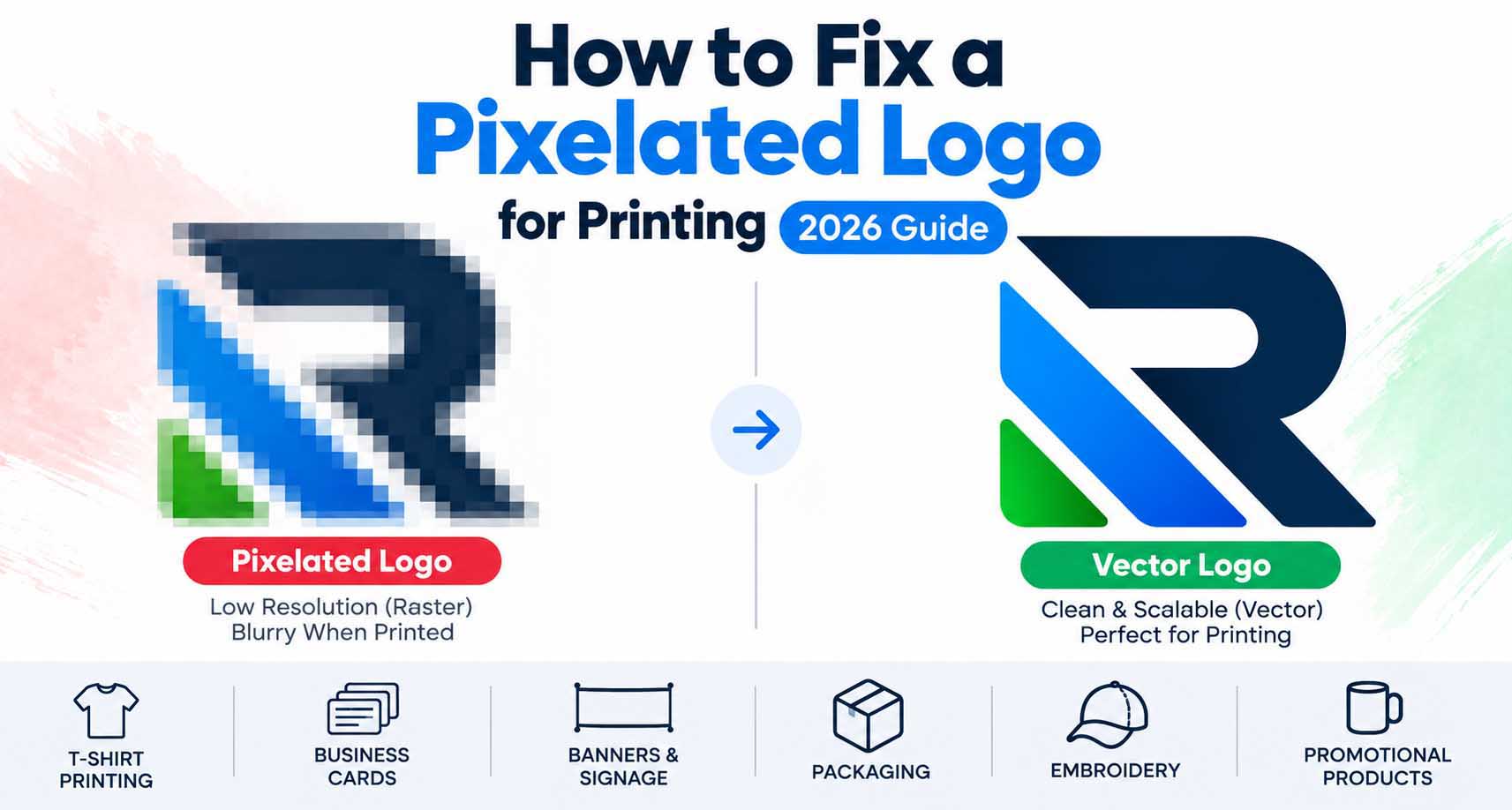
A pixelated logo is a digital image that appears blurry, blocky, jagged, or unclear when enlarged.
This usually happens when the logo is saved as a small raster image, such as a JPG or PNG, and then stretched beyond its original dimensions.
Raster images are made of individual pixels. When you enlarge them, the software must create additional pixels to fill the new space.
Unfortunately, those extra pixels cannot reliably recreate the precise shapes, curves, and details that were missing from the original file.
For example, imagine receiving a company logo that measures only 300 × 150 pixels.
It might look acceptable in an email signature. But if you enlarge that same image to fit a 6-foot outdoor sign, the edges of the letters and symbols may become noticeably rough.
This is why businesses often need to convert their PNG or JPG images into vector artwork before using them for professional printing.
Why Does a Logo Become Pixelated When Printed?
There are several reasons a logo may look sharp on a screen but appear blurry in print.
1. The Original Image Is Too Small
One of the most common problems is starting with a low-resolution image.
A logo downloaded from a website, copied from social media, or extracted from an email signature may contain very few pixels.
When the printer enlarges that image, its limitations become obvious.
A 200-pixel-wide logo cannot provide the same amount of detail as a properly prepared high-resolution image.
2. The Logo Was Enlarged Beyond Its Original Size
Suppose you have a 500 × 500-pixel logo.
If you print it at 2 inches wide, its effective resolution is 250 pixels per inch (PPI).
But if you print it at 10 inches wide, the effective resolution drops to only 50 PPI.
The file has not lost any pixels. Instead, those pixels are being spread across a much larger physical area.
This often causes visible softness or jagged edges.
3. The Logo Was Saved as a Compressed JPG
JPG compression is useful for photographs, but it can introduce visible artifacts around sharp edges, small lettering, and high-contrast graphics.
Repeatedly saving a JPG can make those artifacts worse.
This is particularly noticeable in logos containing:
- Thin typography
- Small symbols
- Sharp geometric shapes
- Solid-color backgrounds
- Fine outlines
If the original artwork is available, it is generally better to export a fresh file rather than repeatedly editing an already compressed JPG.
4. The Original Vector File Is Missing
Many businesses only have a PNG or JPG copy of their logo.
The original Adobe Illustrator, EPS, SVG, or vector PDF file may have been lost when a designer left, a business changed ownership, or files were transferred between computers.
Without the original vector artwork, resizing becomes more difficult.
Fortunately, an experienced vector artist can often reconstruct the logo manually using the available reference image.
5. The Logo Was Exported Incorrectly
Sometimes the original design is perfectly fine, but the exported file is unsuitable for printing.
For example, a designer might create a vector logo and export it as a small PNG intended for a website.
If that PNG is later used for a large banner, the output may look pixelated.
The solution is to return to the original vector file and export the artwork using the printer’s required specifications.
How to Fix a Pixelated Logo for Printing: 6 Practical Methods
Not every pixelated logo requires the same solution.
The best method depends on the original file, the complexity of the design, and how the logo will be printed.
Method 1: Find the Original Vector Logo
Before trying to repair a blurry image, check whether you already have a better version.
Look through your email attachments, shared folders, brand guidelines, and previous design projects.
Search for files with extensions such as:
.ai— Adobe Illustrator.eps— Encapsulated PostScript.svg— Scalable Vector Graphics.pdf— Portable Document Format
Keep in mind that a PDF is not automatically a vector file. A PDF can contain raster images, vector objects, or both.
If you find the original artwork, open it in a suitable design application and check whether the logo contains editable vector paths.
This may solve the problem without requiring any reconstruction.
Method 2: Export a Higher-Resolution Image
If you still have the original editable design, you may be able to export a larger PNG or TIFF.
For many close-viewed commercial printing applications, 300 PPI at the final print dimensions is a common starting point.
For example:
| Printed Logo Width | Pixels at 300 PPI |
|---|---|
| 2 inches | 600 pixels |
| 4 inches | 1,200 pixels |
| 8 inches | 2,400 pixels |
| 12 inches | 3,600 pixels |
These numbers are general examples, not universal requirements. Large-format signage may use a lower effective resolution depending on viewing distance and the printer’s specifications.
Important: Exporting a larger image from an original vector design is different from simply enlarging an existing low-resolution PNG.
The first can preserve clean artwork. The second cannot reliably restore missing details.
Get your logo print-ready in 24 hours
Upload your PNG, JPG, or screenshot. A free assessment with exact price and turnaround is included before you pay anything.
Method 3: Use Image Upscaling Carefully
Modern image-editing applications can enlarge raster images using interpolation or AI-assisted upscaling.
These tools may improve the appearance of certain images, especially photographs.
However, logo artwork requires more precision.
An upscaling tool may accidentally change:
- Letter shapes
- Line thickness
- Sharp corners
- Small negative spaces
- Geometric proportions
- Brand-specific details
For a logo that must match an approved design exactly, an upscaled image should be treated as a temporary improvement rather than a guaranteed production-ready replacement.
Method 4: Reconstruct the Logo as Vector Artwork
For many business logos, manual vector reconstruction is the most dependable long-term solution.
Instead of enlarging the existing pixels, a vector designer rebuilds the artwork using mathematical paths, curves, and shapes.
These paths can be scaled without the same pixelation problems associated with raster images.
For example, a properly constructed vector logo can be used on a small business card or a large storefront sign without needing to redraw it for each size.
The reconstruction process typically involves:
- Importing the existing logo as a visual reference.
- Identifying the original shapes, lettering, and proportions.
- Rebuilding curves and edges using precise Bézier paths.
- Correcting alignment and inconsistent geometry.
- Matching the original brand colors.
- Checking negative spaces and fine details.
- Preparing editable vector files.
- Exporting production-ready formats.
The objective is not necessarily to redesign the logo.
In many cases, the goal is to preserve the approved design while improving its technical quality.
If your business has lost its original artwork, a professional logo vectorization service can help recreate it.
Method 5: Use Adobe Illustrator’s Image Trace for Suitable Artwork
Adobe Illustrator includes an Image Trace feature that converts raster images into vector-based tracing results.
It can be useful for certain simple illustrations and high-contrast artwork.
However, automatic tracing is not always suitable for logos that require exact reproduction.
A low-resolution source image may produce:
- Unnecessary anchor points
- Uneven curves
- Distorted lettering
- Rough edges
- Inaccurate shapes
- Small unwanted objects
The result may technically contain vector paths while still looking unprofessional.
Adobe provides instructions for converting raster images into vector artwork using Image Trace.
For simple artwork, automatic tracing followed by careful manual correction may be sufficient.
For complex brand logos, typography, and manufacturing artwork, manual reconstruction usually provides greater control over accuracy and path quality.
Method 6: Hire a Professional Logo Vectorization Specialist
If you need a logo for commercial printing and cannot locate the original vector file, professional reconstruction may save considerable time.
This is especially useful when the logo includes detailed lettering, intricate symbols, gradients, or artwork that must match an existing brand identity.
At Vector Refinery, we focus on manually recreating existing logos into clean, scalable vector artwork.
Our approach prioritizes preserving the original appearance while preparing files for practical production requirements.
Raster vs Vector Logos: What Is the Difference?
Understanding the difference between raster and vector graphics helps explain why some logos print beautifully while others become blurry.
| Feature | Raster Logo | Vector Logo |
|---|---|---|
| Common formats | JPG, PNG, TIFF | AI, EPS, SVG, vector PDF |
| Construction | Pixels | Paths and shapes |
| Enlarging | May become pixelated | Paths remain scalable |
| Editing individual shapes | Limited | Usually possible |
| Large-format printing | Depends on resolution | Generally well suited |
| Embroidery preparation | Usually needs further artwork preparation | Useful starting point |
| Color editing | Can be difficult | Often easier |
| Best use | Photos and fixed-size graphics | Logos and scalable artwork |
Vector artwork is particularly valuable for logos because branding must remain consistent across many different applications.
A logo may appear on a website today, packaging tomorrow, and a large trade-show display next month.
With properly prepared vector artwork, the same master design can support all three applications.
For more information, explore our image-to-vector conversion service.
Can You Fix a Pixelated Logo Without Redesigning It?
Yes. In many cases, the original logo can be reconstructed without changing its approved design.
This distinction matters.
A business may already have an established identity, and even small modifications to the typography, proportions, or icon can create inconsistencies.
Professional logo recreation should focus on matching the existing artwork as closely as the source allows.
That includes preserving:
- Original letterforms
- Logo proportions
- Symbol placement
- Brand colors
- Spacing and alignment
- Important visual details
If the reference image is extremely small or damaged, some details may require interpretation.
A responsible designer should identify those uncertainties rather than silently introducing major design changes.
The finished result should look familiar to customers while being much more useful for printing and production.
What Is the Best File Format for Printing a Logo?
There is no single format that works perfectly for every printer and production method.
However, a professionally prepared logo package should usually include editable vector artwork and appropriate export formats.
Adobe Illustrator (AI)
AI is useful when printers or designers need to modify colors, shapes, layouts, or production settings.
It is commonly used in professional design and prepress workflows.
EPS
EPS remains useful in certain established print and manufacturing workflows.
Some equipment and suppliers still request EPS files.
SVG
SVG is a scalable vector format commonly used for websites, digital interfaces, and compatible production workflows.
It is also useful when individual vector objects need to remain editable.
Vector PDF
A true vector PDF can preserve scalable paths and is widely used for sharing print artwork.
However, a file saved with the .pdf extension is not automatically vector.
Always verify that the actual logo artwork contains vector objects rather than an embedded low-resolution image.
High-Resolution PNG
PNG is useful when a transparent background is needed.
However, PNG remains a raster format, even when exported at high resolution.
For professional printing, the correct file depends on the printer’s equipment, artwork specifications, and production process.
Adobe’s Illustrator printing documentation provides additional information about print settings, output, and color management.
Why Does a Logo Look Blurry on a T-Shirt?
T-shirt printing introduces additional production considerations.
A logo that looks fine on a screen may produce poor results when printed on fabric.
The problem may involve insufficient resolution, unsuitable artwork preparation, excessive fine detail, or incorrect output settings.
Different garment decoration methods have different requirements.
Screen Printing
Screen printing often requires artwork prepared for color separation.
A clean vector logo makes it easier to identify individual colors and maintain consistent shapes.
However, gradients, halftones, and detailed effects may require additional preparation.
Direct-to-Film (DTF) Printing
DTF printing can reproduce detailed full-color artwork, but the final result still depends on image quality and production settings.
Low-resolution source artwork may lead to visibly soft edges or unclear details.
For additional guidance, read our guide to preparing logos for DTF printing.
Embroidery
Embroidery does not use ordinary vector paths directly as stitch instructions.
A logo generally needs to be digitized into an embroidery machine format.
However, clean vector artwork can provide an excellent reference for embroidery digitizing.
Small lettering, narrow gaps, and intricate details may need production-specific adjustments.
If you need artwork prepared for this workflow, explore our embroidery vector art service.
How to Fix a Pixelated Logo for Large-Format Printing
Large-format printing is one of the most common situations where low-resolution logos become a problem.
Imagine a business preparing artwork for a 10-foot banner.
The logo looks sharp in a small website header but becomes visibly blurred when enlarged to the required dimensions.
Simply increasing the file’s pixel dimensions may not solve the problem.
A better approach is to obtain the original vector artwork or reconstruct the logo as scalable paths.
Before sending artwork to the printer, confirm:
- Final print dimensions.
- Required file format.
- Accepted color mode and profile.
- Bleed and safe-area requirements.
- Minimum line thickness.
- Whether fonts should be outlined.
- Whether transparency or special effects need flattening.
Large-format printers may also specify different resolution requirements based on viewing distance.
Always follow the actual print provider’s production guidelines.
How to Check Whether Your Logo Is Truly Vector
A logo can look sharp on a screen without being a genuine vector file.
Here are several practical ways to inspect it.
Open the File in Adobe Illustrator
Open the artwork and select the logo.
If the individual shapes contain editable paths and anchor points, those elements are vector objects.
If the entire logo behaves as one embedded image, it may still be raster artwork.
Use Outline View
In Adobe Illustrator, Outline View can help reveal the underlying vector paths.
However, an image container or clipping path alone does not prove that the logo itself has been reconstructed.
Check the actual artwork objects.
Inspect the PDF Carefully
Zooming into a PDF can provide clues, but it is not definitive proof.
A high-resolution raster image can look sharp at considerable magnification.
For reliable verification, inspect the PDF’s objects using appropriate vector-editing or prepress software.
Check the File Contents
An SVG file can contain genuine vector paths, but it can also include embedded raster images.
Similarly, AI and PDF files can contain a mixture of vector and raster elements.
The file extension alone is not enough.
Common Mistakes When Fixing a Pixelated Logo
Some quick fixes create the appearance of improvement without solving the underlying problem.
Mistake 1: Increasing the DPI Number
Changing a file’s DPI or PPI metadata does not automatically add genuine image detail.
The number of available pixels and the final printed size are what matter for raster resolution.
Mistake 2: Applying Too Much Sharpening
Sharpening can make some edges appear more defined.
But excessive sharpening may introduce halos, noise, and unnatural outlines.
It cannot reliably recover original vector geometry.
Mistake 3: Saving a JPG as SVG
Simply changing a JPG file into an SVG container does not automatically reconstruct the logo as vector paths.
The SVG may still contain the original raster image.
Mistake 4: Relying Entirely on Automatic Tracing
Automatic tracing can be helpful, but results should be checked carefully.
Rough curves and unnecessary anchor points can create problems in printing, cutting, and engraving workflows.
Mistake 5: Ignoring Small Details
A logo might look excellent at 500% zoom but become unreadable at its actual production size.
Always inspect artwork at the intended physical dimensions.
Mistake 6: Forgetting to Request Editable Source Files
A transparent PNG is useful, but it should not be your only master logo file.
Keeping the original editable vector artwork makes future printing and design projects easier.
When Should You Use Professional Manual Vector Redraw?
Manual vector reconstruction is particularly useful when:
- Your original AI or EPS file has been lost.
- Your logo only exists as a screenshot.
- Your print shop rejected the supplied artwork.
- Your logo contains custom typography.
- You need exact reproduction of an existing brand mark.
- Automatic tracing produces uneven edges.
- You need files for signage, engraving, apparel, or packaging.
- You want a reusable master logo for future projects.
A carefully reconstructed logo can eliminate repeated file-quality problems across different suppliers.
It also provides more flexibility when your business expands into new printing methods or promotional products.
How Vector Refinery Helps Fix Pixelated Logos
At Vector Refinery, we help businesses turn low-quality logo images into clean, professional vector artwork.
Our work focuses on manual logo recreation rather than relying on automatic tracing as the final result.
We pay close attention to original proportions, lettering, curves, colors, and overall visual consistency.
Depending on the project requirements, deliverables can include:
- Adobe Illustrator (AI)
- EPS
- SVG
- True vector PDF
- High-resolution transparent PNG
- Black and white variations
- Print-ready artwork variations
The objective is simple: preserve your existing logo while making it practical for professional use.
Whether you need artwork for business cards, custom apparel, packaging, signage, or promotional merchandise, properly prepared vector files can make production easier.
Have a blurry or pixelated logo?
Visit Vector Refinery to learn about our manual vector conversion services, or request a vector artwork quote.
Frequently Asked Questions
Can a pixelated logo be fixed?
Yes. A pixelated logo can often be improved or reconstructed. If the original vector file is available, exporting a suitable version may solve the problem. Otherwise, manual vector reconstruction can recreate the design as scalable artwork.
How do I make my logo less pixelated?
Start by locating the original high-resolution or vector file. If you only have a small PNG or JPG, upscaling may improve its appearance, but vector reconstruction is often better for professional logo printing.
Can I convert a blurry PNG into a vector logo?
Yes, although the accuracy of the final result depends on the quality of the reference image. Manual reconstruction allows a designer to rebuild the logo’s shapes and curves while preserving its original appearance.
Is 300 DPI enough for printing a logo?
For many close-viewed raster print applications, 300 PPI at final size is a common guideline. However, requirements vary by print process, viewing distance, and equipment. Genuine vector paths are resolution-independent, although raster effects and embedded images still require appropriate resolution.
Why does my logo look blurry when enlarged?
Raster images contain a fixed number of pixels. Enlarging them spreads those pixels across a larger area, making edges appear softer or blockier.
Is SVG better than PNG for printing?
SVG contains scalable vector information when the artwork is built from vector paths. PNG is raster-based. However, the best production format depends on what your printer accepts. Some printers prefer AI, EPS, or PDF instead of SVG.
Can Photoshop fix a pixelated logo?
Photoshop can resize, sharpen, and enhance raster artwork. However, it cannot reliably restore all missing original details. For precise scalable logo artwork, vector reconstruction is often a better choice.
Is Image Trace the same as manual vectorization?
No. Image Trace automatically generates vector paths from raster pixels. Manual vectorization involves deliberately reconstructing shapes, curves, and details using vector drawing tools.
How do I know whether my PDF logo is vector?
Open it in a suitable vector-editing or prepress application and inspect the actual artwork objects. A PDF containing an embedded JPG or PNG is not necessarily a true vector logo.
Can I use the same vector logo for embroidery and printing?
The same vector master can serve as a starting point for both workflows. However, embroidery usually requires separate stitch digitizing and may need adjustments for fabric, thread, and minimum detail sizes.
Get your logo print-ready in 24 hours
Upload your PNG, JPG, or screenshot. A free assessment with exact price and turnaround is included before you pay anything.
Final Thoughts
A pixelated logo is more than a minor visual inconvenience. It can delay printing projects, reduce the quality of branded materials, and create inconsistencies across different applications.
Fortunately, you do not always need a completely new logo.
In many situations, the original design can be preserved while its technical quality is improved.
If you still have the original vector artwork, start there. If you only have a blurry JPG, PNG, or screenshot, consider having the logo professionally reconstructed.
The goal is not simply to make your logo bigger. It is to make it clean, scalable, and ready for the way your business actually uses it.
For professional manual logo reconstruction, explore Vector Refinery’s logo vectorization service and prepare your artwork for its next print project.
