
How to Prepare a Logo for DTF Printing: Artwork Requirements, Transparency & Vector Files
Preparing a logo for DTF printing is not quite the same as preparing a logo for a website, a business card, or even traditional screen printing. A design that looks clean on a bright monitor may show an unwanted rectangle, a faint halo, muddy fine details, or inconsistent color when transferred onto fabric. Most of these surprises are easier to prevent while preparing the artwork than after a batch of shirts has been pressed.
DTF, short for direct-to-film, is commonly used to decorate T-shirts, hoodies, uniforms, tote bags, and other suitable textiles. The artwork is printed onto a special film, typically with color inks and a white ink layer, coated with adhesive powder, cured, and transferred to the garment using heat and pressure. Each printer has its own equipment, ink, film, software, and application settings, so the final specifications should always come from the company producing your transfer.
This guide focuses on practical garment DTF artwork preparation: choosing the right file, making a truly transparent background, checking resolution at the final print size, anticipating white ink, and inspecting small details before production. If you have only a screenshot or low-resolution logo, we will also explain when an editable vector master can help without pretending that every DTF printer requires a vector upload.
What Is Different About DTF Artwork?
Unlike cutting a single-color vinyl decal, DTF printing can reproduce full-color illustrations, gradients, and complex designs when the printer’s workflow supports them. That flexibility is useful for brand marks with shaded mascots, colorful lettering, or photographic elements. It does not mean every source image is suitable. The print software still needs clear edges, appropriate resolution, and a sensible interpretation of transparency and white ink.
There are two separate questions to ask: is the artwork technically usable by the printer, and will it look good at the size and on the garment you selected? A high-resolution PNG can answer the first question while still failing the second if tiny text disappears against textured fabric. Likewise, a perfectly editable vector logo can have excessively thin strokes that look fragile when transferred.
For businesses working across different products, it helps to keep one clean master file and export a DTF-specific production copy. Our broader guide to promotional product artwork explains why artwork requirements change from one manufacturing process to another.
Best File Format for a DTF Logo: PNG, AI, SVG, PDF or EPS?
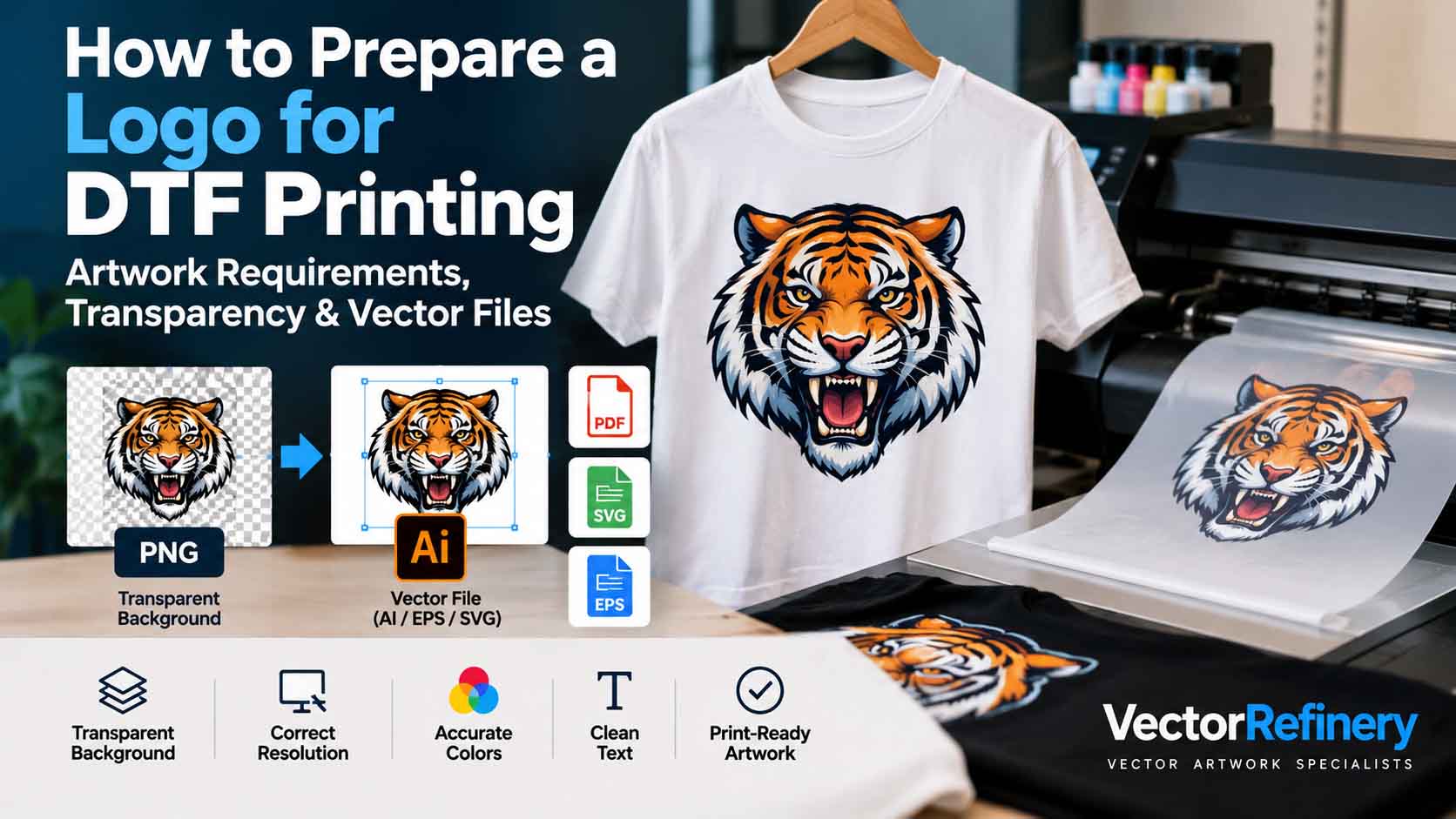
Many garment DTF providers request a transparent PNG at the intended print dimensions. That is a legitimate production file, not an inferior substitute simply because it is raster-based. Other shops accept PDF, TIFF, PSD, or vector files and process them through their own raster image processor (RIP). Do not assume the format a designer prefers is automatically the format a printer wants.
A vector master is particularly valuable when you need to resize the logo repeatedly, correct individual colors, adjust outlines, create a simplified small-size version, or export at several print dimensions. However, a file with an AI or PDF extension may still contain nothing but an embedded low-resolution image. The underlying artwork matters more than the filename. For a deeper explanation, see checking whether a logo is truly vector and our vector file format comparison.
| Format | Typical role | What to check |
|---|---|---|
| Transparent PNG | Common DTF upload format | Actual pixel dimensions, clean alpha transparency, no background |
| AI | Editable Illustrator master | True paths, linked assets, fonts, effects, color settings |
| SVG | Scalable vector exchange | Printer compatibility, fonts, masks and raster effects |
| Vector PDF | Portable review or production artwork | Whether artwork is truly vector and accepted by the RIP |
| EPS | Legacy vector exchange | Support for transparency and effects; printer preference |
| JPG | Preview or reference image | No alpha transparency; usually avoid as a cutout logo upload |
If your shop requests EPS, read our guide to EPS files for printing. If you are delivering an entire brand package rather than one print job, professional logo file delivery covers how to organize the source and export files.
How Much Resolution Does DTF Printing Need?
Resolution should be evaluated at the actual print size, not by the DPI number saved in a file’s metadata. A common supplier target is around 300 pixels per inch (PPI) at final dimensions, although some printers accept other values depending on artwork, equipment, and intended viewing distance. Always follow your provider’s specification rather than treating 300 PPI as a universal guarantee.
For example, a 10-inch-wide logo at 300 PPI needs 3,000 pixels across. An image that is only 600 pixels wide would produce 60 PPI at that size. Changing the resolution field from 72 to 300 without adding real detail does not make that small image sharp. Resampling can create more pixels, but it cannot reliably restore missing lettering, edges, or texture.
When a customer sends a tiny logo from social media, a larger export from the original design file is the first thing to request. If the original is unavailable, clean PNG to vector conversion may be more useful than repeatedly enlarging the same damaged screenshot. Our PNG to vector conversion guide explains the distinction between a converted raster file and a reconstructed editable master.
Transparent Backgrounds: The Most Important Preflight Check
For most standalone garment logo transfers, the background outside the design should be genuinely transparent. A white rectangle behind the artwork is not the same as transparency, and a checkerboard pattern baked into a JPG is not transparency either. If that rectangle is printed, the finished transfer may include a visible block around the logo.
Open the PNG over both a light and a dark test background. Inspect the outside edge at 100% and at higher zoom. Look for leftover white pixels, colored fringes, pale shadows, accidental holes, and semi-transparent pixels that were created by an automatic background remover. Pay particular attention to letter counters, narrow openings and the spaces between separate logo elements.
Soft edge pixels are not inherently wrong; they can make a rasterized curve look smooth. The problem is unwanted color contamination. A logo extracted from a white JPG may retain white anti-aliasing around dark shapes. On a black shirt, that can show as an ugly light halo. Cleaning the edge from the correct original artwork is better than blindly deleting every partially transparent pixel.
It is also important to distinguish transparent pixels from transparent effects. A transparent PNG background means there is no image in those pixels. A 40%-opacity drop shadow contains image information that may be interpreted differently by the RIP. For the broader print-production distinction, see transparency effects in commercial printing and clipping masks in logo files.
White Ink and Dark Garments
DTF systems commonly print a white ink layer behind the color image so the design can remain visible on dark garments. The RIP generally creates or manages this layer according to its configuration. That means you should not automatically draw a white silhouette underneath every logo or manually create a white plate unless your print provider specifically requests it.
A white area inside the logo may be intentional artwork, while a transparent area should allow the garment to show through. Those two situations are very different. If a designer accidentally converts transparent openings into white shapes, the printed transfer may fill spaces that were supposed to remain open. Conversely, a white wordmark may need a clear instruction that the white shapes are part of the design and must print.
Before approving a dark-shirt order, request a proof that shows how white ink will be generated, particularly around gradients, feathered shadows and tiny isolated dots. Our explanation of white underbase in screen printing discusses a related concept in screen printing, but screen-printing separations should not be copied blindly into a DTF RIP workflow.
Color Settings: Should a DTF Logo Be RGB or CMYK?
There is no universal rule that every DTF file must be CMYK. Some providers prefer RGB artwork because their RIP handles the conversion using printer-specific profiles. Others request CMYK or a particular ICC profile. Converting colors repeatedly between profiles can create avoidable shifts, so obtain the supplier’s file specification first.
Bright screen colors are not guaranteed to reproduce identically on fabric. Printed appearance is affected by ink, white backing, film, curing, garment texture, heat application and color management. Pantone numbers can help communicate a brand target, but they do not guarantee an exact DTF match. For brand-critical jobs, request a physical sample or test transfer.
Keep the brand’s official colors in your editable master, record the requested export profile, and label any approved print-specific variation. For more background, read RGB, CMYK and Pantone and Adobe’s Illustrator color guidance.
Thin Lines, Small Text and Negative Spaces
A DTF printer may be able to reproduce details that are impractical for certain other decoration methods, but fine elements still need a real-world check. Thin strokes can look weak after transfer, tiny standalone pieces may be fragile, and narrow negative spaces can lose definition. The behavior depends on the film, adhesive, fabric and application process as well as the design itself.
Evaluate the artwork at the smallest intended printed size. A 12-inch chest graphic and a 2-inch sleeve mark may need separate exports or a carefully adjusted small-size version. Do not assume the same microscopic tagline will remain readable on both. Check small letter counters, registration marks, trademark symbols, thin outlines and detached decorative specks.
Our guides to small gaps and negative spaces and thin lines in production cover why digital precision does not always translate to physical production. If a small-size variation is needed, preserve the original logo’s identity while strengthening only the details that require production adjustment.
Gradients, Shadows and Soft Edges
One advantage of garment DTF is that it can accommodate full-color artwork and tonal transitions. A gradient does not automatically need to be converted into flat colors. Nevertheless, a design with transparent fades, glows, drop shadows or near-invisible pixels can create unexpected white ink or adhesive behavior if the RIP interprets those pixels differently from the designer’s preview.
Ask your supplier whether semi-transparent pixels are supported and how they treat low-opacity edges. Some workflows prefer clean cutout boundaries or require particular handling for faded effects. Avoid adding a heavy outline solely to hide poor edge cleanup; fix the underlying artwork first. For comparison with processes that have different constraints, read our guide on gradients in embroidery, vinyl cutting and laser engraving.
Preparing a DTF Logo in Adobe Illustrator
Start by preserving the approved logo master. Work on a duplicate so you can make production adjustments without altering the brand’s original artwork. Set the artboard or intended output dimensions according to the printer’s template, and make sure every element is in the correct position.
Step 1: Inspect the source
Determine whether the logo consists of genuine editable shapes or an embedded image. Use Outline view to inspect vector paths. If the artwork was auto-traced, look for irregular curves, overlapping pieces and excessive nodes. See excessive anchor points and our how to vectorize a logo for related checks.
Step 2: Resolve typography and hidden objects
Check font availability, kerning and small text. Keep a version with live editable text, then create an outlined production copy when the supplier requires it. Remove stray objects and accidental background rectangles. Our article on outlined versus editable fonts explains why both editable and outlined versions can be useful.
Step 3: Check shapes, transparency and colors
Inspect open gaps, compound shapes, clipping masks and overlapping areas. Verify that transparent areas are actually empty and that intentional white shapes remain visible. Keep gradients only if the target RIP supports their intended appearance. If an SVG is part of your workflow, check SVG production problems before relying on a browser preview.
Step 4: Export at the requested final size
For a PNG upload, export with a transparent background at the pixel dimensions specified by the supplier. Confirm that no artboard-colored rectangle is included. Reopen the exported file in a separate application and compare it with the master at the intended size. Adobe’s official artwork export documentation is a useful reference for Illustrator’s export options.
Step 5: Test the actual production file
Do not approve the Illustrator preview alone. Review the exact file the DTF shop will use. Ask whether the RIP has changed the background, softened an edge, generated unexpected white ink, or resized the design. A physical sample is especially worthwhile for large orders, unusual fabrics and brand-critical colors.
Garment DTF Is Not UV-DTF
Garment DTF and UV-DTF share a similar abbreviation but are different production methods. The garment process described here is used to transfer suitable designs onto textiles with heat and adhesive. UV-DTF workflows commonly produce adhesive transfers for hard, compatible surfaces such as certain bottles, packaging items and promotional objects. Their inks, films, transfer behavior, substrates and artwork requirements are not interchangeable.
For that reason, a garment DTF logo checklist should not automatically include the same setup as a UV-DTF decal. If your project is for a rigid product rather than apparel, read our dedicated UV-DTF artwork preparation guide instead. Likewise, projects involving cut contours should use the relevant die-cut sticker artwork guidance, while curved promotional items may need pad printing artwork.
Common DTF Artwork Mistakes and How to Prevent Them
Sending a low-resolution screenshot. A screenshot may look acceptable on a phone but break down when enlarged for a chest print. Request the original artwork or rebuild a clean master when necessary.
Leaving a visible background. A white or colored rectangle may become part of the transfer. Check alpha transparency in the actual exported file, not just in the design editor.
Using an AI file that contains only a JPG. Placing a raster inside a vector document does not make its shapes editable. Check the actual path structure before calling the artwork vector.
Assuming every white pixel is background. White lettering and highlights may be intentional. Remove only the background, not the design itself.
Ignoring the final physical size. Fine details that look great at 800% zoom can be hard to read on a sleeve or small chest placement. Always preview at output dimensions.
Guessing the printer’s color mode. Exporting everything to CMYK without checking the RIP may cause unnecessary color shifts. Follow the printer’s workflow and approve a sample when color matters.
Ignoring a failed proof. If a printer flags a problem, ask for the exact issue: dimensions, transparency, white ink, pixel quality or fine detail. The answer determines the appropriate fix. Our article on why printers reject artwork explains common reasons production files are rejected.
When Should You Rebuild the Logo as Vector Artwork?
You do not need to vectorize every image before DTF printing. A detailed illustration or photograph can be entirely appropriate as a high-resolution raster file. Vector rebuilding becomes useful when the design is a logo with geometric shapes, typography or flat-color elements and the available source is too small, blurry, damaged or difficult to edit.
For example, if the only surviving logo is a 400-pixel-wide image from an old website, simply exporting a larger PNG does not recover its original contours. Manual reconstruction can restore intentional curves, clean letterforms, consistent spacing and separate recolorable shapes. That vector master can then be exported as a suitable transparent PNG for the garment printer.
Professional manual redraw is about accuracy and editability, not changing the approved design. The work may include preserving original proportions, recreating custom lettering, reducing unnecessary anchor points and organizing shapes so future color and size adjustments are easier. Our professional logo vectorization process describes the process, while manual vector conversion services explains the service options.
DTF Artwork Preflight Checklist
- Confirm the garment DTF supplier’s accepted format and preferred color profile.
- Use the intended final print dimensions, not an arbitrary export size.
- Check pixel dimensions and effective PPI at the final physical size.
- Remove unwanted background pixels and inspect edges on light and dark previews.
- Keep intentional white design elements separate from empty transparent areas.
- Ask how the RIP creates white ink and handles partial transparency.
- Inspect thin strokes, small type, tiny gaps and isolated details.
- Keep a clean editable master and a separately named DTF production export.
- Verify the exported file in another viewer and request a production proof.
- Approve a test transfer when the order or color requirements justify it.
Frequently Asked Questions About DTF Logo Files
Do I need a vector file for DTF printing?
Not always. Many garment DTF providers accept high-resolution transparent PNG files. A vector master is helpful for resizing, recoloring, cleanup and future production versions, but the final upload should match the supplier’s specifications.
Is 300 DPI enough for DTF printing?
About 300 PPI at final print size is a common target, not a universal guarantee. Verify the actual pixel dimensions and follow the printer’s requested resolution. Changing only the DPI metadata does not restore lost detail.
Can I use a JPG logo for DTF?
A JPG can serve as a reference, but it does not support alpha transparency. For a standalone cutout logo, a transparent PNG or another approved format is usually more suitable. Ask your printer before submitting a JPG with a solid background.
Can DTF print gradients and shadows?
Often yes, but transparent fades, shadows and fine edges may need special treatment. Request a RIP proof and confirm how partial transparency and white ink will be processed.
Should I use RGB or CMYK for DTF artwork?
Use the color mode and profile your printer requests. Some DTF workflows prefer RGB input and handle color conversion inside the RIP; others have different specifications.
Does a transparent PNG mean the logo has no white ink?
No. Transparent areas mean no visible image there, while white artwork inside the design may need white ink. The RIP can also generate a white backing behind printed colors according to its settings.
Is garment DTF the same as UV-DTF?
No. Garment DTF is a textile-transfer workflow. UV-DTF is commonly used for adhesive transfers onto compatible hard surfaces. Their materials and preparation instructions should not be treated as identical.
What if my logo is too blurry for a shirt?
First look for the original design file or a larger export. If none exists and the logo contains reproducible shapes and lettering, manual vector reconstruction can provide a clean master from which to generate a correctly sized DTF PNG.
Need a Clean Logo File for DTF Printing?
At VectorRefinery, we help businesses and apparel brands turn low-quality logos, screenshots and damaged files into clean, editable artwork while preserving the approved design. We can prepare a vector master and export transparent PNG files at the dimensions your garment DTF provider requests. The final result is still subject to the printer’s RIP settings and production approval.
If your print shop has rejected a logo or you need a dependable master for future apparel, signage and promotional products, send us the existing artwork along with the intended print size and your supplier’s file requirements. You can review our logo conversion service or contact VectorRefinery for an artwork assessment.
Final thought: the best logo for DTF printing is not simply the one with the biggest pixel count or the most impressive file extension. It is the one that has been checked for its real print dimensions, clean transparency, readable detail, sensible color handling and compatibility with the printer’s workflow.
Get your logo print-ready in 24 hours
Upload your PNG, JPG, or screenshot. A free assessment with exact price and turnaround is included before you pay anything.
