
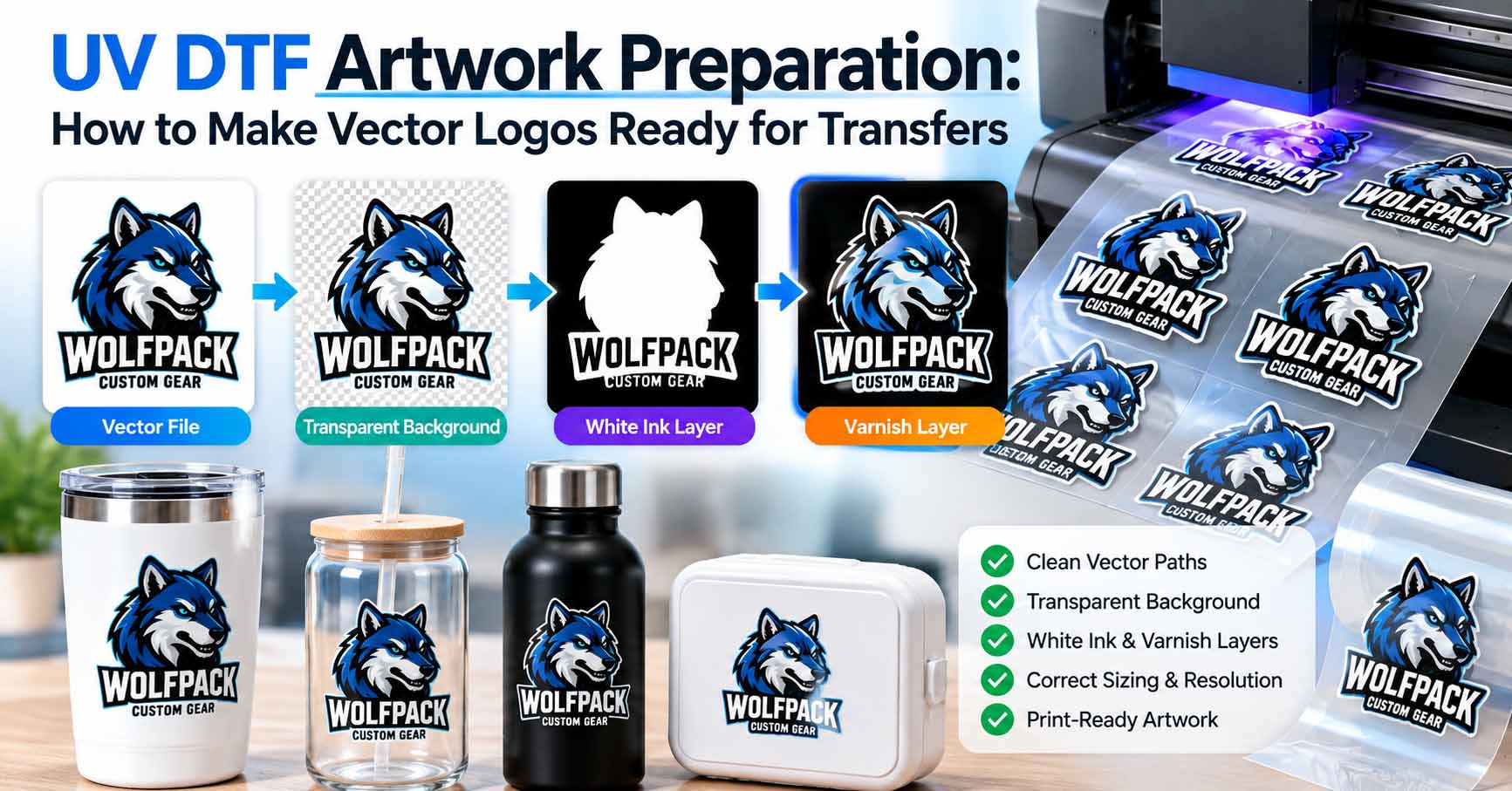
UV DTF artwork preparation is one of the most important steps in producing clean, professional transfers for bottles, tumblers, glassware, packaging, promotional products, and other compatible hard surfaces. A logo may look perfect on a computer screen, but that does not automatically mean it will transfer correctly onto a physical product.
Small lettering can become difficult to reproduce, thin lines may lose adhesion, transparent effects can behave unexpectedly, and poorly prepared white ink or varnish layers can change the final appearance of the design.
The challenge is that UV DTF printing involves more than simply converting an image into a high-resolution file. The artwork must work with the printer’s software, ink configuration, transfer film, and production requirements.
In this guide, we’ll explain how to prepare vector logos for UV DTF printing, which file formats are useful, how white ink and varnish layers work, and what to check before sending artwork to production.
| Artwork Element | Recommended Preparation | Why It Matters |
|---|---|---|
| File Format | AI, vector PDF, or high-resolution transparent PNG, depending on supplier requirements. | Supports compatibility with the printer’s production workflow. |
| Vector Paths | Use clean, accurate paths without unnecessary anchor points or duplicate objects. | Makes artwork easier to resize, inspect, and edit. |
| Background | Remove unwanted background objects and preserve genuine transparency. | Prevents unwanted rectangular areas around the design. |
| Image Resolution | Use the supplier’s requested resolution at final print size; 300 PPI is a common example. | Helps maintain detail in raster artwork. |
| White Ink | Confirm whether the RIP generates white backing automatically or requires a separate mask. | Helps maintain color visibility on compatible surfaces. |
| Varnish Layer | Follow the supplier’s instructions for automatic or selective varnish. | Controls supported gloss, texture, and raised effects. |
| Small Text | Check readability at the actual physical transfer size. | Reduces the risk of unreadable lettering. |
| Fine Lines | Follow the printer’s minimum line thickness and spacing specifications. | Improves the likelihood of reliable printing and transfer. |
| Color Mode | Supply RGB or CMYK artwork according to the printer’s RIP requirements. | Supports more predictable color management. |
| Typography | Outline production text when required and retain an editable source copy. | Prevents unwanted font substitutions. |
| Mirroring | Mirror only when specifically requested by the production provider. | Prevents incorrect artwork orientation. |
| Final Proof | Inspect dimensions, details, transparency, and production settings; request a sample when necessary. | Helps identify potential issues before a full production run. |
What Is UV DTF Printing?
UV DTF stands for ultraviolet direct-to-film printing. It is a transfer process used to apply printed designs to compatible hard surfaces without printing directly onto the finished object.
In a typical workflow, UV-curable inks are printed onto a specialized film, cured, and combined with a transfer carrier. The finished design can then be transferred to a suitable product surface.
UV DTF is commonly used for decorating tumblers, bottles, jars, acrylic products, promotional merchandise, and branded accessories.
Unlike conventional textile DTF printing, UV DTF generally does not require heat-transfer powder or a heat press. The equipment, ink system, film, and application procedure are different.
For an additional overview of the production process, see Erasmart’s UV DTF printing guide.
Although UV DTF can reproduce detailed, colorful designs, the quality of the original artwork still matters.
Why UV DTF Artwork Preparation Matters
Imagine a small business ordering several hundred branded tumblers.
The company provides a logo copied from its website. It looks acceptable on a phone, but the image contains soft edges, tiny decorative details, and a background that is not truly transparent.
When the printer prepares the artwork, the production team may discover that the logo requires significant cleanup before it can be printed reliably.
A similar problem occurs when a customer sends an Illustrator or PDF file that contains an embedded low-resolution image instead of actual vector artwork.
Proper UV DTF artwork preparation helps reduce these problems before production begins.
The objective is to supply artwork that has clean edges, appropriate dimensions, suitable transparency, accurate colors, and a structure that the production provider can process.
If the original logo is blurry or pixelated, professional logo vectorization can provide a cleaner starting point.
Choose the Right File Format for UV DTF Transfers
There is no single file format that every UV DTF printing company requires.
Some providers prefer Adobe Illustrator or vector PDF files. Others accept high-resolution PNG or TIFF artwork with transparent backgrounds.
The correct choice depends on the printer’s workflow.
Adobe Illustrator (AI)
Adobe Illustrator files are useful when the production team needs to inspect, adjust, or separate individual design elements.
A properly organized AI file can contain editable vector paths, color information, outlined typography, and separately identified production elements.
However, saving a raster image inside Illustrator does not automatically make the artwork vector.
If you are unsure whether your file contains genuine vector paths, read our guide on how to check if a logo is truly vector.
Vector PDF
A properly exported vector PDF can preserve clean shapes, typography, and accurate dimensions.
It is important to distinguish between a true vector PDF and a PDF containing only an embedded bitmap.
A rasterized PDF may still print acceptably at its intended resolution, but it does not offer the same editing flexibility as a genuine vector master.
SVG and EPS
SVG and EPS files can be useful as editable source formats, particularly when artwork must be transferred between design applications.
However, not every UV DTF RIP system accepts these formats directly.
Always confirm compatibility before submitting production files.
Transparent PNG
A transparent PNG may be perfectly suitable when a supplier specifically requests raster artwork.
The image should be exported at the final intended physical size and at the resolution required by the print provider.
For example, a printer may request 300 pixels per inch at actual print dimensions.
Increasing the resolution number without adding genuine image detail will not repair a blurry original.
For additional help with raster artwork, explore our PNG to vector conversion services.
Get your logo print-ready in 24 hours
Upload your PNG, JPG, or screenshot. A free assessment with exact price and turnaround is included before you pay anything.
Why Clean Vector Paths Are Important
Vector artwork is constructed using mathematical paths rather than a fixed grid of pixels.
This makes it easier to resize a logo, adjust individual elements, and produce sharp raster exports at the required output dimensions.
For UV DTF artwork preparation, clean paths are particularly helpful when the design contains custom lettering, geometric symbols, narrow gaps, or intricate shapes.
Poorly constructed vector artwork may contain duplicate objects, uneven curves, unnecessary anchor points, or hidden shapes.
These issues can complicate production preparation and make artwork adjustments more difficult.
Our article on why too many anchor points cause production problems explains how excessive nodes affect vector quality.
A clean vector master should preserve the intended appearance of the logo while making its geometry easy to inspect and edit.
Prepare a Truly Transparent Background
Background transparency is especially important when preparing UV DTF transfers.
If the design is intended to appear without a surrounding rectangle, the artwork should not contain an unwanted white or colored background object.
A white background and a transparent background may look similar on a white computer screen, but they are not the same thing.
For example, a black logo saved as a JPG typically includes a rectangular background because JPG does not support transparency.
If that rectangle becomes part of the printed artwork, it may produce an unwanted visible area around the design.
Use a transparent export where required, and check the artwork against both light and dark preview backgrounds.
Do not confuse transparency in the source artwork with the white ink backing generated during printing. Those are separate production considerations.
Understand White Ink in UV DTF Printing
White ink plays an important role in many UV DTF workflows.
When colored artwork is transferred onto a dark, transparent, or strongly colored surface, the appearance of the design can change depending on the white backing beneath it.
A properly prepared white ink layer can help maintain the intended visibility and appearance of printed colors.
However, white ink preparation is not identical across all printing systems.
Some RIP applications generate the white backing automatically from the artwork’s transparency and color information.
Other workflows require a separately defined white channel, spot color, or mask.
The exact setup must follow the printer manufacturer’s or production provider’s instructions.
Do not manually create a white ink layer without first confirming how the supplier expects that information to be delivered.
For related background information on white ink in another production method, read what white underbase means in screen printing. UV DTF and screen printing are different processes, so their layer settings should not be treated as interchangeable.
What Does the Varnish Layer Do?
Varnish is another important component of many UV DTF printing systems.
Depending on the equipment and ink configuration, a clear varnish layer can contribute gloss, surface texture, or raised visual effects.
Some workflows apply varnish automatically, while others support selective varnish effects through dedicated artwork separations.
A selective varnish design might emphasize certain parts of a logo while leaving other areas with a different finish.
For example, a brand could request a glossy icon with less prominent surrounding lettering.
Whether that effect is achievable depends on the printer, ink set, RIP software, and transfer system.
When preparing artwork, ask whether the supplier requires a varnish mask, supports automatic varnish generation, or offers only a standard finish.
For a more technical discussion, see UV DTF white and varnish layer preparation.
Check Logo Size Before Printing
One of the easiest mistakes in UV DTF artwork preparation is reviewing the logo only at a large zoom level.
A design may look excellent at 500% on a computer monitor but become difficult to reproduce when reduced to a small product label.
This is particularly important for logos containing narrow lettering, delicate outlines, tiny decorative symbols, or closely spaced elements.
The correct minimum size depends on the printing equipment, transfer materials, surface characteristics, and artwork.
Some suppliers publish minimum line thickness requirements. Others assess each design individually.
For example, OTTORON’s UV DTF artwork guidelines specify a minimum standalone line thickness for their production process.
That figure should not be treated as a universal standard for every printer.
Before approving the artwork, view it at the actual physical dimensions and request a sample when the design contains unusually fine details.
Pay Attention to Small Text and Fine Lines
Small text is one of the most challenging parts of logo reproduction.
A wordmark may contain thin strokes, narrow counters, and small spaces between letters.
When those details are reduced, the printed result may lose clarity.
For example, a detailed serif logo that looks beautiful on a large product label may not work equally well on a very small promotional item.
The solution is not necessarily to redesign the entire brand identity.
In some cases, a carefully prepared production variation can preserve the recognizable appearance of the logo while improving small-size reproduction.
Possible adjustments include slightly strengthening delicate strokes, improving internal spacing, or using an approved simplified mark.
These changes should be made only with the brand owner’s approval.
For more information about production limitations, see our guide on why thin lines disappear in printing and engraving.
Avoid Unnecessary Transparency Effects
Drop shadows, soft glows, feathered edges, and semi-transparent gradients can create complications in UV DTF printing.
These effects may depend on partial transparency or blended pixels that do not translate cleanly into white ink and varnish separations.
A shadow that looks smooth on screen may print differently when processed through the production RIP.
This does not mean every gradient or transparency effect is impossible to print.
It means the artwork must be evaluated using the specific printer’s capabilities.
When a logo includes complicated transparency, consider preparing an additional version with solid fills and clearly defined edges.
Our guide on transparency effects in commercial printing explains why visual effects sometimes change during production.
Get your logo print-ready in 24 hours
Upload your PNG, JPG, or screenshot. A free assessment with exact price and turnaround is included before you pay anything.
Inspect Negative Space and Internal Openings
Negative space refers to the open areas inside and around a design.
These areas are especially important in letters such as A, B, D, O, P, and R, as well as in logos with cutouts or small gaps.
An opening that looks clearly separated at a large size may become difficult to distinguish when the artwork is reduced.
Poorly constructed vector artwork can also contain white shapes that imitate transparent openings without creating genuine cutouts.
That construction may cause confusion during editing or production separation.
When appropriate, use clean compound paths to create true internal openings.
Read our detailed explanation of compound paths in vector logos to understand how proper path construction supports production workflows.
Should You Mirror UV DTF Artwork?
Mirroring is a common source of confusion.
Some transfer processes require artwork to be reversed before printing, while others expect the customer to submit the design in its normal reading direction.
With UV DTF, the correct orientation depends on the equipment and transfer workflow.
Many suppliers ask customers not to mirror their artwork because the required orientation is handled during production.
However, you should not assume this applies to every printer.
Always follow the supplier’s submission instructions.
For example, OTTORON’s artwork guidelines specifically instruct customers not to mirror their uploaded designs.
The safest approach is to submit the logo exactly as requested and allow the production provider to handle any necessary output transformation.
Use the Correct Color Settings
Color accuracy is another important consideration.
A logo may use RGB values for websites and digital branding, while a print provider may request CMYK artwork or another color configuration.
The best choice depends on the UV DTF printer’s color-management workflow.
Some printers prefer RGB artwork because their RIP software handles the conversion into the printer’s ink profile.
Others request CMYK files.
Do not convert every logo to CMYK automatically without checking the supplier’s specifications.
Also remember that the appearance of a printed transfer can be affected by the substrate color, white ink backing, varnish, and surface finish.
For broader color-management information, explore the VectorRefinery printing resources.
Keep Fonts Consistent
Typography should remain visually consistent when artwork is transferred between computers and software applications.
If a production file contains live text and the receiving computer does not have the required font, the lettering may be substituted.
That can change the logo’s appearance.
A common solution is to convert the final production typography into vector outlines.
This preserves the intended letter shapes and spacing without depending on the original font installation.
However, an outlined file is not the same as a fully editable text document.
Keep a separate source file with live text when future wording changes may be required.
For the production version, follow the printer’s instructions regarding outlined or embedded fonts.
Review Clipping Masks and Hidden Objects
Adobe Illustrator artwork can contain hidden elements that are not obvious in a normal preview.
Clipping masks, unused objects, oversized images, and unnecessary groups can remain inside the document.
Although these elements may not always affect printing, they can make the artwork harder to inspect and prepare.
Before exporting the production file, review the layer structure and remove objects that are no longer needed.
Check that the visible logo does not depend on accidental masking or unwanted raster content.
Our article about clipping masks in logo files explains why these structures deserve attention during production preparation.
Prepare Artwork at the Final Transfer Size
A common mistake is designing the artwork without knowing the exact area available on the product.
A logo intended for a narrow bottle may require different dimensions from one placed on a wide tumbler.
Before preparing the final file, confirm the maximum printable width and height.
Check whether the supplier requires a particular artboard size, margin, spacing between designs, or gang-sheet layout.
A gang sheet combines multiple designs within a single print area, but the spacing and layout requirements can vary.
Do not assume that a design will automatically fit every product simply because the source artwork is scalable.
A vector logo can be resized without pixelation, but very small details may still need adjustment.
Common UV DTF Artwork Preparation Mistakes
Many UV DTF printing problems begin before the transfer film reaches the printer.
One common issue is submitting a low-resolution image that has simply been enlarged. Increasing its dimensions does not restore missing detail.
Another is using a background that appears transparent but actually contains a white rectangle.
Incorrect assumptions about white ink, varnish, or mirroring can also lead to production errors.
Fine lines and tiny lettering may become difficult to reproduce at the intended size, while unnecessary transparency effects can create unexpected output.
Poorly organized vector files introduce another challenge. Duplicate paths, hidden objects, and unnecessary complexity can make the artwork harder to edit.
The most reliable approach is to review the artwork against the actual production requirements instead of relying only on how it looks on screen.
How to Prepare a UV DTF Logo in Adobe Illustrator
Start by opening the highest-quality original artwork available.
If the logo exists only as a low-resolution image, rebuild it as clean vector artwork before making production adjustments.
Once the design is ready, inspect its shapes, curves, lettering, and internal spaces.
Set the artwork to the intended physical dimensions and check whether the smallest details remain practical at that size.
Remove unwanted background objects and verify that transparent areas are genuinely transparent.
Review gradients, shadows, and other effects that may require special treatment.
Next, confirm the production provider’s requirements for color mode, white ink, varnish, file format, and artwork orientation.
If the supplier requires spot channels or specific layer names, follow those instructions precisely.
Convert final production typography to outlines when requested, while preserving a separate editable master.
Export the required files and inspect them again before submission.
Finally, ask for a production proof or sample when the job involves expensive merchandise, unusual surfaces, or particularly detailed artwork.
For general Adobe Illustrator documentation, visit Adobe’s official Illustrator help center.
Why Manual Vector Reconstruction Can Help
Not every logo arrives as a clean vector file.
Some businesses only have a JPG from an old website, a small PNG, an AI-generated image, or a screenshot.
These sources can contain blurry boundaries, uneven shapes, or unclear typography.
Manual vector reconstruction provides an opportunity to rebuild the original design using controlled paths and clean geometry.
Unlike simply enlarging a bitmap, this process creates editable artwork that can be prepared for different production requirements.
At VectorRefinery, we manually recreate logos and artwork while preserving the approved design as closely as possible.
Our work focuses on accurate shapes, smooth curves, consistent spacing, and organized vector files rather than automatic tracing.
You can explore our manual vector conversion services if your existing artwork needs professional cleanup before UV DTF production.
UV DTF Artwork Preparation Checklist
Before sending your artwork to a printing company, make sure the final design has been reviewed carefully.
Confirm that the artwork is supplied in an accepted file format and that its dimensions match the intended transfer size.
Check that unwanted backgrounds have been removed and that important lettering remains readable.
Inspect thin lines, small gaps, internal openings, and other delicate details.
Verify whether the supplier generates white ink and varnish automatically or requires separate artwork information.
Confirm the correct orientation, color settings, and font handling.
Finally, keep the original editable artwork and a copy of the submitted production file.
A well-organized source package makes future reorders and adjustments much easier.
Frequently Asked Questions
What is the best file format for UV DTF printing?
The best file format depends on the printing provider. Many suppliers accept AI, vector PDF, or high-resolution transparent PNG files. Always follow the supplier’s specific artwork requirements.
Do UV DTF logos need to be vector?
Not always. Some printers accept properly prepared high-resolution raster images. However, vector artwork offers advantages when resizing, editing, separating colors, or refining detailed logos.
Does UV DTF printing require a transparent background?
For standalone logos and designs without a surrounding background, a transparent file is commonly required. The printer may have additional requirements for white ink or production masks.
Can UV DTF print gradients?
Some UV DTF workflows can reproduce gradients, but transparency effects and white ink interactions may change the final result. Ask the printer to confirm compatibility and provide a sample when necessary.
What is the white ink layer used for?
White ink can provide an opaque backing that helps maintain color visibility on certain surfaces. The exact implementation depends on the printer and its production settings.
What is varnish in UV DTF printing?
Varnish is a clear ink or coating used in supported UV DTF workflows to create surface finishes such as gloss or raised effects. Not every printer supports the same varnish options.
Should UV DTF artwork be mirrored?
Follow the printer’s instructions. Many suppliers request normal, non-mirrored artwork and handle the required orientation during production.
Can I use an AI-generated logo for UV DTF?
Yes, provided the artwork is prepared correctly. AI-generated images may require cleanup, background removal, resolution improvements, or manual vector reconstruction before production.
Why do thin lines disappear in UV DTF transfers?
Extremely fine details may be difficult to reproduce or transfer reliably because of the printer’s resolution, ink construction, film, and adhesion characteristics. Check the supplier’s minimum-detail requirements.
Where can I get a logo converted into clean vector artwork?
VectorRefinery provides manual logo reconstruction and vector conversion services for businesses, designers, and print production teams.
Final Thoughts
Successful UV DTF artwork preparation starts with understanding the difference between a visually attractive design and a file that is genuinely ready for production.
Clean vector paths, correct dimensions, suitable transparency, readable details, and properly configured production layers all contribute to a more reliable workflow.
The most important rule is to follow the specifications of the company printing the transfers. White ink, varnish, mirroring, color settings, and file requirements can differ between systems.
A carefully prepared master logo also makes future production easier because the same approved design can be adapted for different products and sizes.
Need your logo prepared as clean, editable vector artwork?
At VectorRefinery, we manually recreate low-resolution logos and images into professional AI, EPS, SVG, and vector PDF artwork, with high-resolution PNG exports available for production.
Explore our logo vectorization service or contact our team to discuss your artwork requirements.
