

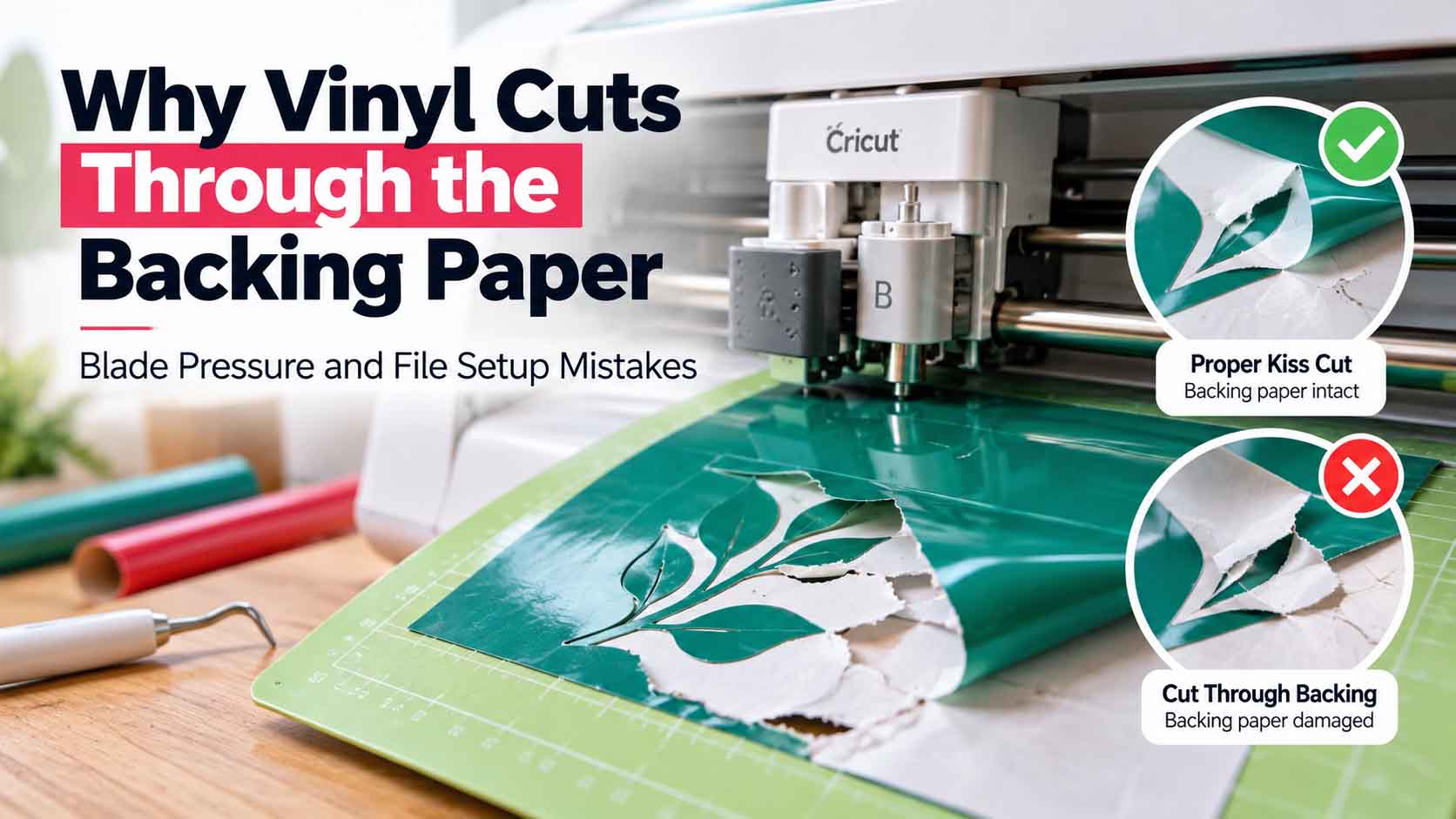
You load a sheet of adhesive vinyl into your cutting machine, choose the design, and start cutting. Everything seems normal until you remove the material and discover that the blade has cut through the vinyl and its backing paper.
Instead of peeling away the unwanted vinyl cleanly, the backing tears, small pieces fall apart, and the design becomes difficult to transfer.
If you’re dealing with vinyl cutting through backing paper, the problem is usually related to cutting pressure, blade setup, material selection, or a combination of machine settings and artwork complexity.
The good news is that you don’t always need to replace your machine or recreate the entire design.
In this guide, we’ll explain why vinyl cuts too deeply, how to identify the actual cause, and what you should check in your vector file before starting another cut.
What Happens When Vinyl Cuts Through the Backing Paper?
Most adhesive vinyl comes with two main layers: the colored vinyl film and a release liner, commonly called backing paper.
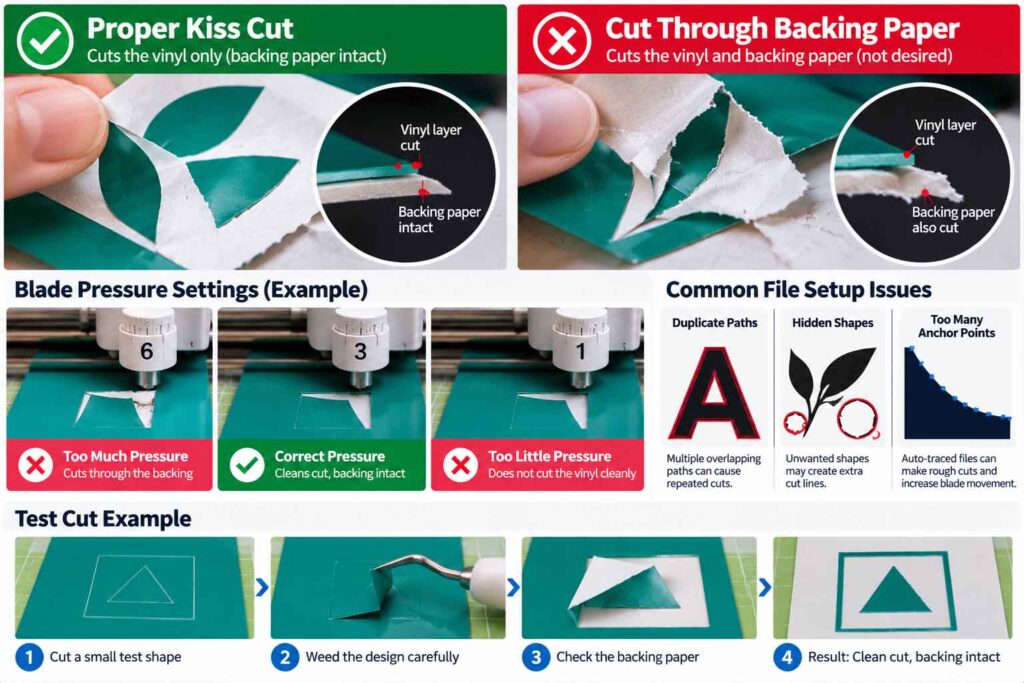
For typical adhesive vinyl decals, the goal is to cut through the vinyl while keeping the liner intact. This is known as a kiss cut.
The backing supports the design during weeding and helps keep individual pieces in position before transfer tape is applied.
When the blade cuts through both layers, the material may separate into individual pieces.
This can make even a simple logo difficult to weed and transfer.
Not every cutting project requires a kiss cut. Some production workflows intentionally cut through the entire material. However, for most standard adhesive vinyl decals, cutting through the backing is not the desired result.
1. Too Much Blade Pressure
Excessive cutting pressure is one of the first things to check when vinyl cuts through its backing.
A cutting machine applies downward force to move the blade through the material. If that force is too high for the vinyl you’re using, the blade may penetrate the release liner.
This can happen when:
- A heavier material setting is selected accidentally.
- The pressure has been manually increased.
- A custom cutting preset is unsuitable for the vinyl.
- The machine is using a setting saved for a different material.
For example, a pressure setting that works well with thicker specialty vinyl may be too aggressive for a thinner adhesive film.
How to Fix It
Start by selecting the material preset that most closely matches your vinyl.
If the backing is being cut, try reducing the pressure slightly and performing another small test cut.
Avoid making large adjustments without testing.
The goal is to find a setting that cuts the vinyl film cleanly while leaving the liner sufficiently intact.
Cricut provides official instructions for adjusting material pressure in its Cut Pressure Settings Guide.
2. Incorrect Blade Depth or Blade Installation
Cutting pressure is important, but it isn’t the only factor.
On machines with adjustable blade exposure, a blade that extends too far can cut deeper than intended.
Even when the pressure seems reasonable, excessive blade exposure may damage the backing.
A blade that is not seated correctly can also cause inconsistent cutting behavior.
Before changing several settings at once, inspect the blade and its housing.
Check whether the blade is installed correctly, whether any material is trapped around it, and whether the cutting tip is damaged.
Some machines automatically control blade positioning, while others require manual blade-depth adjustments.
Always follow the instructions for your specific machine model.
3. Choosing the Wrong Vinyl Material Setting
Not all vinyl materials behave the same way.
Permanent adhesive vinyl, removable vinyl, specialty films, and heat-transfer materials may require different cutting settings.
Their thickness, surface finish, adhesive construction, and liner properties can affect how the blade performs.
For example, using a setting intended for a thicker material on ordinary adhesive vinyl may cause an unnecessarily deep cut.
What You Should Do
Identify the exact material you’re cutting before selecting a preset.
If you’re using Cricut Design Space, check the available material settings and select the closest appropriate option.
For other cutting machines, refer to the manufacturer’s recommended blade and force settings.
Avoid assuming that one setting will work for every vinyl brand or product.
A small test cut is much less expensive than wasting an entire sheet.
4. Multiple Cutting Passes Can Damage the Liner
Some cutting machines offer a multi-cut feature that sends the blade over the same cutting path more than once.
This can be useful for materials that require additional passes.
However, repeated passes may cut through the backing when they are unnecessary.
For standard adhesive vinyl, check whether the selected material preset includes multiple passes.
If the first pass already cuts through the vinyl, an additional pass may make the cut too deep.
Use the number of passes recommended for your material, and confirm the result with a test cut.
5. Can a Poor SVG File Cause Vinyl Cutting Problems?
Yes, an improperly prepared SVG file can create cutting problems, although it is important to understand the difference between artwork errors and machine-pressure problems.
A vector file normally tells the cutting software where the blade should travel.
The machine’s material settings control how that cutting operation is performed.
Therefore, an SVG file does not usually determine the blade’s physical cutting pressure.
However, poorly constructed artwork may contain duplicated paths, overlapping cut lines, or unexpected shapes that cause the machine to travel over the same area repeatedly.
Duplicate Cut Paths
Imagine a logo containing two identical vector paths placed directly on top of one another.
The design may look perfectly normal on the screen.
But if the cutting software treats both paths as separate cut operations, the machine may cut the same outline twice.
This can increase the risk of cutting too deeply along those specific lines.
Hidden or Unnecessary Shapes
Artwork converted from an image may contain extra objects that are difficult to notice at normal zoom.
These objects may create unexpected cutting operations after the file is imported.
Before production, inspect the SVG in the cutting software and confirm that only the intended cut lines are present.
If your artwork was originally created from a PNG or JPG, read our Vector File for Vinyl Cutting, Decals and Signage Guide to understand why proper vector construction matters.
6. Why Auto-Traced Artwork Can Make Cutting More Difficult
Automatic image tracing can produce a large number of unnecessary anchor points, irregular curves, and small vector fragments.
These issues do not directly increase blade pressure, but they can create a more complicated cutting path.
A simple curved logo might contain dozens or hundreds of small segments after automatic tracing.
The machine must follow those segments rather than a smooth, intentionally constructed curve.
This may result in rough edges, unnecessary blade movements, or difficult weeding.
When a traced design also contains overlapping paths, some areas may receive repeated cuts.
A Better Approach
For logos and production artwork, manually inspect the vector shapes before cutting.
Remove duplicate paths, unnecessary objects, and unwanted fragments.
Use smooth curves where appropriate and maintain the original appearance of the artwork.
At Vector Refinery, our manual vector conversion process focuses on rebuilding artwork with clean, editable shapes rather than relying on automatic tracing alone.
Learn more about our Manual Vector Conversion Services.
7. Check the Cutting Mat and Material Placement
A cutting mat that does not hold the material securely can cause problems during cutting.
If the vinyl shifts, wrinkles, or lifts from the mat, the blade may not follow the intended path consistently.
Before cutting, make sure the vinyl is positioned correctly and lies flat.
Use a suitable mat for your material and machine.
Check for dust, leftover adhesive, or debris that could interfere with material placement.
A clean and stable cutting surface helps produce more consistent results.
However, a mat alone cannot correct excessive cutting pressure or an incorrectly installed blade.
Get your logo print-ready in 24 hours
Upload your PNG, JPG, or screenshot. A free assessment with exact price and turnaround is included before you pay anything.
8. How to Perform a Proper Vinyl Test Cut
A test cut is one of the simplest ways to avoid wasting material.
Instead of immediately cutting a large logo or detailed design, begin with a small shape in an unused corner of the vinyl.
A small square with an internal shape is often useful because it allows you to inspect both straight and curved cutting paths.
Follow these steps:
- Load a small piece of the intended vinyl material.
- Select the appropriate material preset.
- Confirm the correct blade is installed.
- Cut a small test shape.
- Weed the unwanted vinyl carefully.
- Inspect the backing for deep cuts or tears.
- Adjust the settings if necessary and repeat the test.
The vinyl should separate cleanly without the backing breaking apart.
A light impression on the liner may be normal, depending on the material, but the backing should remain functional for the intended transfer process.
Cricut also recommends performing a small test cut before proceeding with a full project in its Material Settings Guide.
9. How to Tell Whether the Problem Is the Machine or the Vector File
When a vinyl project fails, it’s tempting to blame the SVG file immediately.
However, not every cutting problem comes from the artwork.
A simple comparison can help narrow down the cause.
| What You Notice | Possible Cause | What to Check |
|---|---|---|
| Every line cuts through the backing | Excessive pressure or blade exposure | Material preset, force, blade setup |
| Only certain outlines are cut repeatedly | Duplicate or overlapping vector paths | SVG objects and cut preview |
| Vinyl tears or lifts while cutting | Blade damage, unsuitable settings, or unstable material | Blade, mat, material placement |
| Extra lines appear in the finished cut | Unwanted vector objects | Hidden shapes and imported artwork |
| A simple test shape works, but the logo fails | Artwork complexity or duplicate paths | Vector file construction |
This comparison is especially useful when working with artwork supplied by a client or downloaded from an external source.
If a simple test shape cuts correctly but the imported logo behaves unexpectedly, inspect the vector file before changing the machine settings again.
10. Prepare Clean Vector Artwork Before Production
A clean cutting file should be easy for the cutting software to interpret.
Before exporting an SVG from Adobe Illustrator, review the artwork carefully.
Make sure the intended shapes are accurate, unnecessary objects have been removed, and any duplicated paths have been resolved.
Convert text to outlines when necessary to preserve the intended lettering.
Confirm that the artwork is scaled to the required physical size.
Finally, import the exported file into the target cutting software and inspect the cut preview.
A file that looks correct in Illustrator is not automatically guaranteed to behave correctly in Cricut Design Space or another cutting application.
The final cutting preview matters.
When Should You Get Professional Vector Help?
If your vinyl cuts too deeply across every shape, start with the machine settings.
A vector designer cannot repair a damaged blade or choose the correct physical pressure without knowing the machine and material.
However, if the cutting problems appear only with certain logos or imported artwork, the file itself may need attention.
For example, an old logo recreated from a screenshot may contain unnecessary paths that make cutting more complicated than it should be.
Professional manual vector preparation can help remove those construction problems while preserving the approved design.
At Vector Refinery, we help businesses, print shops, and designers convert existing artwork into clean, editable vector files for production.
Our goal is to preserve the original design while making the file easier to inspect, edit, and prepare for its intended use.
Get your logo print-ready in 24 hours
Upload your PNG, JPG, or screenshot. A free assessment with exact price and turnaround is included before you pay anything.
Final Thoughts
When vinyl cuts through the backing paper, the first step is identifying whether the problem comes from the machine settings, material, blade, or artwork.
Excessive pressure and incorrect material settings are common causes, but repeated cut paths and poorly prepared SVG files can also create localized cutting problems.
Start with a small test cut, inspect the blade, and confirm the correct material settings.
If the machine handles simple shapes correctly but struggles with a particular logo, review the vector artwork for duplicate paths and unnecessary objects.
Taking a few minutes to check both the cutting setup and the file can help prevent wasted vinyl and frustrating production delays.
Need help preparing your logo for vinyl cutting? Visit Vector Refinery to learn more about our manual vector conversion services.
Frequently Asked Questions
Why is my Cricut cutting through the vinyl backing paper?
Your Cricut may be using too much pressure, an unsuitable material setting, or an incorrect blade setup. Start by selecting the appropriate vinyl preset and performing a small test cut.
How do I stop vinyl from cutting too deep?
Reduce the cutting pressure where your machine allows it, confirm the blade setup, and check that the material preset matches your vinyl. Make small adjustments and test again.
Can an SVG file cause the machine to cut the same line twice?
Yes. If the SVG contains duplicate paths and the cutting software processes them separately, the machine may follow the same outline more than once.
What is a kiss cut in vinyl cutting?
A kiss cut cuts through the vinyl film while leaving the release liner intact. This allows the design to remain supported during weeding and transfer.
Does converting a PNG to SVG fix cutting problems?
Not automatically. A basic conversion or automatic trace may create irregular shapes and unnecessary paths. The resulting vector artwork should be inspected and cleaned before cutting.
Should I replace my blade if the backing paper keeps tearing?
Not immediately. First check the material settings, blade installation, and pressure. If the blade is damaged or cutting remains inconsistent after troubleshooting, replacement may be necessary.
