

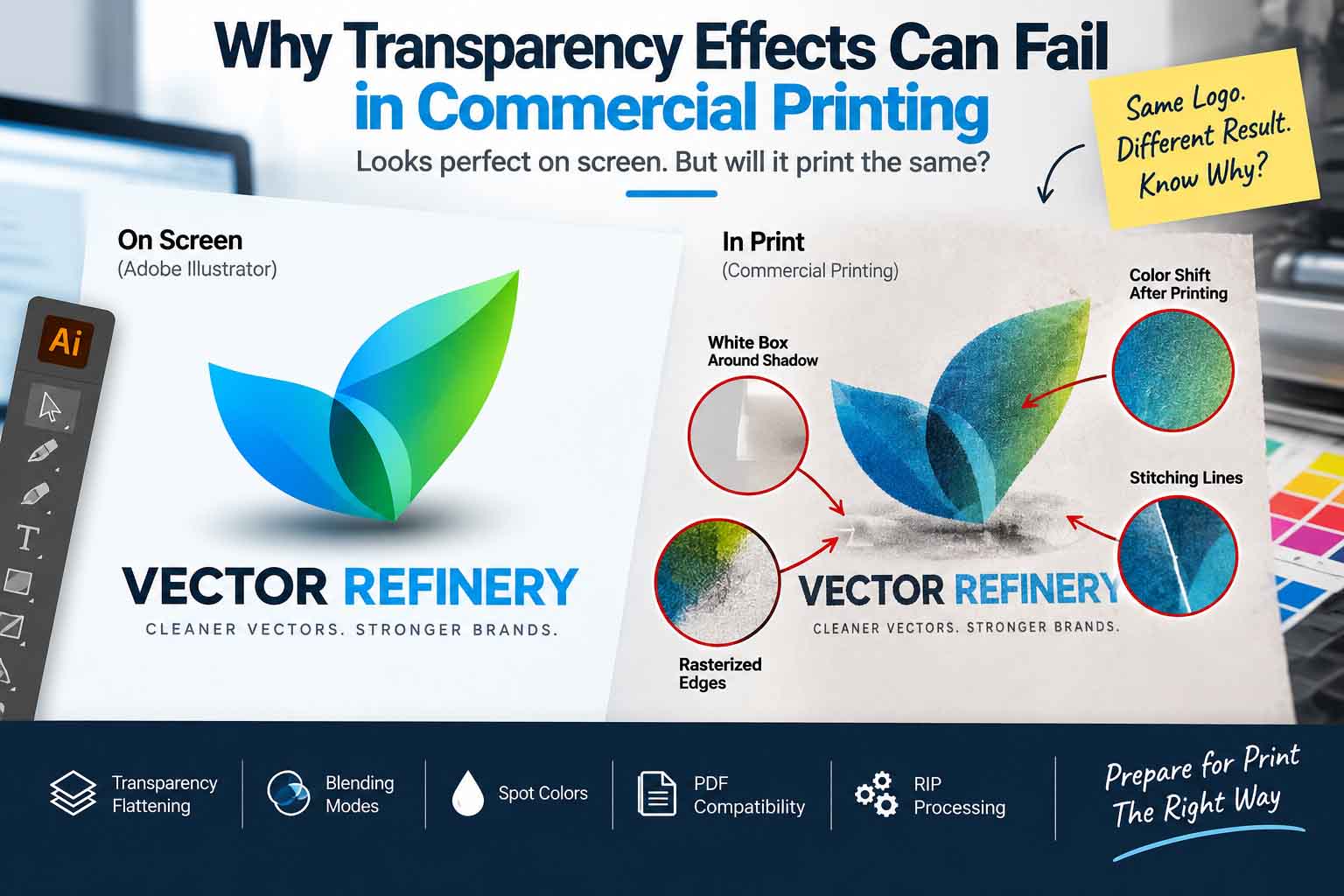
Transparency effects in commercial printing can cause unexpected problems even when a logo looks perfectly clean in Adobe Illustrator. Drop shadows, transparent gradients, opacity masks, and blending modes may change during PDF export, transparency flattening, or RIP processing.
A soft shadow may suddenly show a faint box around it. A transparent gradient may change color. Part of a vector logo may become rasterized. A Pantone color may not separate the way you expected. In some cases, thin lines appear around areas that looked completely seamless on screen.
These problems are often blamed on the printer, the PDF, or even the original logo file. But the real cause can be much simpler: transparency effects in commercial printing are not always processed the same way they appear on screen.
Transparency itself is not bad, and modern print workflows can handle it very well. The trouble usually starts when transparency interacts with transparency flattening, older PDF standards, spot colors, overprinting, blending modes, raster effects, or the printer’s RIP.
If a logo is being prepared for professional printing, understanding these interactions can prevent expensive surprises later.
What Counts as Transparency in a Logo File?
Transparency is more than simply lowering an object’s opacity.
In Illustrator and other design applications, several common effects rely on transparency calculations. These include:
- reduced opacity;
- drop shadows;
- transparent gradients;
- opacity masks;
- feathered edges;
- glows;
- blending modes such as Multiply, Screen and Overlay;
- semi-transparent raster images.
A designer might use one of these effects without thinking of it as a technical print issue.
For example, imagine a dark blue logo with a soft 25% black shadow underneath it. On a white Illustrator artboard, everything looks normal.
But that shadow is not simply another solid vector shape. Its appearance depends on transparency calculations between the shadow, the logo and whatever is behind them.
That distinction becomes important once the artwork enters a commercial printing workflow.
Why Can Transparency Effects Fail in Commercial Printing?
The short answer is that the file displayed on your monitor is not sent directly to the printing plate or press.
Artwork normally passes through several stages before final output. Depending on the printer, these may include PDF export, preflight, color conversion, imposition and a Raster Image Processor (RIP).
The RIP ultimately interprets the page for the output device.
If live transparency is supported throughout that workflow, the result may be straightforward. If the workflow or output format does not support it, the transparent artwork may need to be flattened.
Adobe explains that transparency flattening can divide artwork into vector-based and rasterized areas. The more complicated the artwork becomes—with vectors, images, type, spot colors and overprinting interacting together—the more complicated the flattening can become.
For deeper technical details, see Adobe’s official guide:
How to Print and Save Transparent Artwork in Illustrator
This is where many print problems begin.
A Simple Real-World Example
Consider a logo containing:
Solid vector text + a Pantone icon + a transparent drop shadow.
Visually, this seems like a very simple logo.
Technically, however, the file contains three different types of information:
- vector typography;
- a spot-color object;
- a transparency effect interacting with the artwork underneath it.
If the production workflow requires flattening, the overlapping regions may have to be divided into smaller pieces. Some can remain vector while other areas may be rasterized.
The logo can still reproduce correctly.
But if the flattening, color or output settings are wrong, the result may no longer match what the designer saw in Illustrator.
That is why I don’t consider a logo print-ready simply because it opens correctly in Illustrator or looks sharp at 100% zoom.
The output behavior matters just as much as the appearance of the original artwork.
What Is Transparency Flattening?
Transparency flattening is the process of converting live transparency into artwork that an output workflow can process.
Suppose a semi-transparent shadow overlaps a vector rectangle.
Before flattening, the shadow and rectangle can remain separate editable objects.
After flattening, the overlapping area may be divided into several new regions. Depending on the complexity and settings, some of those regions can remain vectors while others are rasterized.
Adobe specifically notes that flattening can divide transparent artwork into vector-based and rasterized areas.
This doesn’t automatically mean the file has been damaged.
Flattening is a legitimate part of many print workflows.
The important point is that it changes the internal construction of the artwork.
Live Transparency vs Flattened Transparency
| Live Transparency | Flattened Transparency |
|---|---|
| Effects remain live and editable | Transparency has been processed |
| Original objects can remain intact | Overlapping objects may be divided |
| Suitable for compatible modern workflows | Required by some older workflows/formats |
| Preserves more original structure | Complex regions may become rasterized |
| Requires compatible output processing | Can simplify compatibility with older output systems |
One important production rule is to keep the editable master artwork before flattening.
Once transparency has been flattened and the resulting file saved, rebuilding the original live transparency may not be straightforward.
Problem 1: A White Box Appears Around a Drop Shadow
This is one of the easiest transparency printing problems to notice.
Imagine a logo printed on a dark blue background. The logo contains a soft transparent shadow.
Instead of seeing only the shadow, you notice a slightly lighter rectangular area around it.
The shadow itself may look fine, but its bounding area is suddenly visible.
Why does this happen?
Transparent effects and the artwork underneath them may be processed differently during flattening, color conversion or RIP interpretation.
This becomes particularly sensitive when transparency interacts with spot colors or overprinting.
The result can be a visible boundary that did not appear in the normal Illustrator view.
What should you do?
Don’t simply cover the box with another shape.
Instead, inspect:
- whether the object uses transparency;
- whether a spot color is involved;
- the blending mode;
- the PDF compatibility setting;
- overprint behavior;
- how the area appears in the final print-ready PDF.
If the effect is unnecessary to the identity, a flat production version of the logo may be safer.
Problem 2: Your Vector Logo Is No Longer Completely Vector
This surprises many clients.
A file can begin as Illustrator vector artwork and still contain rasterized regions after transparency processing.
Suppose a transparent glow overlaps part of a vector wordmark.
When the transparency is flattened, the affected area may need to be rasterized to preserve its visual appearance.
That doesn’t necessarily mean the whole logo becomes a bitmap.
Instead, you can end up with a mixture of vector and raster regions.
For a small brochure, that may not create an obvious visual problem.
But imagine taking the same logo and enlarging it for a large exhibition display, vehicle graphic or sign.
If the rasterized region was created at insufficient resolution, the difference between the crisp vector edge and softer raster area can become visible.
Practical rule
If a logo must scale freely across many production sizes, avoid unnecessary raster-dependent effects in the core production version.
A clean vector alternative is valuable even when the primary digital logo uses more sophisticated effects.
For another related production issue, see:
Why Clipping Masks Cause Problems in Logo Files for Print Production
Problem 3: Thin White Lines Appear in the PDF
Sometimes a flattened PDF shows tiny white lines between objects.
You zoom in and see what looks like a hairline crack running through otherwise continuous artwork.
These are often called stitching lines.
They can appear around boundaries where transparency flattening has divided artwork into separate vector and raster regions.
Adobe notes that boundaries around rasterized complex regions can have a greater chance of producing stitching issues depending on rasterization and print-driver settings.
Does that mean the lines will definitely print?
No.
Some lines are only screen-rendering artifacts.
But a production file should not be approved based on that assumption alone.
If you see unexpected hairlines:
- inspect the artwork in Flattener Preview;
- check it in Acrobat;
- review the file at different zoom levels;
- check Output Preview;
- obtain a proof when the job is important.
The correct response is to investigate the output, not randomly modify otherwise correct vector paths.
Get your logo print-ready in 24 hours
Upload your PNG, JPG, or screenshot. A free assessment with exact price and turnaround is included before you pay anything.
Problem 4: Spot Colors and Transparency Can Become Complicated
This is especially important for logo files.
A corporate identity may specify a Pantone color because the company needs consistent reproduction across stationery, packaging, signage or branded materials.
Now place a semi-transparent effect over that Pantone object.
The visual result on screen may look completely normal.
But the production file now has to reconcile a spot ink with a transparency calculation.
Depending on the workflow, flattening, color conversion and overprinting can influence how those areas are separated.
This is why I treat spot-color logos with transparency differently from ordinary RGB graphics created only for screens.
Before sending the file to print
Check the individual color separations.
Don’t rely only on the composite preview.
If a logo is supposed to print using two spot inks, the separations should actually reflect the intended two-ink construction.
For more information about how printing surfaces affect brand color, read:
Why Your Logo Colors Look Different on Coated vs Uncoated Paper
Problem 5: Blending Modes Can Change the Final Color
Multiply is a useful example.
Place a 50% Multiply object over a background and its final appearance depends on the color underneath it.
That is the entire purpose of the blending mode.
But now consider what happens when:
- the original design was created in RGB;
- the printer requires CMYK;
- one object uses a spot color;
- another uses Multiply;
- the PDF is converted during output.
There are now several variables affecting the final appearance.
A rich blue seen on a monitor may become noticeably duller or darker after conversion and output.
This does not necessarily mean the printer changed the logo incorrectly.
The original artwork may have relied on color interactions that cannot be reproduced identically in the destination printing conditions.
Better workflow
Evaluate critical colors in the intended output color space and inspect the actual production PDF—not only the original Illustrator artwork.
Problem 6: Drop Shadows Can Lose Quality
Drop shadows are common in older logos and AI-generated concepts.
The problem is that a shadow is not the same kind of object as a simple solid vector path.
When processed for certain output workflows, it may become rasterized.
If the rasterization settings are inappropriate, you may see:
- pixelated shadow edges;
- rough transitions;
- banding;
- excessive softness;
- visible differences between the shadow and nearby vector artwork.
Adobe provides different transparency-flattener presets for different output purposes. Its High Resolution preset is intended for final press output and high-quality proofs.
That doesn’t mean “High Resolution” should blindly be applied to every file.
It means final production artwork should not be flattened using low-quality settings simply because they produce a smaller or faster file.
Problem 7: Transparency and Overprinting Can Interact
Overprinting is another area that can create expensive mistakes.
In simple terms, overprinting tells one printing ink to print over another rather than knocking out the underlying area.
Used correctly, it is an important prepress feature.
Used incorrectly, it can change colors or even make certain objects behave very differently from what was expected.
When transparent objects and overprinted objects interact, the output becomes more complicated.
This is especially relevant for:
- packaging;
- labels;
- Pantone logos;
- black objects;
- specialty print jobs;
- multi-ink production.
For critical artwork, I recommend checking Overprint Preview and color separations before treating the file as production-ready.
Problem 8: The PDF Version Matters
One of the most overlooked causes of PDF transparency printing problems is PDF compatibility.
Not every PDF is technically the same.
Adobe states that PDF 1.4 and later can retain live transparency, while older PDF 1.3 workflows require transparency to be flattened.
That means choosing a PDF preset isn’t simply about getting the smallest or most convenient file.
It affects how the artwork is constructed for output.
What about PDF/X-1a and PDF/X-4?
In simplified terms:
PDF/X-1a is associated with workflows where transparency is flattened.
PDF/X-4 supports live transparency and is designed for more modern print workflows capable of processing it.
This doesn’t mean you should always choose PDF/X-4.
And it doesn’t mean PDF/X-1a is “bad.”
The correct format is the format that fits the printer’s production workflow.
One question can prevent a lot of problems
Before exporting important artwork, ask the print provider:
“Which PDF standard and color profile do you require for production?”
That is more reliable than guessing.
Problem 9: AI-Generated Logos Often Hide Transparency Problems
This is becoming increasingly common.
An AI-generated logo may look simple from a distance, but when inspected closely it can contain:
- soft glows;
- fake lighting;
- semi-transparent highlights;
- blurred shadows;
- complex gradients;
- RGB color transitions;
- texture;
- anti-aliased raster edges.
These effects can make the image attractive on screen while making it unsuitable as a production-ready logo.
Simply running an automatic trace over the image does not solve the underlying problem.
It can actually create hundreds or thousands of unnecessary paths while still failing to produce a clean production logo.
When I prepare this type of artwork for production, the better approach is usually to identify the actual shapes and visual structure of the logo and rebuild those elements cleanly.
The objective isn’t to reproduce every accidental pixel.
The objective is to preserve the recognizable design while creating artwork that works reliably at different sizes and in different production methods.
Problem 10: Not Every Printing Method Can Reproduce Transparency
This distinction is extremely important.
A design can be perfectly valid for one production method and completely unsuitable for another.
| Production Method | How Transparency Affects Production |
|---|---|
| Digital printing | Modern workflows can often reproduce transparency effectively |
| Offset printing | Correct PDF, color, RIP and transparency handling are important |
| Screen printing | Transparent effects may need halftones or separate color treatment |
| Embroidery | Opacity cannot be stitched directly |
| Vinyl cutting | Requires physical cut paths rather than visual transparency |
| Laser engraving | Usually works better with simplified solid artwork |
| Foil stamping | Production artwork normally requires solid shapes |
| CNC cutting | Requires usable vector paths rather than opacity effects |
For more detail on why gradient-style effects create production problems, see:
Why Gradients Cause Problems in Embroidery, Vinyl Cutting and Laser Engraving
And for specialty print preparation:
How to Prepare a Logo for Foil Stamping
This is why I don’t recommend treating one complex full-color logo file as the only master for every application.
What I Check Before Calling a Logo Print-Ready
A logo looking correct is only the first check.
For production work, I also look at how the artwork is constructed.
1. Are the important shapes actually vectors?
I check whether key logo elements are clean paths rather than unnecessary embedded raster images.
2. Is transparency necessary?
If a transparency effect is essential to the approved identity, it should be handled correctly.
If it adds almost nothing but creates production risk, a simplified alternative should be prepared.
3. Are spot colors intentional?
Pantone colors should be present because the production workflow needs them—not because an old Illustrator swatch happened to remain in the file.
4. Are overprint settings correct?
Unexpected overprinting can completely change output.
5. Does the logo have a flat-color version?
A good logo system should not depend on gradients, shadows or opacity to remain recognizable.
6. Does it work in one color?
This is especially useful for embroidery, engraving, stamps, screen printing and other restricted production processes.
7. Has the actual production PDF been checked?
The Illustrator master is not the final printed product.
I want to know what happened after export.
How to Prepare Transparency for Commercial Printing
There isn’t one button that makes every transparent file safe.
A practical workflow looks like this.
Keep the Original Editable Master
Never make destructive production changes to your only copy of the artwork.
Keep the original AI or other editable master containing the live effects.
Create a separate production file when flatten transparency for printing is required.
Ask the Printer Before Exporting
Confirm:
- PDF standard;
- required color profile;
- CMYK requirements;
- Pantone/spot-color requirements;
- bleed;
- required image resolution;
- whether live transparency is accepted;
- any special overprint requirements.
Commercial printers do not all use identical equipment or workflows.
Keep Transparency Live When the Workflow Supports It
Premature flattening is not automatically safer.
Adobe recommends retaining native transparency where possible and notes that PDF 1.4 and later can preserve live transparency.
Official reference:
Adobe Illustrator — Print and Save Transparent Artwork
If a printer accepts an appropriate modern PDF workflow, keeping transparency live longer can avoid unnecessary early conversion.
If Flattening Is Required, Use Production-Appropriate Settings
If the workflow genuinely requires flattened transparency, use settings intended for final output.
Pay particular attention to:
- vector/raster balance;
- rasterization resolution;
- gradients;
- line art;
- text;
- clipping of complex regions.
Don’t choose low-resolution settings simply to reduce PDF size.
Check the File After Export
This step is often skipped.
Open the actual exported PDF and inspect it.
Look carefully around:
- shadows;
- transparent gradients;
- small text;
- thin lines;
- spot-color objects;
- logos placed over colored backgrounds;
- areas using blending modes.
The exported PDF—not the Illustrator preview—is what is moving closer to the press.
Should You Remove All Transparency From a Logo?
No.
That would be an unnecessary rule.
Transparency in print files can be perfectly appropriate for a full-color identity used on websites, digital media and compatible printing systems.
The better solution is to build a flexible logo system.
For example:
Primary full-color logo
Maintains the complete approved visual appearance.
Flat-color version
Removes effects that are unnecessary or difficult for restricted production.
One-color version
Useful for screen printing, engraving, stamping and similar applications.
Black version
For simple reproduction on light backgrounds.
White/reversed version
For dark backgrounds.
This allows the identity to stay consistent without forcing one file to do a job it was never designed to do.
Common Mistakes I See in Print Logo Files
Most transparency printing problems are preventable.
Common problems include using RGB effects without considering the CMYK output, mixing spot colors with transparency without checking separations, exporting an incompatible PDF, flattening at inappropriate resolution, assuming an EPS file must be completely vector, and treating an AI-generated raster logo as production-ready artwork.
Another common mistake is checking only the original Illustrator file.
The final PDF needs attention too.
A file can be perfectly organized in Illustrator and still be exported incorrectly.
Practical Prepress Checklist
Before sending transparency-heavy logo artwork to a commercial printer, check:
✓ Correct color mode for the job
✓ CMYK and spot colors are intentional
✓ Printer’s required PDF specification is confirmed
✓ Transparency effects have been inspected
✓ Overprint Preview has been checked
✓ Spot-color separations are correct
✓ Rasterized effects have adequate resolution
✓ Important text and vector details remain clean
✓ Bleed and document dimensions are correct
✓ Original editable master has been preserved
✓ Flat and one-color logo versions are available where needed
✓ Final exported PDF has been preflighted
For an expensive print run, packaging job or large-format project, I would also recommend approving an appropriate proof before full production.
A Print-Ready Logo Is More Than a Vector File
This is probably the most important takeaway.
People often ask whether a logo is “vector” as though that alone determines whether it is ready for production.
It doesn’t.
A professional print-ready logo also needs appropriate:
- color construction;
- path quality;
- transparency handling;
- spot-color setup;
- overprint behavior;
- scaling;
- file formats;
- alternate versions.
A technically clean SVG may still be wrong for a Pantone print job.
An Illustrator file may still contain raster effects.
And a visually perfect PDF may still contain output settings that don’t match the printer’s workflow.
Print-ready describes how well the artwork is prepared for its actual production process—not simply the extension at the end of the filename.
Final Thoughts
Transparency effects in commercial printing do not automatically cause problems.
The problems appear when transparency is used without considering what happens after the design leaves the screen.
Drop shadows, opacity masks, transparent gradients and blending modes can interact with rasterization, spot colors, overprinting, color conversion, PDF compatibility and RIP processing.
In the right workflow, these effects can print beautifully.
In the wrong workflow, the same artwork can produce visible boxes, stitching lines, unexpected colors or partially rasterized logo elements.
The safest approach is therefore not to blindly remove every transparent effect.
Instead:
understand the final production method, keep the editable master, simplify effects where necessary, use the correct PDF workflow, inspect separations and overprints, and check the final exported file before production.
A professional logo should look good on a monitor.
But more importantly, it should still work when it reaches the press.
Frequently Asked Questions
Why do transparency effects cause problems in commercial printing?
Transparency effects in commercial printing can require additional processing during PDF export or printing. Depending on the workflow, transparent artwork may be flattened into a combination of vector and raster regions. Problems can occur when this processing interacts with spot colors, overprinting, blending modes or incompatible PDF standards.
What is transparency flattening?
Transparency flattening converts live transparent artwork into output-compatible regions. Some areas may remain vector while more complex areas can be rasterized.
Does flattening transparency reduce print quality?
Not necessarily. Correctly configured flattening can produce excellent results. Problems are more likely when inappropriate rasterization resolution or other incorrect output settings are used.
Can transparency turn vector artwork into raster artwork?
Parts of it can. When transparent effects overlap vector objects, some affected regions may be rasterized during flattening.
Why is there a white box around my drop shadow when printing?
It can result from the way transparency, color conversion, spot colors, overprinting or flattening is being processed. The production PDF and separations should be inspected before changing the original artwork.
Can PDF/X-4 retain transparency?
Yes. PDF/X-4 supports workflows with live transparency. Whether you should use it depends on the requirements of the print provider.
Is PDF/X-1a or PDF/X-4 better for commercial printing?
Neither is universally better. They support different production workflows. Use the PDF specification requested by the printer rather than choosing one automatically.
Are transparent gradients safe for printing?
They can be when the output workflow supports them correctly. For processes such as embroidery, vinyl cutting, engraving or foil stamping, however, a simplified solid version may be necessary.
Can an EPS logo contain transparency?
EPS-based output workflows can involve flattened representations of transparency. Don’t assume a file is completely editable vector artwork simply because it has an EPS extension.
How do I know if my logo is really print-ready?
Check more than the file format. Review vector construction, color mode, spot colors, transparency, overprinting, image resolution, scalability and the final production PDF. The requirements of the final printing process should determine how the logo is prepared.
Related Reading
If you’re preparing logos for professional production, these topics are also important:
Why Clipping Masks Cause Problems in Logo Files for Print Production
https://vectorrefinery.com/clipping-masks-in-logo-files/
Why Your Logo Colors Look Different on Coated vs Uncoated Paper
https://vectorrefinery.com/logo-colors-coated-vs-uncoated-paper/
Why Gradients Cause Problems in Embroidery, Vinyl Cutting and Laser Engraving
https://vectorrefinery.com/gradients-cause-problems-embroidery-vinyl-cutting-laser-engraving/
How to Prepare a Logo for Foil Stamping
https://vectorrefinery.com/prepare-logo-foil-stamping-vector-file/
White Underbase in Screen Printing
https://vectorrefinery.com/white-underbase-screen-printing-logo/
For technical information about transparency flattening, Adobe’s official documentation explains how transparent artwork is divided into vector and raster regions during output and how Flattener Preview can be used to inspect affected artwork.
Published by Vector Refinery — Professional Manual Logo Vectorization and Production File Preparation Service. Visit vectorrefinery.com to upload your logo and get a free assessment today.
