
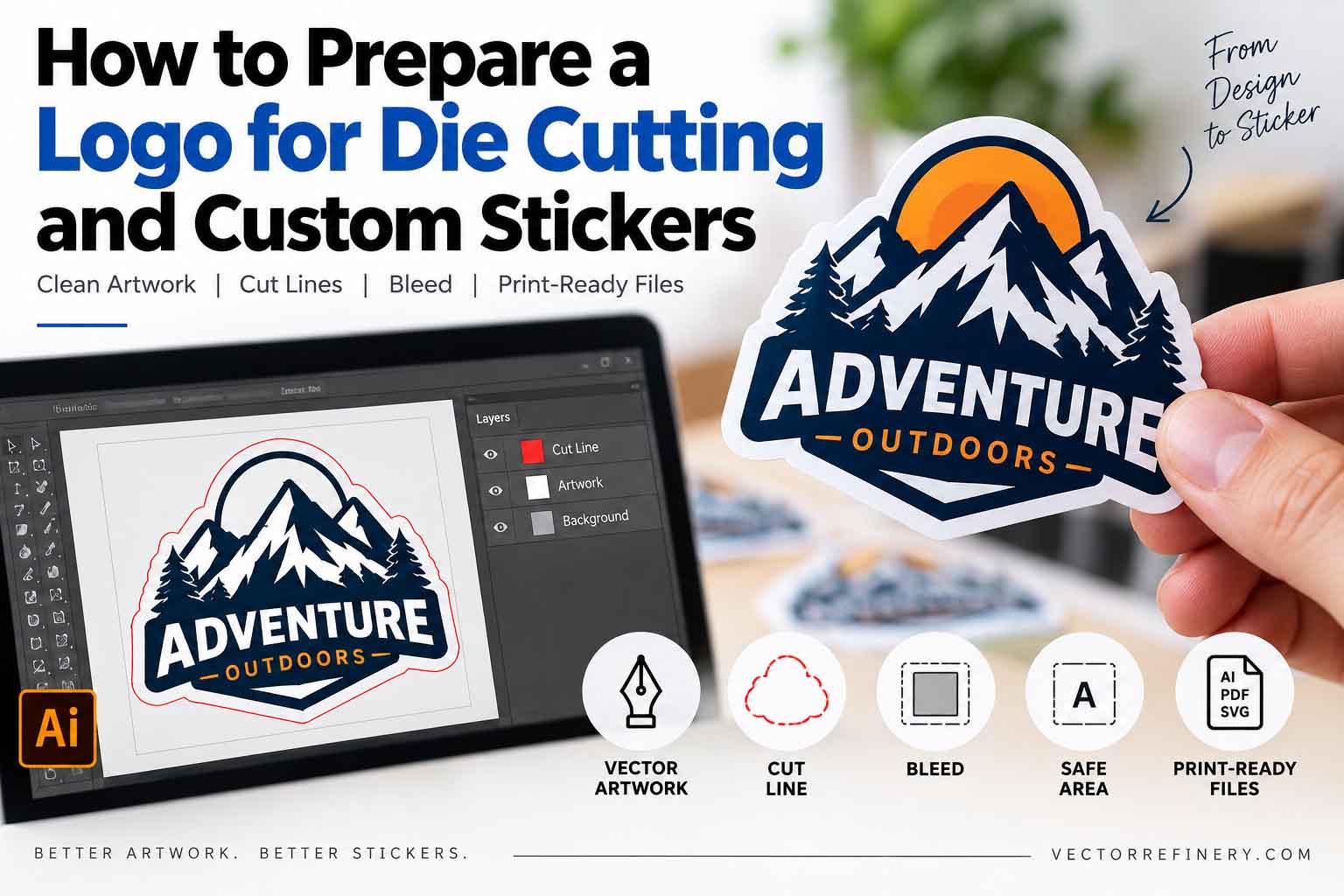
When preparing a logo for die cutting, start with the cleanest artwork available. A properly constructed vector logo makes it easier to create smooth cut paths, adjust spacing, control colors, and prepare the final artwork for custom sticker production. If the original logo is only available as a low-resolution JPG or PNG, rebuilding it as clean vector artwork can provide much better control over the finished file.
A logo can look perfectly clean on a computer screen and still cause problems once it reaches production. Thin lines may become difficult to reproduce, small gaps can disappear, complicated cut paths can create rough edges, and a low-resolution image may not stay sharp at the required size. This is why it is worth preparing the artwork properly before sending it to a sticker printer.
In this guide, we’ll look at how to prepare a logo for die cutting and custom stickers, what a printer usually needs, and which common artwork problems are worth checking before production begins.
| Artwork Element | Recommended Setup | Why It Matters |
|---|---|---|
| Logo Artwork | Use clean vector artwork whenever possible | Keeps logo edges sharp and makes resizing easier |
| Cut Line | Create a smooth, closed vector contour | Defines where the finished sticker should be cut |
| Bleed | Extend artwork according to the printer’s specifications | Helps prevent unwanted unprinted edges after cutting |
| Safe Area | Keep important details away from the cut edge | Protects text and important logo elements |
| Fonts | Convert fonts to outlines when required | Prevents missing-font and substitution problems |
| CutContour | Follow the printer’s exact spot-color and naming requirements | Helps production software identify the cutting path |
| White Ink | Create a separate white-ink layer when required | Important for many clear sticker applications |
| File Format | AI, EPS, vector PDF, SVG, or printer-requested format | Preserves clean production-ready artwork |
What Does Die Cutting Mean for a Logo Sticker?
Die cutting simply means that the finished sticker is cut into a specific shape instead of being left as a standard square or rectangle. A sticker might follow the outline of a logo, badge, mascot, wordmark, product illustration, or another custom shape.
In many modern sticker workflows, digitally controlled cutting equipment follows a vector path around the artwork. That path may be described as a cut line, contour cut, die line, cut path, or CutContour path. The terminology varies between printers, but its purpose is essentially the same: it tells the production system where the finished sticker needs to be cut.
This is one reason a clean production file matters. The printed logo and the cutting information need to be easy for the printer to identify without accidentally confusing one with the other.
Start With Clean Vector Artwork
Whenever possible, I prefer to start sticker preparation with a clean vector version of the logo. Vector artwork gives you much more control over shapes, curves, typography, colors, and the outside contour of the design.
Formats such as AI, EPS, SVG, and vector PDF can preserve scalable paths, which means the logo can be resized without the normal pixelation you would see in a small JPG or PNG. More importantly for die cutting, the outside shape can be edited precisely instead of relying on a rough automatic trace.
That does not mean every raster image is unsuitable for sticker printing. A high-resolution PNG, TIFF, or other raster image can work perfectly well for certain designs, particularly photographs or detailed illustrations. But for logos, vector artwork usually gives the printer and designer much more flexibility.
One common misunderstanding is that saving a JPG inside Adobe Illustrator automatically converts it into vector artwork. It does not. If the original image is still made of pixels, saving the document as AI, EPS, or PDF does not change the underlying artwork into clean vector paths.
What If the Original Logo Is Only a JPG or PNG?
This happens all the time, especially with older business logos. The company may have been using the same PNG for years without having the original Illustrator file.
In that situation, the logo may need to be recreated as vector artwork before the sticker file is prepared. Automatic tracing can sometimes provide a starting point, but it often produces too many anchor points, uneven curves, distorted corners, and small unwanted shapes when the source image is blurry or compressed.
For production work, a manual vector redraw is often cleaner. The goal is not simply to make the software recognize the image as vector. The goal is to rebuild the important shapes with smooth curves, controlled anchor points, accurate proportions, and clean edges.
That cleaner master file becomes useful for much more than stickers. The same artwork can later be adapted for signage, embroidery, screen printing, packaging, promotional products, or other production methods.
Creating the Cut Line Around the Logo
Once the logo itself is clean, the next step is creating the cut path. For a typical die-cut sticker, this is usually a single closed vector path surrounding the outside of the design.
The cut line should be smooth and intentional. It should not contain accidental gaps, duplicate paths, unnecessary corners, or hundreds of tiny anchor points. If the outside of the logo is very complicated, following every tiny detail is not always the best solution.
For example, imagine a handwritten wordmark with dozens of small curves and narrow spaces. Creating a cut path that follows every one of those details could result in a very complicated physical sticker edge. In many cases, a slightly simplified contour around the logo produces a cleaner result.
The final decision depends on the sticker size, material, cutting equipment, and the printer’s capabilities, so it is always worth checking the supplier’s artwork specifications before finalizing the contour.
Should You Add a Border Around the Logo?
A lot of die-cut logo stickers use a white border between the artwork and the cut edge. This can give the logo more visual separation while also making the outside shape easier to manage.
The basic structure becomes the logo artwork, followed by a white or colored border, and then the final cut line around that border.
There is no single border width that works for every sticker. A small sticker may need a different treatment from a large bumper sticker, and a delicate wordmark will behave differently from a bold badge logo. The border should look visually balanced at the actual production size rather than being chosen only while zoomed in on the screen.
Understand the Difference Between Cut Line, Bleed, and Safe Area
Cut line, bleed, and safe area are often discussed together, but they do three different jobs.
The cut line tells the production equipment where the sticker is intended to be cut. Bleed is additional printed artwork that extends beyond that intended edge. The safe area is the space inside the sticker where important information should remain comfortably away from the cutting boundary.
Bleed matters because printing and cutting are physical processes. If the background stops exactly at the cut line, even a small production variation can make an unwanted unprinted edge more noticeable. Extending the artwork through the printer’s required bleed area provides additional tolerance.
The safe area works in the opposite direction. Important text, URLs, QR codes, thin borders, and critical logo details should not sit unnecessarily close to the physical edge.
There is no universal bleed or safe-area measurement for every sticker company. Always follow the specifications supplied by the printer producing the job.
Check the Logo at Its Actual Sticker Size
This is one of the simplest checks, but it is also one of the most useful.
Designers spend a lot of time working at 200%, 400%, or even 800% zoom. At that scale, tiny spaces and thin lines can look perfectly comfortable. Once the logo is viewed at its actual physical size, the situation can be very different.
A thin line may almost disappear. A small counter inside a letter may close visually. Two shapes that looked clearly separated may begin to merge. Fine text may become difficult to read.
This is especially important when preparing small logo stickers.
If your design contains fine internal details, you may also find our guide to small gaps and negative spaces in logo production useful. The same production principle applies to stickers: if a gap becomes too small at final size, it may no longer reproduce the way it appeared on screen.
Get your logo print-ready in 24 hours
Upload your PNG, JPG, or screenshot. A free assessment with exact price and turnaround is included before you pay anything.
Preparing the File in Adobe Illustrator
Adobe Illustrator is a practical choice for preparing professional die-cut sticker artwork because the logo, contour path, spot colors, and production layers can all be controlled in the same document.
I normally keep the printable artwork and cutting information separate. For example, the logo can remain on an artwork layer while the contour path sits on a clearly named cut-line layer. If the job requires white ink, that separation can also be placed on its own layer according to the printer’s instructions.
When creating an offset contour around a logo, do not assume Illustrator’s first automatic result is production-ready. Zoom in and inspect the path. Automatic offsets can create strange spikes, tight corners, unnecessary indentations, and awkward shapes around detailed artwork. These areas should be cleaned manually when necessary.
It is also useful to inspect the document in Outline view before delivery. This makes it easier to notice stray paths, duplicate objects, hidden shapes, and unexpected vector construction that may not be obvious in the normal preview.
Adobe’s official Illustrator User Guide is a useful reference for working with paths, colors, layers, and other vector-document features.
Do Not Assume Every Printer Uses the Same CutContour Setup
A common mistake is creating a bright magenta stroke, naming it whatever seems appropriate, and assuming every sticker printer will recognize it as the cut line.
Production workflows do not all work the same way.
Some printers may request a spot color named CutContour, while another company may use a different name or provide its own Illustrator template. Stroke weight, overprint settings, layer organization, and color setup can also differ.
For that reason, the printer’s own artwork instructions should always be treated as the final specification. If they provide a template, it is usually better to build the production file around that template instead of guessing.
Think About Color Before Production
Sticker color preparation depends on the printing method and the supplier’s workflow. Some printers may request CMYK artwork, while others may use a different color-managed process. Specialty sticker production can also involve spot colors or white ink.
Because of that, automatically converting every file to CMYK is not always the best approach. Check what the printer asks for first.
If brand color accuracy is especially important, provide the available brand color information and discuss expectations with the printer. For jobs where color matching is critical, a physical proof can be more useful than relying entirely on what you see on a monitor.
Clear Stickers May Need White Ink
Transparent sticker material introduces another issue that does not exist in the same way on white stock.
Printing color directly onto clear material can change how opaque or vibrant the artwork appears. In some production workflows, white ink is printed underneath selected areas of the design to provide an opaque base.
White may be placed behind the entire logo, only behind typography, or behind specific colors depending on the intended appearance.
This usually requires a dedicated white-ink separation or spot-color setup. As with the cut line, the exact naming and construction should follow the printer’s instructions rather than a generic template.
Convert Fonts Carefully
If the production file contains live fonts, there is always a possibility that another computer will not have those exact fonts installed. This can lead to substitution or missing-font warnings.
For a final production copy, converting typography to vector outlines can help avoid that problem. However, I would always keep an editable master version before outlining anything.
That gives you one master file where the text remains editable and another production file that is prepared specifically for the sticker printer.
The same approach is useful for important strokes. If a particular stroke needs to maintain its exact appearance through different software and output workflows, it may make sense to expand it into a filled shape in the production copy while keeping the original editable version separately.
Watch for Clipping Masks and Hidden Artwork
A file can look simple on screen while being surprisingly complicated underneath.
Old logos and automatically generated files sometimes contain unnecessary clipping masks, hidden raster images, duplicate shapes, stray points, or objects sitting outside the visible artwork.
These elements may not always cause a printing problem, but they make the production file harder to inspect and edit.
Before delivery, it is worth cleaning the document so that the structure makes sense to someone other than the original designer.
This is particularly useful if the same logo will later be reused for signage, embroidery, screen printing, or another production method.
Transparency and Effects Need Extra Attention
Drop shadows, opacity masks, glows, blending modes, and semi-transparent gradients can all look good in a digital logo, but production requirements can vary.
The solution is not to automatically flatten everything. Instead, find out what the printer’s workflow supports and prepare a production copy accordingly.
Keeping the original editable artwork is important here. If the printer later asks for a simplified or flattened version, you can create it without destroying the master logo.
Die Cut and Kiss Cut Are Not the Same Thing
These two terms are sometimes used interchangeably in casual conversation, but they usually describe different finished products.
With a die-cut sticker, the sticker and backing are generally cut to the custom outside shape. With a kiss-cut sticker, the sticker layer is cut while a larger backing remains intact.
Sticker sheets are a common example. Several individual designs may have their own kiss-cut paths while the complete sheet has a separate outside boundary.
Knowing which product is being produced before preparing the file prevents confusion later.
What File Format Should You Send to a Sticker Printer?
There is no single file format that every printer prefers.
AI files are useful because they can preserve editable vectors, layers, spot colors, and contour information. EPS remains common in many production environments. A properly created vector PDF can also be an excellent delivery format, while SVG is useful in many cutting and digital workflows.
PNG is useful for transparent previews and can also be suitable for some raster-printing workflows, but it does not contain the same editable vector contour information.
The safest approach is simple: ask the printer which format they prefer and prepare the final production file accordingly.
Common Problems That Can Delay Sticker Production
Many sticker artwork problems are small enough to miss during normal design work. A cut path may contain a tiny open gap. Two identical contours may be stacked on top of each other. A logo may appear to be vector even though it contains an embedded low-resolution image. A thin border may look fine at large size but become almost invisible once the sticker is reduced.
Another common issue is excessive complexity. Automatic tracing can produce hundreds or thousands of anchor points where a manually constructed curve might only require a few. The artwork may still look similar on screen, but the underlying file becomes harder to edit and inspect.
Before sending a file to production, zoom in and inspect the paths, then view the design again at its actual physical size. Both views reveal different types of problems.
Preparing One Logo for Multiple Production Methods
A well-built vector master becomes particularly valuable when a brand needs more than stickers.
The same logo might eventually appear on a sign, embroidered shirt, promotional product, vehicle graphic, package, or screen-printed item. Each production process has different limitations, but starting with clean vector artwork makes those adaptations much easier.
For example, sticker artwork may support details that need to be simplified for pad printing. If you are preparing artwork for promotional products as well, our guide on preparing a logo for pad printing explains the vector requirements and common mistakes involved in that process.
This is why I prefer thinking of sticker preparation as part of a larger production-ready logo system rather than creating a one-off file that only works for a single order.
Why Manual Vector Cleanup Makes a Difference
The difference between a file that simply looks correct and one that is properly prepared often becomes visible only when the artwork reaches production.
Manual vector cleanup gives much more control over curves, corners, spacing, symmetry, anchor points, colors, and the outer contour. It also makes the file easier for another designer or production vendor to understand later.
This is especially valuable when the source logo comes from a low-resolution JPG, screenshot, old scan, AI-generated image, or automatically traced file.
The objective is not to add complexity. In fact, good production artwork is often simpler: fewer unnecessary points, cleaner paths, organized elements, and clear separation between artwork and production instructions.
Need Your Logo Prepared for Die Cutting?
If your logo is only available as a JPG, PNG, screenshot, AI-generated image, or poorly constructed vector file, VectorRefinery can manually rebuild and prepare the artwork for professional sticker production.
The artwork can be cleaned with smooth vector paths, controlled anchor points, accurate shapes, organized colors, and an appropriate contour path based on your printer’s requirements. Depending on the project, final files can include AI, EPS, SVG, PDF, transparent PNG, and high-resolution JPG versions.
A clean master vector also gives you a stronger foundation for future signage, screen printing, embroidery, vinyl cutting, packaging, pad printing, and promotional-product work.
Frequently Asked Questions
Do I need a vector logo for die-cut stickers?
Not always. Some printers can produce excellent stickers from high-resolution raster artwork. However, vector artwork is particularly useful for logos because it remains scalable and makes the contour path, colors, and individual shapes easier to edit.
What is a cut line for custom stickers?
A cut line is a vector path that defines where the sticker is intended to be cut. Depending on the production workflow, the printer may require the path to use a specific spot color, name, layer, or other setting.
How much bleed should I add to a die-cut sticker?
There is no universal measurement for every printer. Use the bleed specification supplied by the company producing your stickers.
Can I use a PNG for die-cut stickers?
Yes, many printers accept high-resolution PNG artwork. However, a separate vector cut path may still be required depending on the production system.
Is an AI file always a vector file?
No. A JPG or PNG can be embedded inside an Adobe Illustrator document. Saving that document as an AI file does not automatically convert the embedded image into true vector paths.
Should I convert fonts to outlines?
For final production files, outlining fonts can prevent font substitution issues. It is best to keep a separate editable master containing the original live typography.
Why should I check my logo at the final sticker size?
Small gaps, fine lines, narrow spaces, and tiny typography can look perfectly clear while zoomed in but lose clarity when physically printed at a small size.
What is the difference between die cut and kiss cut?
A die-cut sticker generally follows the final custom shape through the sticker and backing, while a kiss-cut typically cuts the sticker layer while leaving a larger backing intact.
Final Thoughts
Preparing a logo for die cutting and custom stickers is really about making the artwork predictable for production. A clean logo, smooth contour path, correct bleed, sensible safe area, properly handled typography, and well-organized file can prevent many of the problems that appear after a design leaves the computer screen.
The most important thing is not to rely on a universal template. Different sticker printers use different equipment and may have different requirements for cut lines, spot colors, bleed, white ink, and final file formats. Get the printer’s specifications first, then prepare the artwork around those requirements.
Published by Vector Refinery — Professional Manual Logo Vectorization and Production File Preparation Service. Visit vectorrefinery.com to upload your logo and get a free assessment today.
