
A logo can look completely finished on screen and still cause problems once it reaches a print shop. You may notice a thin white edge after trimming, a logo sitting too close to the edge, or text that feels uncomfortable and crowded after the piece has been cut. In many cases, there is nothing wrong with the logo itself. The problem comes from how the artwork was prepared for production.
This is where bleed, trim, and safe area become important. They may sound like technical prepress terms, but the basic idea is quite simple. Bleed gives the printer extra artwork outside the finished edge, trim shows where the final piece will be cut, and the safe area keeps important content away from that cut. Understanding these three areas can make the difference between artwork that simply looks good in Illustrator and artwork that is actually ready for professional printing.
Whether you are preparing a business card, product label, sticker, flyer, packaging design, or another printed item, it is worth understanding how bleed vs trim vs safe area works before sending the final file to production.
What Is Bleed in Printing?
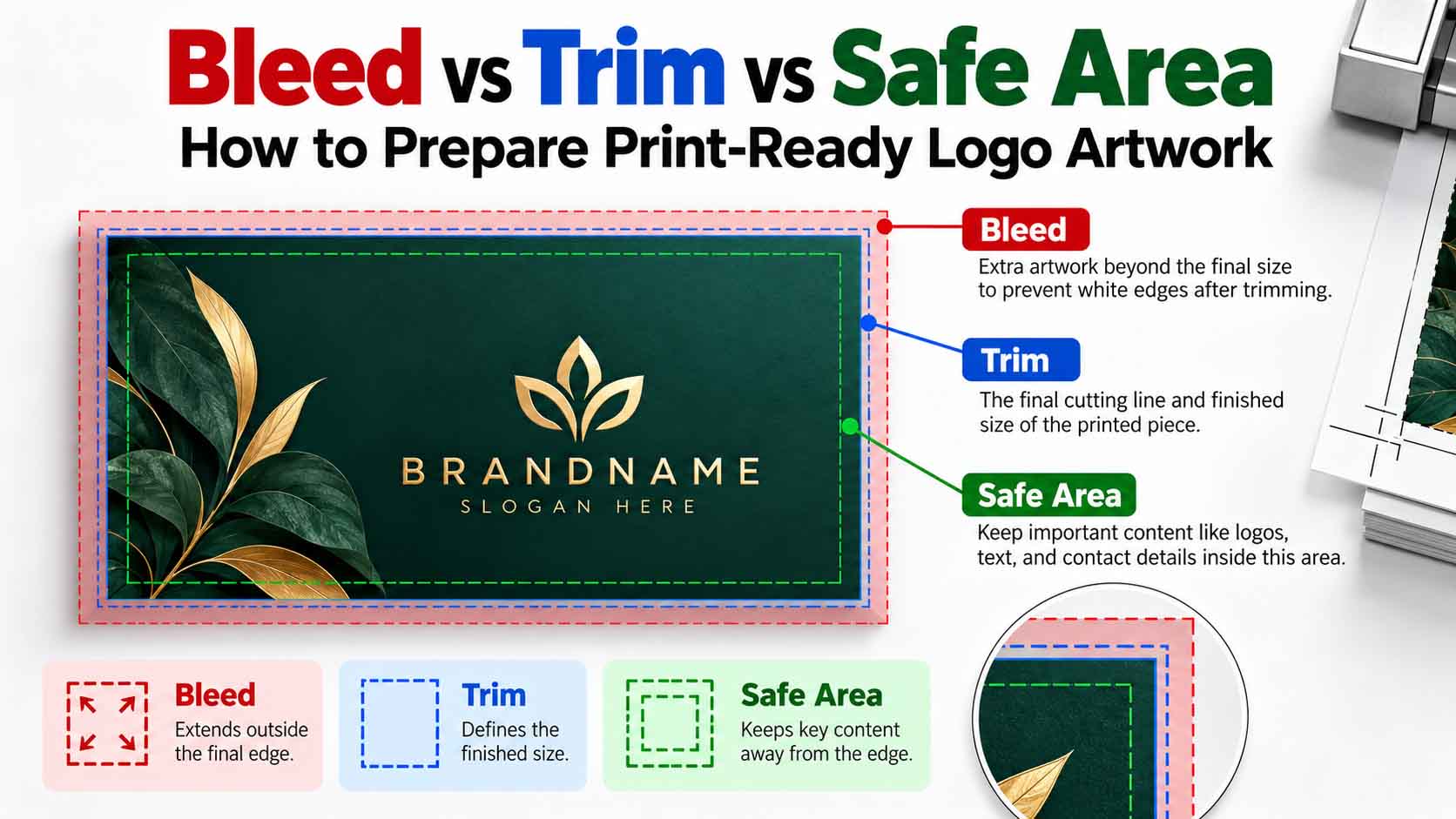
Bleed is the extra artwork that extends beyond the final edge of a printed piece. You do not normally see this extra area in the finished product because it is removed during trimming. Its purpose is to give the printer a little extra printed artwork around the outside of the design.
Imagine a business card with a dark green background. If that green background stops exactly at the finished edge of the card, even a very small shift during cutting could expose a thin white line of paper. On a dark design, that small white edge can be surprisingly noticeable.
Instead of stopping the background at the trim line, the designer extends it farther outward into the bleed area. The printer can then cut through the printed background rather than trying to cut exactly where the color ends. The finished card still has the intended dimensions, but there is less risk of an unwanted unprinted edge appearing.
This is why bleed is especially important when a background color, photograph, texture, pattern, or graphic is intended to run all the way to the edge of the finished product.
Easy way to remember: Bleed goes outside, trim defines the finished edge, and the safe area stays inside to protect important content.
What Is the Trim Area?
The trim line represents the intended finished edge of the printed piece. If you are creating a business card, for example, the trim dimensions represent the size of the card the customer will actually receive. Everything extending beyond that boundary as bleed is there for production and is expected to be removed.
It helps to think of the trim line as the transition between the artwork that should remain and the extra artwork that exists only to make cutting safer.
One mistake designers sometimes make is treating the trim line as a safe place for important content. A logo or phone number may technically be inside the finished dimensions, but if it sits extremely close to the edge, even a small trimming variation can make the layout look uneven. That is why professional print artwork also needs a safe area.
What Is the Safe Area?
The safe area sits inside the trim line and creates some breathing room between important content and the finished edge. Logos, company names, phone numbers, website addresses, QR codes, small text, and other essential information are usually kept within this area.
The safe area is not only about preventing content from being physically cut. It also helps the finished design look more balanced. A logo placed only a tiny distance from the edge can feel cramped even when nothing has actually been removed during trimming.
There is no single safe-area measurement that works for every product. A business card, product label, folded brochure, package, sticker, and large-format graphic can all have different production requirements. The printer’s template should always take priority when one is available.
Bleed vs Trim vs Safe Area: What Is the Real Difference?
The easiest way to understand the difference is to imagine the three areas moving in different directions. Bleed moves outward from the finished edge, while the safe area moves inward. The trim line sits between them and represents the finished size.
Suppose you are preparing a card with a navy background and a white logo in the center. The navy background is intended to reach the edge, so it should continue beyond the trim line and into the bleed. The white logo is important content, so it should move in the opposite direction and remain comfortably inside the safe area.
In simple terms, backgrounds that reach the edge extend outward, while important content stays inward. Once you understand that relationship, bleed and safe areas become much easier to work with.
How Much Bleed Should You Add?
You will often see 0.125 inch, or approximately 3 mm, used as a common bleed amount in commercial printing. It is a useful reference, but it should not be treated as a universal rule.
Different printers and different products can require different amounts of bleed. A small business card may have one specification, while packaging, large-format printing, booklets, stickers, or specialty finishing may require something different.
This is why I prefer to check the printer’s specifications before building the final production file rather than automatically applying the same bleed to every project. If the print provider supplies a template, that template should normally be the starting point.
Does the Logo Itself Need Bleed?
This is an important point because bleed is sometimes misunderstood as something that needs to be added to every logo file.
A standalone logo does not normally need bleed. If you have a clean AI, EPS, SVG, or vector PDF containing only the master logo, there is usually no reason to surround the logo with bleed.
Bleed becomes relevant when that logo is placed into a specific print layout and the artwork reaches the edge that will be cut.
For example, if a logo sits in the middle of a business card, the logo itself does not need to extend into the bleed. The card’s background might need bleed, but the logo should remain safely inside the finished area. If part of the branding intentionally runs off the edge of the card, label, or package, then that particular artwork needs to extend according to the printer’s bleed specification.
This is also why a professional logo master and a print-ready layout are not necessarily the same file.
Get your logo print-ready in 24 hours
Upload your PNG, JPG, or screenshot. A free assessment with exact price and turnaround is included before you pay anything.
A Print-Ready Logo File Needs More Than Bleed
Adding bleed does not automatically make a file print-ready. Bleed only solves one part of the production process.
Before sending artwork to a printer, I also look at the quality of the vector paths, final dimensions, color setup, fonts, raster image resolution, overprint settings, transparency, clipping masks, line thickness, and the way the final PDF has been exported.
This becomes particularly important when the original logo came from a JPG, PNG, screenshot, or AI-generated image. Placing a low-resolution image inside Illustrator and adding bleed around it does not turn it into professional vector artwork.
If your source artwork is raster, it is better to start with a proper image-to-vector conversion before building the final print layout. You can also read our guide on how to vectorize a logo to understand why clean vector construction matters in production.
Setting Up Bleed in Adobe Illustrator
When I prepare artwork in Adobe Illustrator, I normally create the document at the intended final trim size first. The bleed is then added through the document settings according to the print provider’s requirements.
The important part is what happens to the artwork after the bleed is created. A background that is supposed to reach the edge should not stop at the artboard. It needs to continue outward until it covers the bleed area. At the same time, the logo, text, and other essential elements should remain comfortably inside the trim.
I also like to create guides for the safe area. These guides do not print; they simply make it easier to see whether important elements are getting too close to the edge.
When the artwork is complete, the production PDF should be exported using the printer’s requested settings. If the printer wants bleed included in the PDF, the document bleed settings need to be carried into the export.
Crop Marks and Bleed Are Not the Same Thing
Another mistake I see is adding crop marks and assuming that the file now has bleed.
Crop marks simply indicate where the piece should be cut. They do not create any additional artwork outside the trim line.
If a red background stops exactly at the trim line and you add crop marks around it, the background still has no bleed. The red artwork itself needs to extend beyond the trim boundary.
This distinction is small but important. A file can contain perfectly positioned crop marks and still be incorrectly prepared for edge-to-edge printing.
A Simple Business Card Example
A business card is probably the easiest way to see all three areas working together.
Imagine a card with a dark green background, a gold company logo, an employee’s name, phone number, and website. Because the green background is supposed to cover the entire card, it should extend past the trim line and into the bleed.
The gold logo and contact information should do the opposite. They should remain inside the safe area with enough space around them to survive normal trimming variation and still look visually balanced.
The trim line sits between these two areas and represents the finished edge of the card.
This gives you a very simple production structure: the background extends beyond the cut, the finished card ends at the trim, and important information stays safely inside.
Bleed and Safe Areas for Product Labels
Labels need the same basic thinking, although the exact specifications can be more complicated depending on how the label is cut.
Imagine a circular label with a colored background and a logo in the center. The background should continue beyond the circular cut path so that a slight cutting variation does not expose unprinted material. The logo, product name, weight, and other essential information should remain far enough inside the cut line to stay protected.
Thin borders can be particularly troublesome on labels. If you place a narrow circular border extremely close to the cut line, even a small production shift can make one side look thicker than the other. The printer may still have cut the label within its normal tolerance, but visually the border can make that variation much more obvious.
For this reason, I usually give decorative borders enough space from the edge instead of designing them around an unrealistically perfect cut.
What About Die-Cut Stickers?
Die-cut stickers introduce a custom cut path instead of a simple rectangular trim.
The principle, however, remains the same. If the printed background reaches the cut path, it generally needs to continue beyond it into the required bleed. Important parts of the logo should stay inside the safe zone.
Clean vector paths are especially important here because the artwork may also be used to create or support the cutting path. Excessive anchor points, rough curves, or poorly constructed shapes can make production unnecessarily difficult.
If you are preparing artwork for this type of application, our guide to vector files for vinyl cutting, decals and signage explains why clean paths matter in cutting workflows.
Bleed Gets More Complicated With Packaging
Packaging artwork can involve much more than a simple trim boundary. Depending on the package, you may be working with folds, scores, glue areas, cutouts, perforations, seams, and multiple panels in addition to the bleed and safe area.
This is one situation where guessing is especially risky.
The packaging manufacturer should ideally provide a dieline. Artwork can then be built around the actual production structure instead of estimating where cuts and folds might occur.
A logo may look perfectly centered on a flat Illustrator artboard but end up sitting too close to a fold once the package is assembled. Good packaging preparation means thinking about the physical finished product, not just the flat design on screen.
Color Still Needs to Be Prepared Correctly
Once the bleed and safe areas are correct, color is another part of the file that deserves attention.
Artwork created for screens is commonly built in RGB, while many print workflows use CMYK or specified Pantone colors. The correct choice depends on the printing process and what the printer expects.
If you are unsure about these color systems, read our guide to RGB, CMYK and Pantone logo color modes.
It is also worth remembering that the same brand color can appear different depending on the paper. Coated and uncoated stocks absorb and reflect ink differently, which is why we have also covered why logo colors look different on coated vs uncoated paper.
Don’t Forget Overprint
Bleed can be completely correct while another production setting quietly causes trouble.
Overprint is a good example.
An incorrect overprint setting can change the way overlapping inks behave when the artwork is produced. This is particularly important with light or white elements over darker backgrounds.
Before releasing an important print file, it is worth checking the separations and overprint settings instead of assuming the appearance on screen tells the whole story.
You can read our detailed explanation of overprint vs knockout in logo printing if you are preparing artwork for commercial production.
Clipping Masks and Hidden Artwork Can Cause Problems Too
I also check what is actually inside the vector file before calling it finished.
A design may look clean in normal Preview mode while still containing oversized hidden objects, unnecessary clipping masks, duplicate shapes, or other elements that make the file harder to edit and produce.
Illustrator’s Outline View is useful here because it shows the actual vector construction rather than only the visible appearance.
Our article about clipping masks in logo files goes deeper into why seemingly harmless hidden artwork can become a production problem.
Transparency Should Be Checked Before Printing
Modern logo and graphic files sometimes contain shadows, opacity changes, blending modes, gradients, and other transparency effects.
These effects are not automatically wrong, but they can behave differently depending on the print workflow and PDF settings. In some cases, parts of the artwork may need to be flattened or rasterized during production.
That is why I prefer to inspect transparency intentionally rather than discovering a problem after the artwork has already been printed.
Our guide to transparency effects in commercial printing explains this issue in more detail.
Why Clean Vector Artwork Is Still the Best Starting Point
A clean vector master makes print preparation much easier because the logo can be resized without relying on a fixed number of pixels.
AI, EPS, SVG, and vector PDF are common formats, but the extension alone does not prove that the artwork is actually vector. A low-resolution JPG can be placed inside an Illustrator or PDF file and still remain a raster image.
If you have received a file and are not sure what is inside it, our guide on how to check if a logo is truly vector can help.
For older or low-resolution artwork, manual PNG to vector conversion is often a better starting point than trying to force the raster image into a production layout.
Common Bleed and Safe Area Problems I See
One of the most common problems is a background that stops exactly at the trim line. It looks correct on screen because the Illustrator artboard ends there, but it gives the printer no extra artwork to work with during trimming.
Another common issue is placing the logo too close to the finished edge. Nothing may actually be cut away, but the final piece can still look poorly balanced.
Text inside the bleed is a more serious mistake because the bleed is expected to disappear. Important information should never depend on artwork outside the final trim.
I also see designers automatically applying the same 3 mm bleed to every project. While 3 mm is common, the printer’s actual specification should always win.
Finally, I always recommend opening and inspecting the exported PDF itself. A clean Illustrator document is important, but the PDF is often the file that actually reaches production. It deserves its own final check.
Bleed vs Trim vs Safe Area: An Easy Way to Remember It
If all of these terms still feel technical, remember one simple rule.
Bleed goes outside. Trim is where the finished piece ends. Safe area stays inside.
Artwork that needs to reach the edge extends outward into the bleed. The printer cuts at the trim line. Logos, text, and other important information stay comfortably inside the safe area.
Once that relationship becomes familiar, preparing basic print layouts becomes much easier.
Get your logo print-ready in 24 hours
Upload your PNG, JPG, or screenshot. A free assessment with exact price and turnaround is included before you pay anything.
Frequently Asked Questions
What is the difference between bleed and trim?
Bleed is extra printed artwork outside the intended finished size. Trim is the position where the printed piece is intended to be cut to its final dimensions.
What is the difference between bleed and safe area?
They sit on opposite sides of the trim. Bleed extends outward beyond the finished edge, while the safe area sits inside the finished edge and protects important content.
Is 3 mm bleed always enough?
No. Around 3 mm is common for many commercial print jobs, but it is not a universal requirement. Always check the specifications supplied by the printer.
Does every logo need bleed?
No. A standalone master logo normally does not need bleed. Bleed is needed in a print layout when artwork is intended to reach a trimmed edge.
Should a background extend into the bleed?
If the background is intended to continue all the way to the finished edge, it should normally extend into the required bleed area.
Can text go into the bleed?
Important text should stay away from the bleed because artwork outside the trim line is expected to be removed.
Are crop marks the same as bleed?
No. Crop marks show where a piece should be cut. Bleed is the actual artwork extending beyond that cut.
Is an SVG automatically print-ready?
No. An SVG can still contain raster images, poor paths, incorrect colors, unnecessary masks, or effects that are unsuitable for a particular production process. Our guide to why SVG files can fail in print production explains some of these issues.
Final Thoughts
Bleed, trim, and safe area are small details compared with the overall appearance of a logo, but they have a very real effect once that artwork enters physical production.
Bleed gives the printer enough artwork beyond the edge to handle normal trimming variation. The trim line defines the finished dimensions. The safe area gives important content enough room to remain protected and visually balanced.
The important thing is not to treat these measurements as universal rules. Different printers, products, cutting methods, and finishing processes can require different setups. Whenever possible, start with the printer’s official template and build the artwork around the actual production requirements.
And remember that bleed is only one part of a print-ready file. Clean vector paths, correct colors, appropriate font handling, sensible transparency, proper overprint settings, and a carefully checked final PDF are just as important.
Need Your Logo Prepared for Professional Printing?
If your logo only exists as a JPG, PNG, screenshot, old PDF, or AI-generated image, adding bleed around it will not make it truly production-ready.
At VectorRefinery, we manually rebuild logo artwork into clean, scalable vector files that can be prepared for real production applications such as business cards, packaging, labels, stickers, signage, screen printing, promotional products, and large-format graphics.
Instead of relying on automatic tracing, the artwork is rebuilt with clean paths and controlled anchor points so the final file remains easier to edit, scale, recolor, and use across different production methods.
If your artwork needs professional cleanup or vector reconstruction, explore our vector conversion services and get your logo ready for production.
Clean artwork on screen is good. Clean artwork that survives production is better.
