
Compound paths in vector logos may seem like a small technical detail, but they can make a big difference when a logo moves from a computer screen into real production.
A logo can look perfectly clean in a JPG preview or even inside Adobe Illustrator, yet still contain structural problems underneath. The center of a letter may be created with a white object instead of a true opening. Two identical paths may be sitting on top of each other. A clipping mask may be hiding unnecessary artwork. An automatically traced logo may contain hundreds of anchor points that are doing nothing useful.
These problems are easy to miss when you only look at the finished appearance.
They become much more important when the artwork is sent for vinyl cutting, stickers, signage, screen printing, laser work, packaging, or other production methods.
This is why a production-ready vector logo needs more than the correct file extension. The actual paths need to be built correctly too.
If your starting artwork is a PNG, JPG, screenshot, or AI-generated image, our manual image-to-vector conversion service explains how raster artwork can be rebuilt into editable vector files for real production use.
What Are Compound Paths in Vector Logos?
A compound path allows multiple vector paths to behave as one object while maintaining transparent areas or holes within that object.
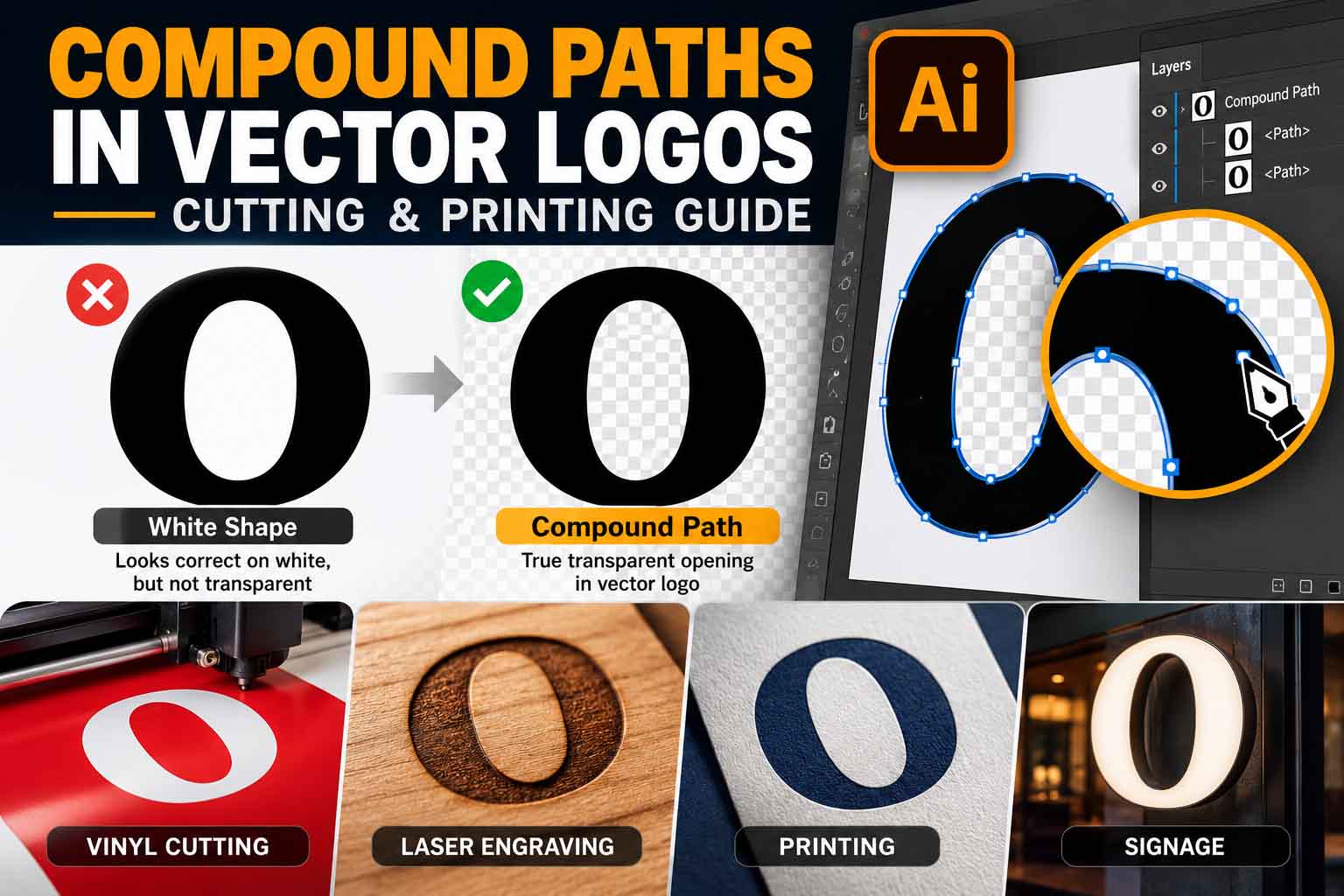
The easiest example is the letter O.
An outlined O has an outside path that defines the overall letter and an inside path that defines the opening. Those two paths need to work together correctly so that the middle remains transparent.
The same idea applies to letters such as A, B, D, P, Q, and R, as well as rings, badges, monograms, icons, shields, and other logo elements containing enclosed negative spaces.
Adobe describes a compound path as a way to control where fills and holes appear in overlapping paths. You can see the technical behavior in Adobe’s official Create compound paths in Illustrator documentation.
For logo production, the important idea is simple: an area that is supposed to be empty should actually be empty.
A Simple Example: The Letter O
Imagine a black letter O on a white background.
There are two ways someone might construct it.
The first is a black oval with a smaller white oval placed on top. On a white artboard, it looks correct.
The second is a properly constructed vector shape where the center is a genuine transparent opening.
Visually, both versions can look identical on white.
Place them over a red background and the difference becomes obvious. The first version still has a white center. The second allows the red background to show through.
For flexible logo artwork, the second construction is usually much more useful.
Suggested image ALT: compound path letter O showing true negative space in vector logo
Compound Path vs Group: They Are Not the Same
Grouping objects and creating a compound path are different operations.
When objects are grouped, they become easier to select, move, or scale together, but the individual vector objects still exist separately.
A compound path changes how the paths interact visually as a combined object.
For example, grouping a large circle and a smaller circle does not automatically turn the smaller circle into a hole.
A correctly constructed compound path can.
This distinction becomes particularly important when artwork is handed to someone who did not create the original file. A printer or production operator should not have to guess which objects represent visible artwork and which ones were only used to fake the appearance of a hole.
Why True Negative Space Matters in Vector Logos
Negative space is not just empty decoration. In many logos, it is part of the actual design.
Think about the center of an O, the triangle inside an A, an opening inside a monogram, or a cutout within an icon.
Those spaces need to survive when the logo changes color or is placed on a different background.
Using white objects to fake those openings can create problems.
A white object may look invisible on a white artboard, but it is still an object. Put the logo on a blue sign, black shirt, transparent window graphic, or colored package and that white object may suddenly become visible.
A genuine knockout behaves differently because the area is actually open.
This subject is closely related to the way small openings behave in physical production. Our guide to small gaps and negative spaces in logo production explains why apparently clear details can disappear once a logo is manufactured at a small size.
Compound Path vs White Shape
This is one of the easiest tests you can perform on a logo.
Place the artwork over several strongly contrasting background colors.
If an area that is supposed to be transparent remains white, you probably have a white object rather than a true opening.
That does not mean white shapes are always wrong. There are legitimate design situations where white is an intentional printed color.
The important question is whether the area is intended to be white or transparent.
Those are not the same thing.
Suggested image ALT: white shape vs true compound path negative space in vector logo
Why Compound Paths Matter for Vinyl Cutting
A vinyl cutter does not look at a logo the way a person does.
It works from vector path information.
If the file contains unnecessary paths, overlapping shapes, tiny fragments, or duplicate lines, those objects can complicate the cutting workflow even though they are difficult to notice in the visual preview.
A clean vector logo for cutting should describe the intended physical shapes as clearly as practical.
This is especially important for lettering containing enclosed spaces. If the counters inside letters are not constructed correctly, the artwork may require cleanup before it can be reliably cut and weeded.
The same production principle applies to gradients and other effects that work beautifully on screen but may not translate directly to physical cutting. See our guide explaining why gradients cause problems in embroidery, vinyl cutting and laser engraving for another example of the difference between digital appearance and production requirements.
Duplicate Paths Can Cause Real Cutting Problems
One of the easiest mistakes to miss is a duplicate path.
Imagine two identical circles sitting directly on top of each other.
On screen, you see one circle.
But there are actually two vector paths.
Depending on the downstream workflow and equipment, unnecessary duplicate paths may create unwanted processing or require cleanup before production.
This is why I never judge a cutting file only by how it looks in normal Preview mode.
The underlying structure matters.
Compound Paths for Laser Cutting and Engraving
Laser workflows make clean vector construction especially important because path information may be interpreted as cutting, scoring, or engraving instructions depending on the equipment and production setup.
A logo may contain hidden or duplicate geometry that does not affect the visual appearance but still exists in the file.
Open paths, unnecessary overlaps, excessive details, and duplicate lines should therefore be checked before artwork is supplied for laser production.
A related problem occurs when a logo contains gradients. A gradient is visually simple to a person, but many physical production methods need artwork translated into much simpler instructions. Our guide to gradients in laser engraving and vinyl cutting covers that issue in more detail.
The final specifications should always be confirmed with the company operating the equipment because different machines and materials may require different artwork preparation.
Why Compound Paths Matter for Printing
Cutting is not the only place where path structure matters.
Logos routinely move between Illustrator, PDF workflows, layout applications, RIP software, color-separation tools, and vendor production systems.
Clean vector construction makes that handoff easier.
For screen printing in particular, colors often need to be separated into clearly defined production areas. Our screen printing vector artwork guide explains why clean vector artwork is useful when preparing separations and production files.
Printing also introduces concepts such as knockouts and overprinting.
A compound path and a print knockout are not identical concepts, but both involve understanding what should happen in overlapping or empty areas. If you work with spot colors or commercial printing, read our detailed explanation of overprint vs knockout in logo printing.
Dark-garment screen printing adds another production consideration. A separate white ink layer may be needed beneath the logo colors. Our guide to white underbase in screen printing explains how that layer affects artwork and production.
Compound Paths vs Clipping Masks
Compound paths and clipping masks are often confused, but they solve different problems.
A compound path can create genuine holes and transparent areas by defining how paths interact.
A clipping mask controls which parts of underlying artwork are visible.
Adobe’s official clipping mask documentation explains an important distinction: artwork outside a clipping mask is hidden rather than automatically deleted.
That is perfectly useful during normal design work.
For production files, however, it means artwork that you cannot see may still exist inside the document.
That is why clipping masks should be inspected instead of assuming that invisible content is irrelevant.
We have a complete guide covering clipping masks in logo files and print production if you want to understand where those hidden objects can become problematic.
Should Every Clipping Mask Be Removed?
No.
A clipping mask is not automatically a mistake.
The question is whether it is useful and appropriate for the final production workflow.
If a mask is intentionally required and the vendor’s software handles it correctly, there may be no reason to remove it.
But if a simple one-color logo contains several nested masks, hidden raster images, and oversized objects, simplifying the production version may make the file much easier to use.
Why Auto-Traced and AI-Generated Logos Need Extra Checking
One of the biggest misconceptions about vector artwork is that saving something as SVG automatically makes it production-ready.
It does not.
An SVG can contain messy paths just as an AI or EPS file can.
Automatic tracing often tries to reproduce pixel edges literally. That can result in excessive anchor points, tiny fragments, rough curves, overlapping shapes, and irregular negative spaces.
AI-generated graphics present another challenge. The original artwork is commonly raster-based, so converting it to a clean production file may require reconstructing the geometry rather than simply changing the file extension.
Our PNG to vector conversion service describes the difference between manually rebuilding artwork and simply placing raster artwork inside a vector container.
A Vector File Can Still Contain Raster Artwork
Another common mistake is assuming that an .ai, .eps, or .pdf file must contain only vectors.
A vector-capable file can still contain embedded or linked raster images.
That means the filename alone tells you very little about the quality of the artwork inside.
If you need a production master, inspect the actual objects and paths.
Get your logo print-ready in 24 hours
Upload your PNG, JPG, or screenshot. A free assessment with exact price and turnaround is included before you pay anything.
Why Too Many Anchor Points Can Hurt Vector Quality
More anchor points do not automatically mean greater accuracy.
A clean circular curve might need only a small number of well-positioned points. An automatic trace of the same curve may generate dozens.
Every unnecessary point creates another opportunity for a tiny bump or uneven transition.
This becomes particularly noticeable when logos are enlarged for signage, vehicle graphics, wall graphics, or other large-format applications.
It also makes future editing unnecessarily difficult.
For production-ready artwork, the goal is not to use the absolute minimum number of points. The goal is to use enough well-positioned points to reproduce the shape accurately and smoothly.
Suggested image ALT: clean vector path vs excessive anchor points in auto traced logo
How to Create a Compound Path in Adobe Illustrator
Creating the basic compound path is straightforward.
Select the paths that need to interact and choose:
Object → Compound Path → Make
The common shortcuts are:
Windows: Ctrl + 8
macOS: Command + 8
Adobe’s compound path guide provides the current Illustrator instructions and explains how fill rules determine which areas become filled or transparent.
But clicking Make is not the final quality check.
Look at the result carefully.
Did the intended hole become transparent?
Did another area disappear unexpectedly?
Are all the required paths included?
Are there unnecessary objects underneath?
Good production preparation requires checking the result, not simply applying a command.
Use Outline View to Inspect the Real Vector Structure
Normal Preview mode shows you what the finished artwork looks like.
Outline View lets you inspect the paths underneath.
Adobe’s guide to viewing artwork in Outline mode explains how Illustrator can display artwork as paths without the normal paint attributes.
This is useful for spotting objects that are difficult to notice in the finished preview.
You may find duplicate circles, forgotten construction shapes, stray points, hidden objects, unexpected paths, or embedded/linked raster content.
A simple logo should not contain a graveyard of unused objects from earlier design experiments.
The production file should contain what is actually needed.
Suggested image ALT: Adobe Illustrator outline view showing clean vector logo paths
Small Details Still Need Production Testing
Even perfectly constructed compound paths cannot overcome the physical limitations of a production method.
A 0.2 mm opening may technically be a perfect vector hole but still close up when printed, embroidered, or manufactured at a small size.
This is why production artwork needs to be evaluated at approximately the size at which it will actually be used.
The issue becomes particularly obvious with embroidery, where thread cannot reproduce every detail that pixels or vector paths can display. Our minimum logo size for embroidery guide covers how small details, thin lines, and narrow spaces behave when a logo is digitized for stitching.
The same principle applies to promotional products. A logo that works on a large banner may need adjustment before it is placed on a pen, bottle, keychain, or small promotional item.
For a broader production overview, see our guide to preparing vector artwork for promotional products.
Compound Paths and Transparency Are Different Issues
Another area that deserves attention is transparency.
A transparent opening created through correct path construction is not the same thing as applying an opacity or transparency effect to an object.
Effects can behave differently depending on the output workflow.
For more complex commercial print files, read our guide to transparency effects in commercial printing before assuming that what you see in Illustrator will always be reproduced identically downstream.
This is particularly useful when logos contain shadows, opacity effects, blends, or overlapping transparent elements.
File Format Alone Does Not Make Artwork Production-Ready
AI, SVG, EPS, and PDF are all useful formats, but none of them guarantees that the artwork has been built correctly.
A poorly constructed logo saved as SVG is still poorly constructed.
A clean logo saved as SVG is useful because its paths are clean—not simply because it has an SVG extension.
The same applies to PDF and EPS.
A production-ready logo may need:
- clean closed paths where required;
- properly constructed compound paths;
- genuine negative spaces;
- controlled anchor points;
- no unintended duplicate paths;
- no unnecessary hidden artwork;
- appropriate color setup;
- outlined or correctly packaged typography;
- simplified production versions where necessary.
If you need artwork for several manufacturing methods rather than only one, our vector artwork for promotional products guide provides a useful overview of how requirements change between screen printing, pad printing, embroidery, engraving, vinyl cutting, and digital printing.
Print Color Still Needs Separate Attention
Correct geometry solves structural problems, but it does not automatically solve color problems.
A perfectly constructed vector logo can still print differently from what you expect if the color setup, substrate, ink, or printing method changes.
For example, the same brand color can appear different on coated and uncoated paper because those surfaces interact with ink differently. Our guide to logo colors on coated vs uncoated paper explains why.
Compound paths are therefore one part of production preparation—not the entire process.
Production-Ready Vector Logo Checklist
Before sending a logo for production, I check the artwork itself rather than relying on the file extension.
First, I inspect the logo in normal Preview mode and then in Outline View. I look for duplicate paths, tiny fragments, unnecessary objects, masks, and unexpected geometry.
Next, I check the negative spaces. Areas that should be transparent need to behave as transparent areas rather than white objects pretending to be holes.
Letters with counters receive extra attention, especially A, B, D, O, P, Q, and R.
I also check whether the paths are reasonably clean and whether curves contain unnecessary anchor points.
For production methods that use physical cutting, I look carefully for overlaps, open paths, tiny gaps, and details that may be too small for the intended output.
Finally, I test the logo in the versions actually required for production—full color, one color, black, white/reversed, or other application-specific variants.
The exact checklist changes depending on whether the artwork is going to a printer, cutter, engraver, embroiderer, or sign company.
FAQ: Compound Paths in Vector Logos
What is a compound path in a vector logo?
A compound path allows multiple vector paths to behave as one object while maintaining holes or transparent areas within the shape. A letter O is a simple example: the outside path creates the letter and the inside path creates the opening.
Why are compound paths important for cutting?
Cutting workflows depend on vector path information. Clean compound paths help represent intended holes and negative spaces clearly, while unnecessary overlaps, duplicates, and fake white cutouts can make production files more complicated.
Is a compound path the same as grouping objects?
No. Grouping keeps separate objects together for easier selection and transformation. A compound path controls how multiple paths interact as a combined shape, including the creation of holes.
Is a compound path the same as a clipping mask?
No. A clipping mask hides portions of artwork outside a defined boundary. A compound path can create genuine transparent areas or holes based on the interaction of its paths.
Why does the center of my letter O become filled?
The inner and outer paths may no longer be interacting correctly. This can happen after editing, conversion, tracing, or certain path operations. Inspect the outlined letter and rebuild the compound path if necessary.
Can I use a white object instead of a compound path?
You can when white is intentionally part of the design. But if the area is supposed to be transparent, a white object is not equivalent to a true opening and may become visible when the logo is placed on another background.
Is SVG automatically ready for vinyl cutting?
No. SVG is a vector format, but an SVG file can still contain unnecessary groups, masks, excessive anchor points, duplicate objects, raster content, or poorly constructed paths.
Can an auto-traced logo contain compound path problems?
Yes. Automatic tracing can create fragmented geometry, excessive points, small unwanted shapes, and irregular negative spaces. The result should be inspected before production.
Do compound paths matter for printing as well as cutting?
Yes. Correct path structure helps preserve intended negative spaces and makes artwork easier to interpret across print and production workflows. However, printing also requires separate checks for color, overprint, transparency, resolution, and other output settings.
How do I make a compound path in Illustrator?
Select the relevant paths and choose Object → Compound Path → Make. You can also use Ctrl + 8 on Windows or Command + 8 on macOS. Always inspect the result afterward.
Final Thoughts
Compound paths in vector logos are a small part of vector construction, but they can have a large impact on how reliably artwork moves into production.
A logo does not become production-ready simply because it has been saved as AI, SVG, EPS, or PDF.
The real quality is in the artwork underneath: clean curves, sensible anchor points, genuine negative spaces, appropriate compound paths, intentional objects, and files prepared for the way they will actually be manufactured.
That is the difference between artwork that merely looks correct on a screen and artwork that is built to work.
Need Your Logo Cleaned Up for Cutting or Printing?
If your logo currently exists as a PNG, JPG, screenshot, low-resolution image, AI-generated graphic, or messy auto-traced file, changing the extension to SVG will not fix the underlying construction.
At VectorRefinery, we manually rebuild and clean artwork into scalable vector files with real production use in mind. That includes clean paths, controlled anchor points, accurate negative spaces, compound-path cleanup, and practical file preparation for printing, signage, cutting, embroidery, and promotional products.
Get a clean, editable, production-ready vector file: visit our Image to Vector Conversion Services page to start your project.
